

Contents
XCM → Settings has three tabs: Tags, Locations and Checklists.
Who can do this
In this release, every member of the organisation can create, edit and move tests, and change XCM settings.
Tags #
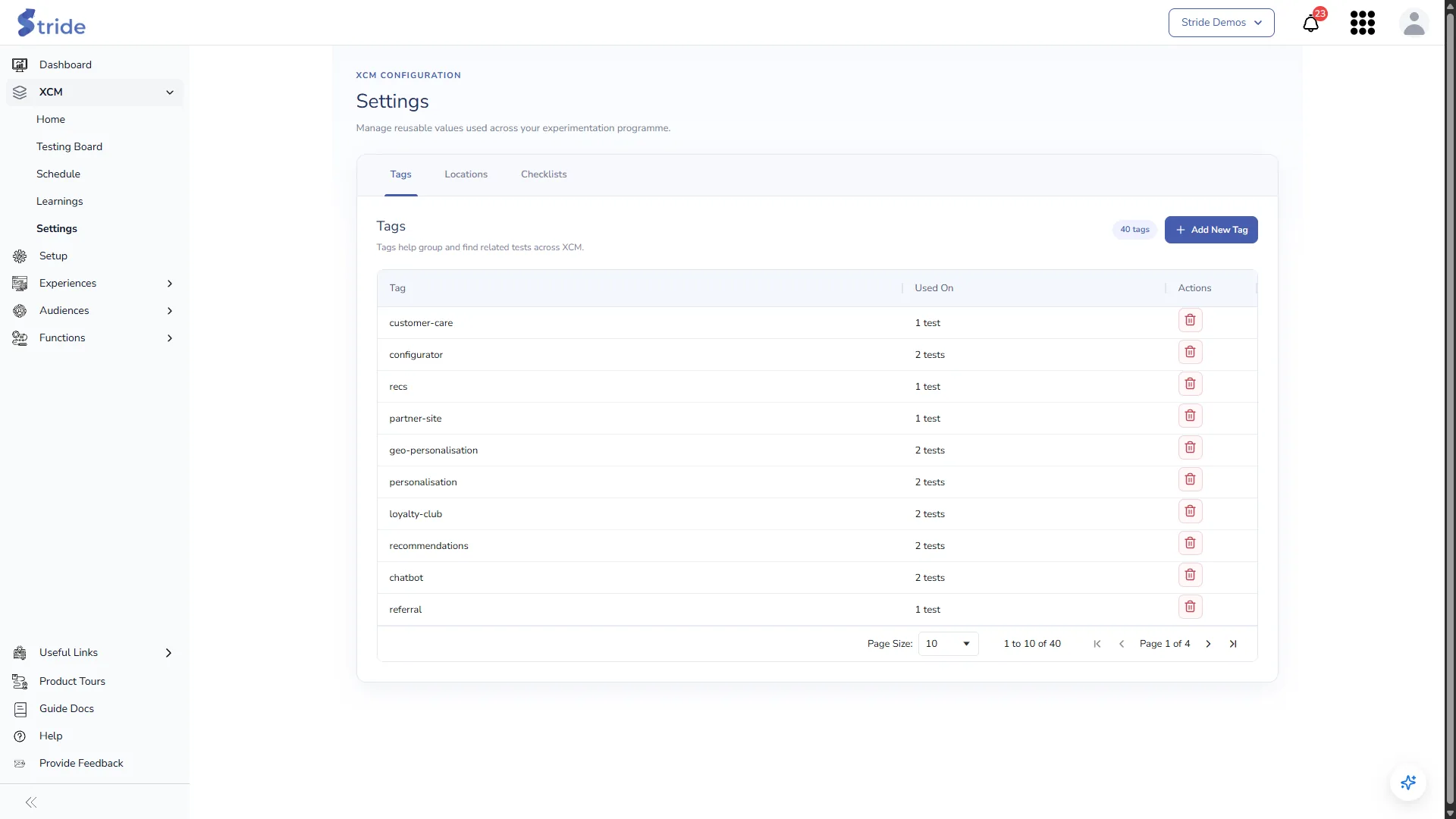
- Click Add New Tag, enter the name and save. Names must be unique.
- Used On shows how many tests use each tag.
- Click the bin icon to delete a tag.
- You can also create a tag while tagging a test.
Locations #
Location fields describe where a test runs. They appear on every test’s Idea step, in the order shown here, and drive conflict checks and the lanes on the Schedule.
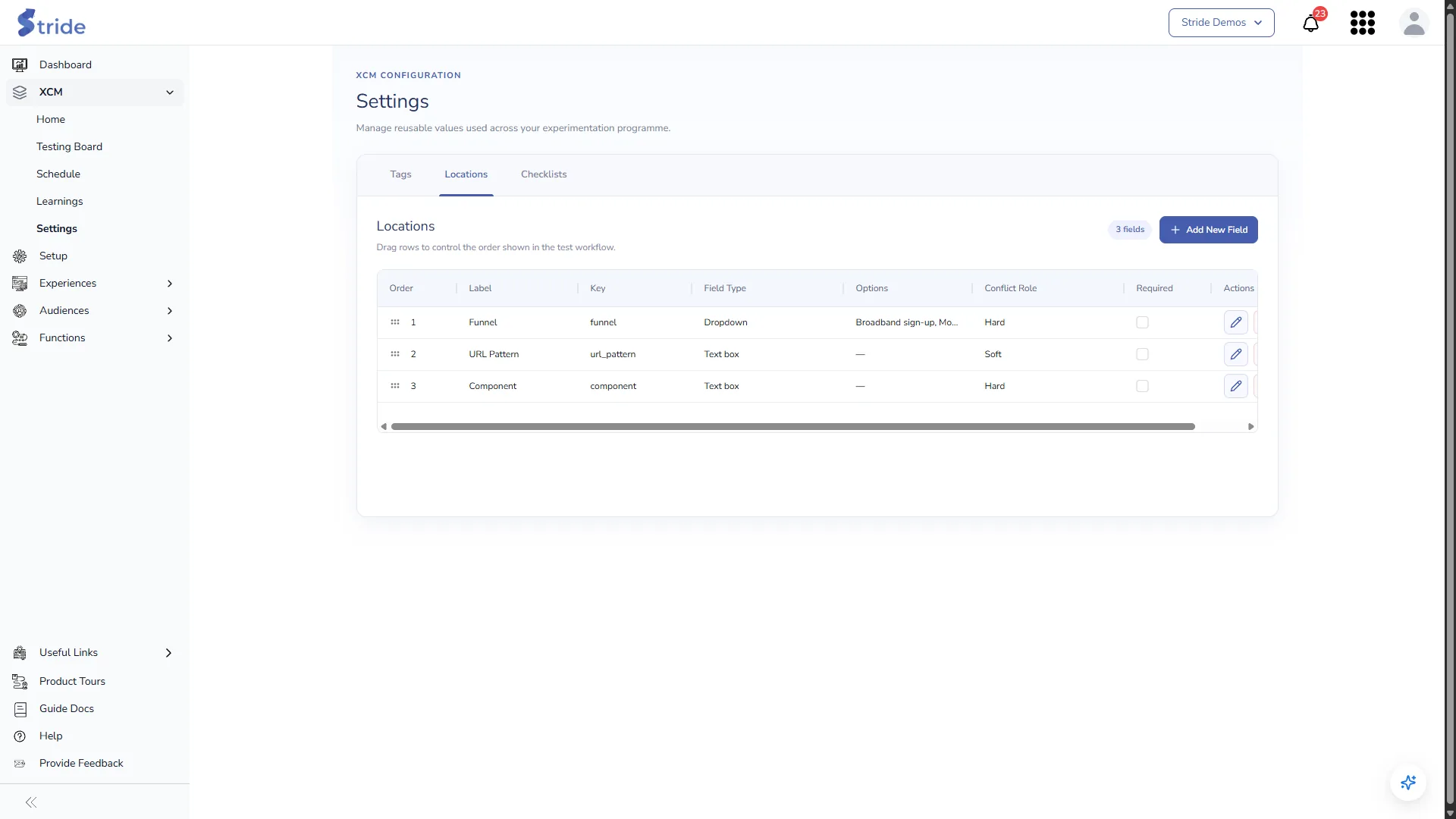
Click Add New Field, or the pencil icon to edit a field.
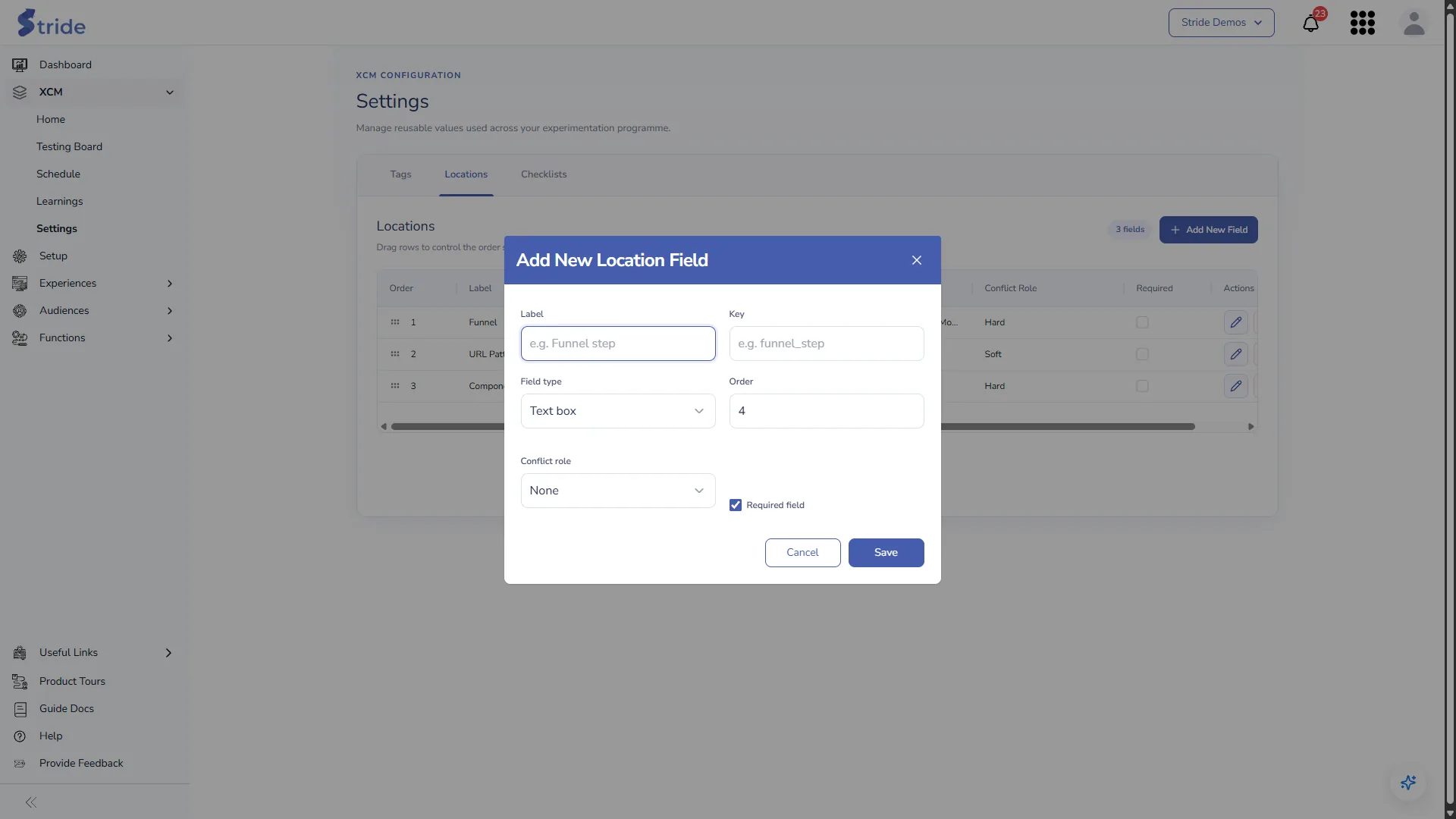
| Setting | Notes |
|---|---|
| Label | What people see, for example “Funnel step”. |
| Key | The field’s internal name, for example funnel_step. Must be unique. |
| Field type | Text box or Dropdown. For a dropdown, enter the options separated by commas. |
| Order | Its position on the Idea step. You can also drag rows to reorder them. |
| Conflict role | Hard: tests with the same value clash. Soft: they might interact. None: not used for conflicts. |
| Required field | Marks the field with * on the Idea step. |
Checklists #
The QA checks every test goes through on the Build & QA step. Staging checks come before any production check; Production checks are done on the live site.
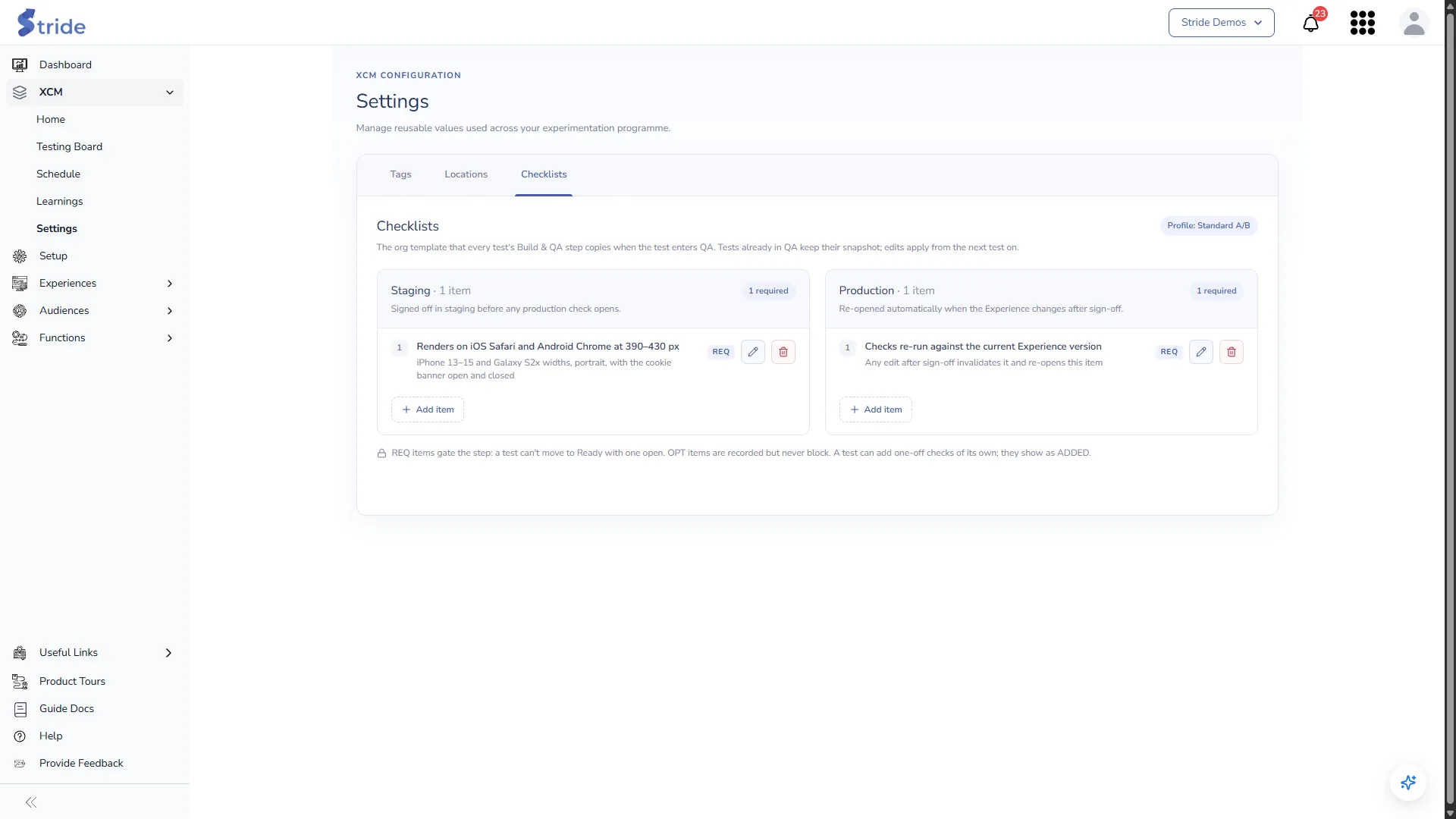
Click Add item, or the pencil icon to edit an item.
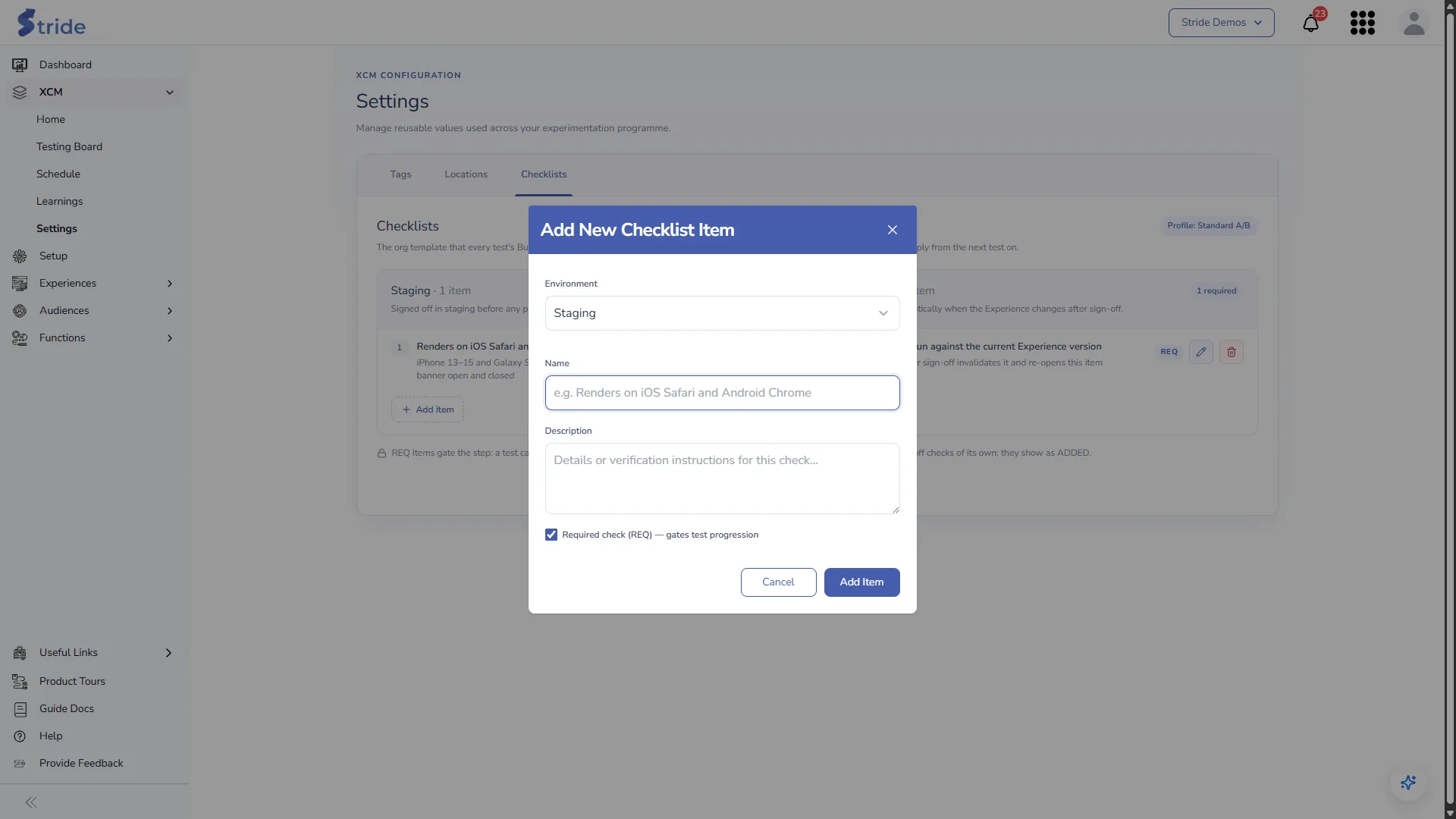
| Setting | Notes |
|---|---|
| Environment | Staging or Production. |
| Name | The check, for example “Renders on iOS Safari and Android Chrome”. |
| Description | How to verify it. |
| Required check (REQ) | Untick to make the check optional (OPT). |
Changes to the checklist apply to every test, including tests already in QA.
Limits #
| Item | Limit |
|---|---|
| Test ID | Up to 40 characters, unique in the organisation |
| Evidence | Up to 3 items per test |
| Secondary metrics | Up to 5 per test |
| Mockups and variant files | PDF, Word, images (JPEG, PNG, GIF, WebP, SVG) and video (MP4, WebM, Ogg, QuickTime); up to 10 MB per file |
| Going live | Needs a start and an end date, with the start no later than the end |


