

The Manage Recommendation function lists the product entities in your Adobe Target Recommendations catalogue, by environment, and lets you add, edit and delete them.
Note
The list comes from Target’s catalogue search index, which can lag behind by several hours. Entities you saved or deleted recently, including by a product feed, may not show yet.
Manage Recommendation #
- Go to Functions and open Manage Recommendation.
- Choose an environment with Select Environment, for example Development, Production or Staging.

- The entity list loads: thumbnail, ID, name, category, page URL, value, brand, inventory, and the last updated and created dates.
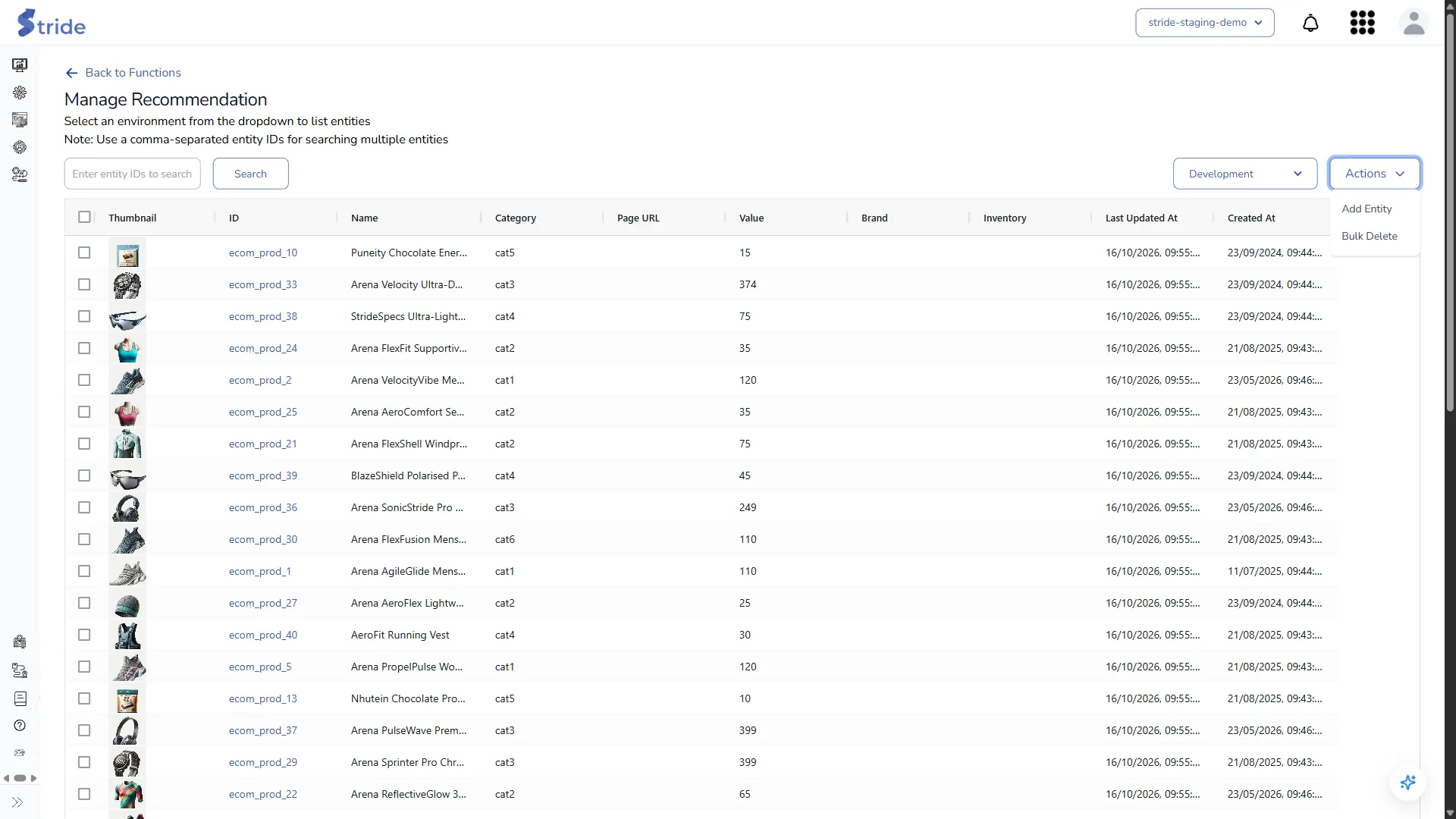
- To find specific entities, enter one or more entity IDs, separated by commas, in Enter entity IDs to search, and click Search.
- To change an entity, click its ID, edit the fields and click Save.
Changes live systems
Saving an entity changes the live catalogue in the chosen environment.
- Open Actions to add or delete entities; see below.
Add Entity #
Actions → Add Entity adds entities to the catalogue from a CSV Upload, a JSON URL, an XML URL or a CSV Upload with custom template.
Changes live systems
Add Entity writes to the live catalogue in the chosen environment.
Bulk Delete #
There are two ways to delete entities:
- Delete the rows you ticked: tick the rows, then choose Actions → Delete. In Confirm Deletion, tick Delete From All Environments if the entities should go from every environment, then click Delete.
- Delete by ID: choose Actions → Bulk Delete. In Bulk Delete Entities, enter the Entity IDs, separated by commas (up to 50 at a time), tick Delete From All Environments if needed, and click Submit.
Changes live systems
Deleting removes products from the live catalogue in the chosen environment, or from every environment if you tick Delete From All Environments. It can’t be undone. Check the environment before you confirm.


