

Reopen past AI Assistant conversations, export answers as files, find those files again in the Library, and run the weekly error report.
Conversation history #
- Click the clock icon at the top of the panel to see your past conversations in the selected project.

- Click a conversation to continue it. The back arrow returns to the chat.
- Click New chat to start a fresh conversation.
History is private to you and kept per project. Each conversation also shows the tokens and cost it used.
Exports #
Ask for a file, for example “export that as CSV” or “make that a PowerPoint”. The assistant can create CSV, PDF, PowerPoint (.pptx) and Word (.docx) files. It builds the file from the original data returned by Adobe or Tealium, not from its own summary, so rows aren’t left out or invented.
Download the file from the link in the answer, or later from the Library.
Library #
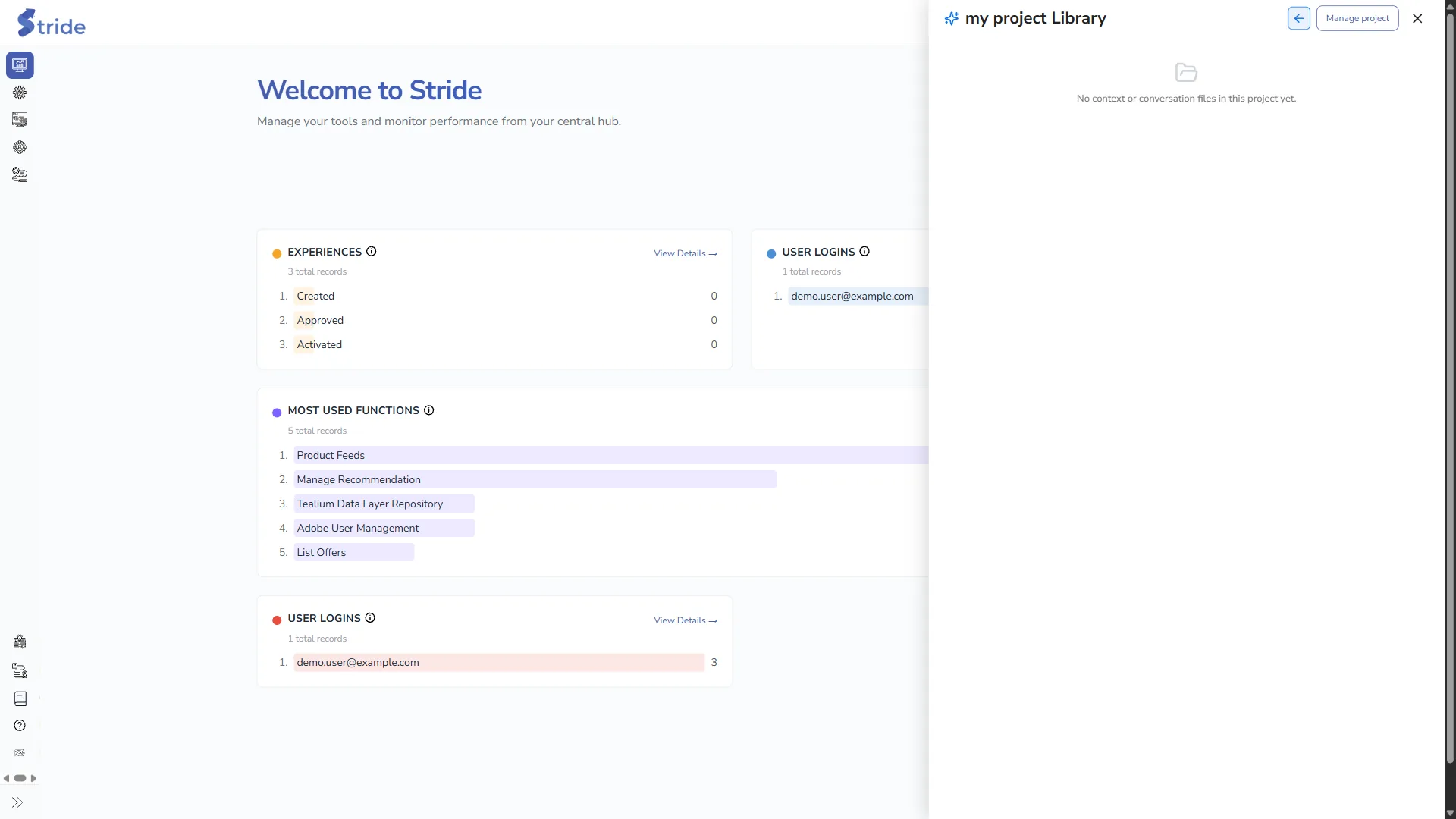
Click Library at the bottom of the panel to list the project’s files:
- Context Doc: the project’s context files, shared with everyone in the organisation (see Context files).
- Conversation: the files the assistant generated in your own conversations in this project.
Click a file to download it.
Weekly error report #
A prompt that asks for an “error report” (or includes a <run_parameters> block) switches the assistant to report mode. It uses Adobe Analytics, compares the last complete Monday-to-Sunday week with the four weeks before it, and returns an HTML report.
Note
A report takes several minutes to run. It needs the Adobe Analytics connector and a report prompt set up for your organisation by the Stride team.
Report mode allows longer prompts and runs for longer than a normal chat; see AI Assistant limits.


