

Define the feed’s field model once, choose the columns Adobe Target receives, then preview the result without pushing anything.
Fields tab #
The feed model is defined once, and every source maps onto it.
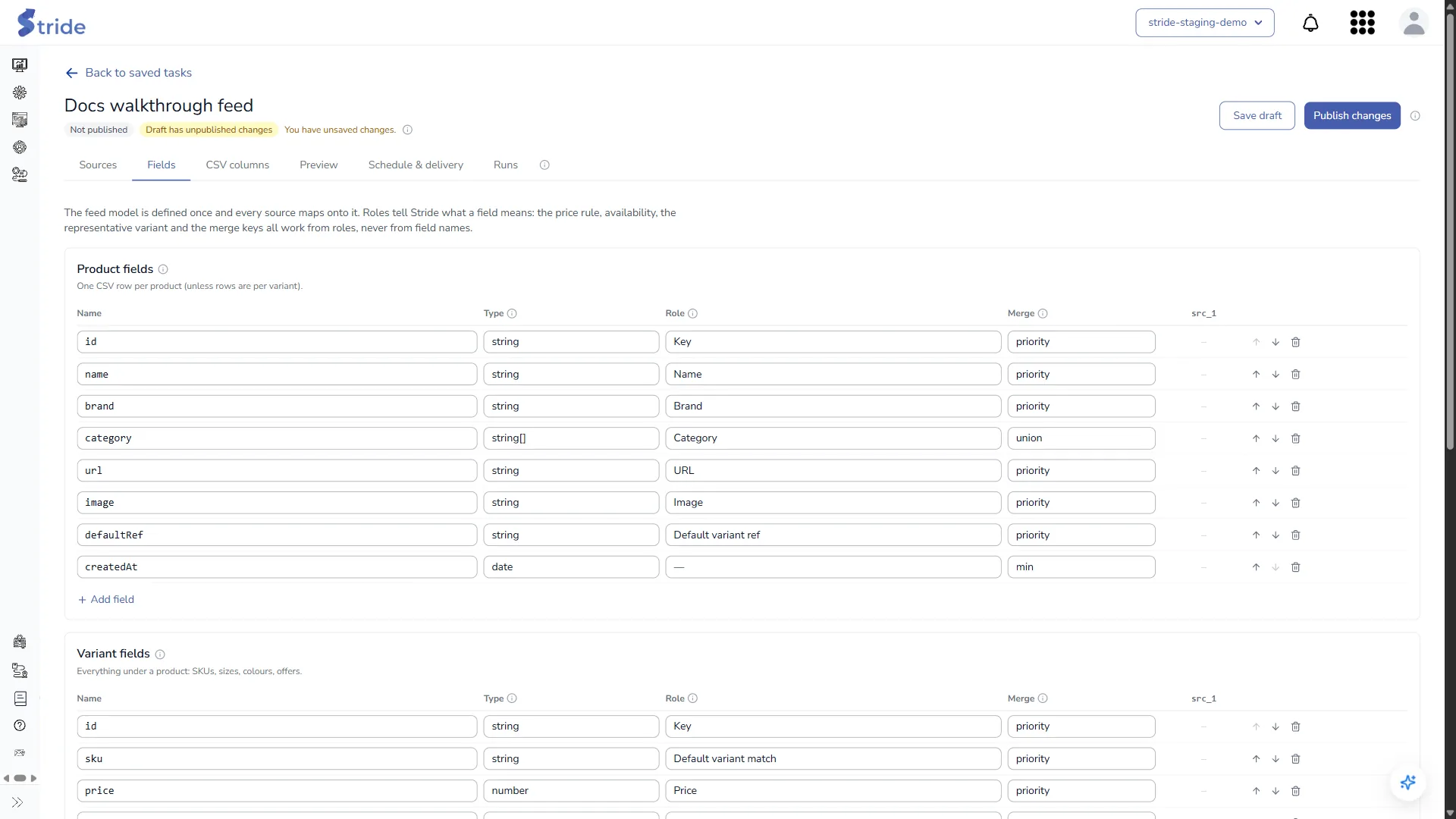
| Column | Options |
|---|---|
| Type | string, number, integer, boolean, date, string[], number[], object |
| Role | Key, Name, Price, Availability, Image, URL, Category, Brand, Default variant ref, Default variant match |
| Merge (how values from several sources combine) | priority, union, min, max, any, all, sum |
Roles drive the logic: the price rule, availability, the representative variant and the merge keys all work from roles, never from field names. Give each field the right role, then map it in step 3 of the source drawer.
CSV columns tab #
The columns Adobe Target receives, one row per product.
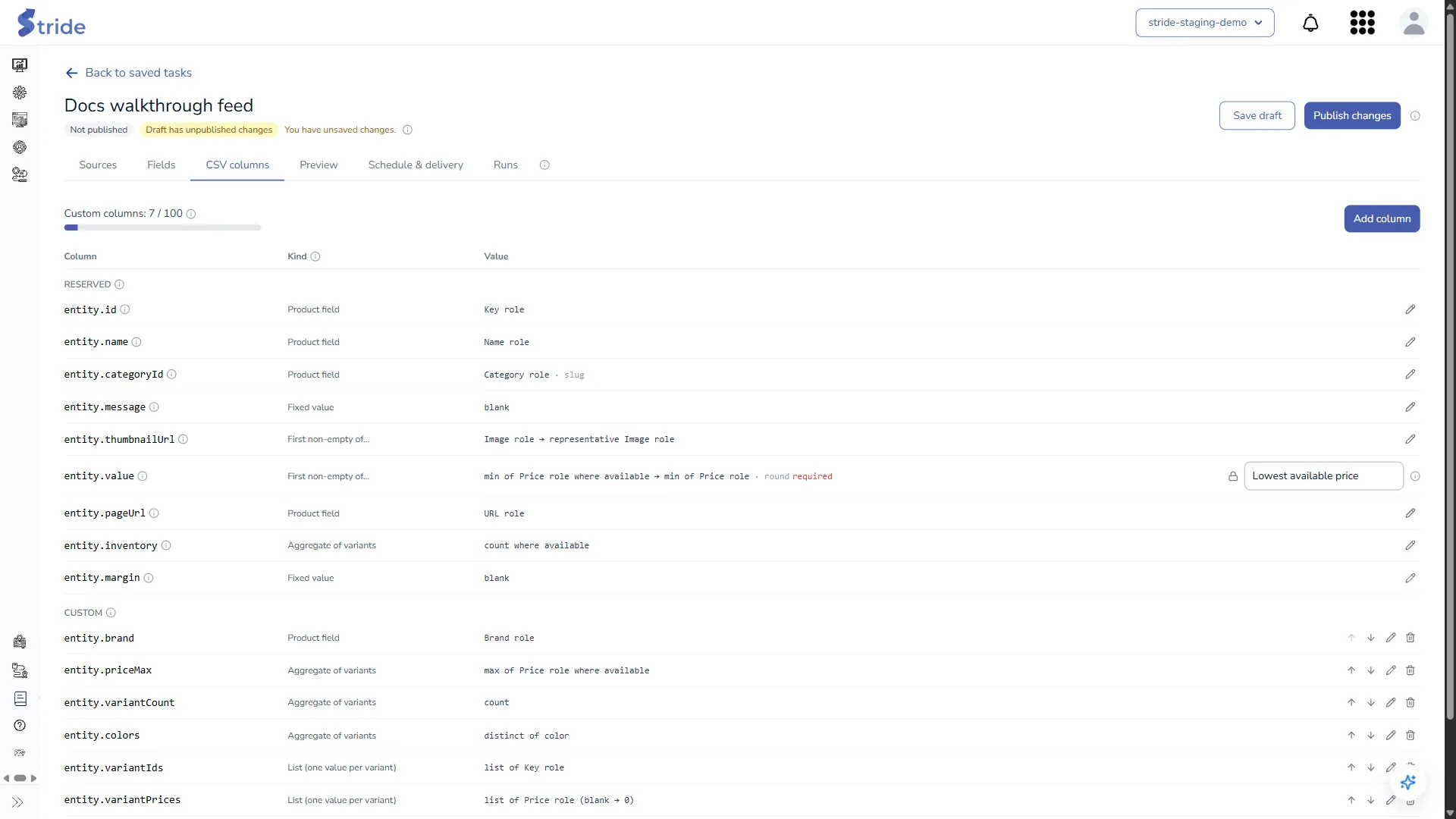
- Reserved columns come first:
entity.id,entity.name,entity.categoryId,entity.message,entity.thumbnailUrl,entity.value,entity.pageUrl,entity.inventoryandentity.margin.entity.nameandentity.categoryIdmust have a value for the push to Target. entity.valueis locked to the price rule: Lowest available price (default) or Lowest price of any variant.- Custom columns: up to 100. The counter at the top (Custom columns: N / 100) shows how many you have used; numbered columns count once per column they produce.
- Each column has a Kind: Product field, Aggregate of variants (count, min, max, distinct), List (one value per variant), Numbered columns (name1…nameN), Variants JSON, Field from one variant, Template, Fixed value or First non-empty of….
- Click Add column to add a custom column. Use the arrows to reorder custom columns, the pencil to edit one and the bin to delete it.
Stride enforces Target’s attribute limits on every value; see Adobe Target limits Stride enforces.
Tip
Add the inclusion rule inventory > 0 to your recommendation criteria in Target, so unavailable products aren’t recommended.
Preview tab #
Preview builds the draft exactly as a real run would, but pushes nothing.

- Under Products to preview, choose First 50 products, First 200 products or All products.
- Click Save and preview (or Build preview if there are no unsaved changes). Stride saves the draft and builds it in the background. The draft must have no validation errors.
- Review the result: the first 200 rows, where each value came from, and the CSV, which you can show or download.
Note
A preview result can be opened once and expires after 5 minutes; after that, build it again. Limited previews only cut the primary sources, and they skip the guardrails. Preview all products to check the guardrails.


