

Link a GitHub repository so experiences can be stored as files, then set up the sync task that brings changes made in GitHub back into Stride as new versions.
Who can do this
Owners and Admins. Editors can see the form, but Stride refuses to save it for them (“Admin or Owner role required for this organization.”).
GitHub integrations #
A GitHub integration connects one repository and branch. In Setup, tick Github, then click Manage beside it. Github Integrations opens.
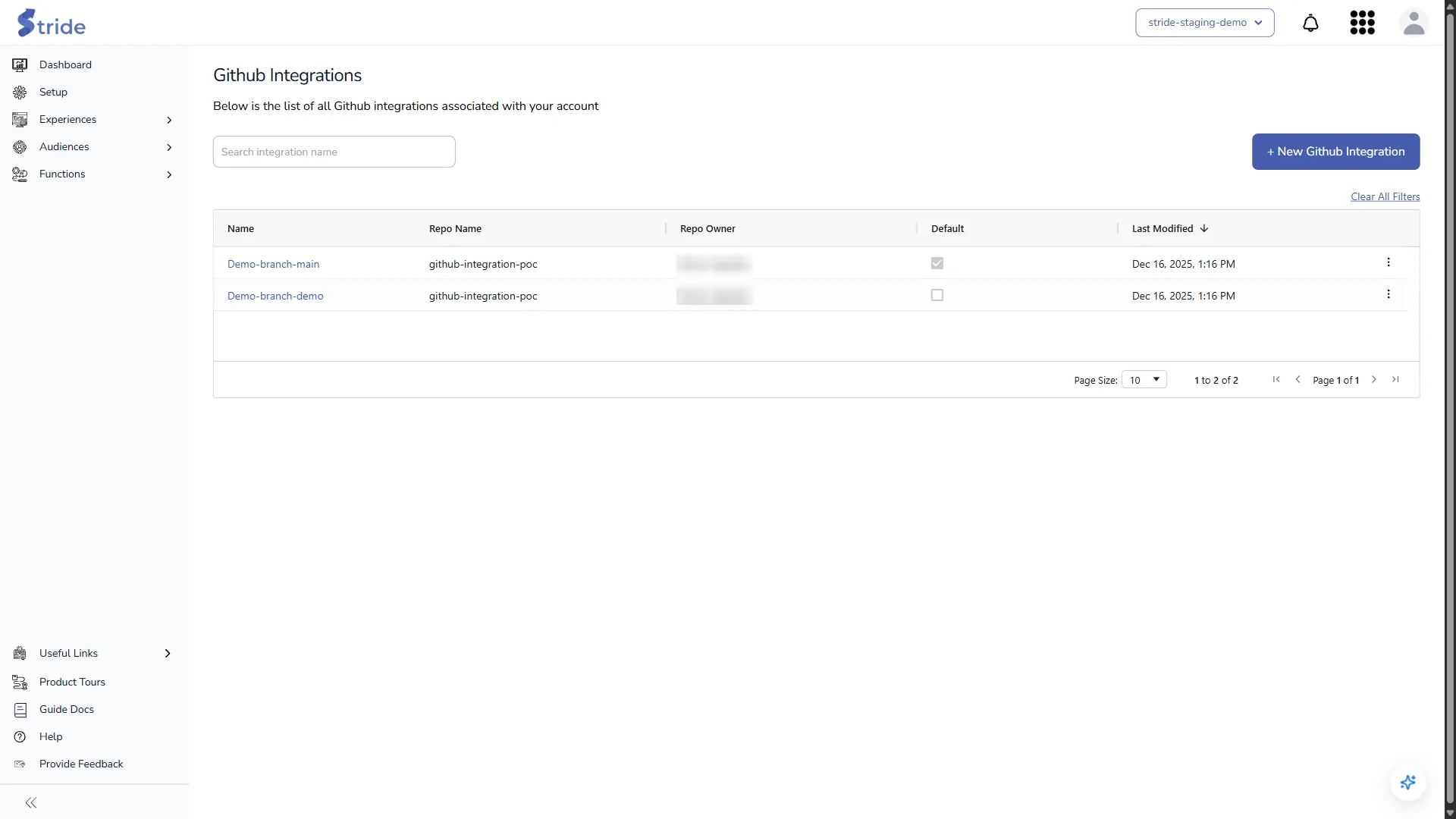
Add a GitHub integration #
- Click + New Github Integration.
- Fill in the form:
| Field | Meaning |
|---|---|
| Name | Your label. |
| Access Token | A GitHub personal access token with access to the repository. Hidden as you type. |
| Repository Name | The repository, for example experiences. |
| Repository Owner Github Username | The user or organisation that owns the repository. |
| Branch Name | Pick a branch. Stride fetches the list once the token, repository and owner are filled in. |
| File Extensions | The file types Stride reads: js, json and/or html. |
| Include Paths | Optional. Comma-separated folders to include. |
| Naming Convention | Optional. A regular expression that file names must match. |
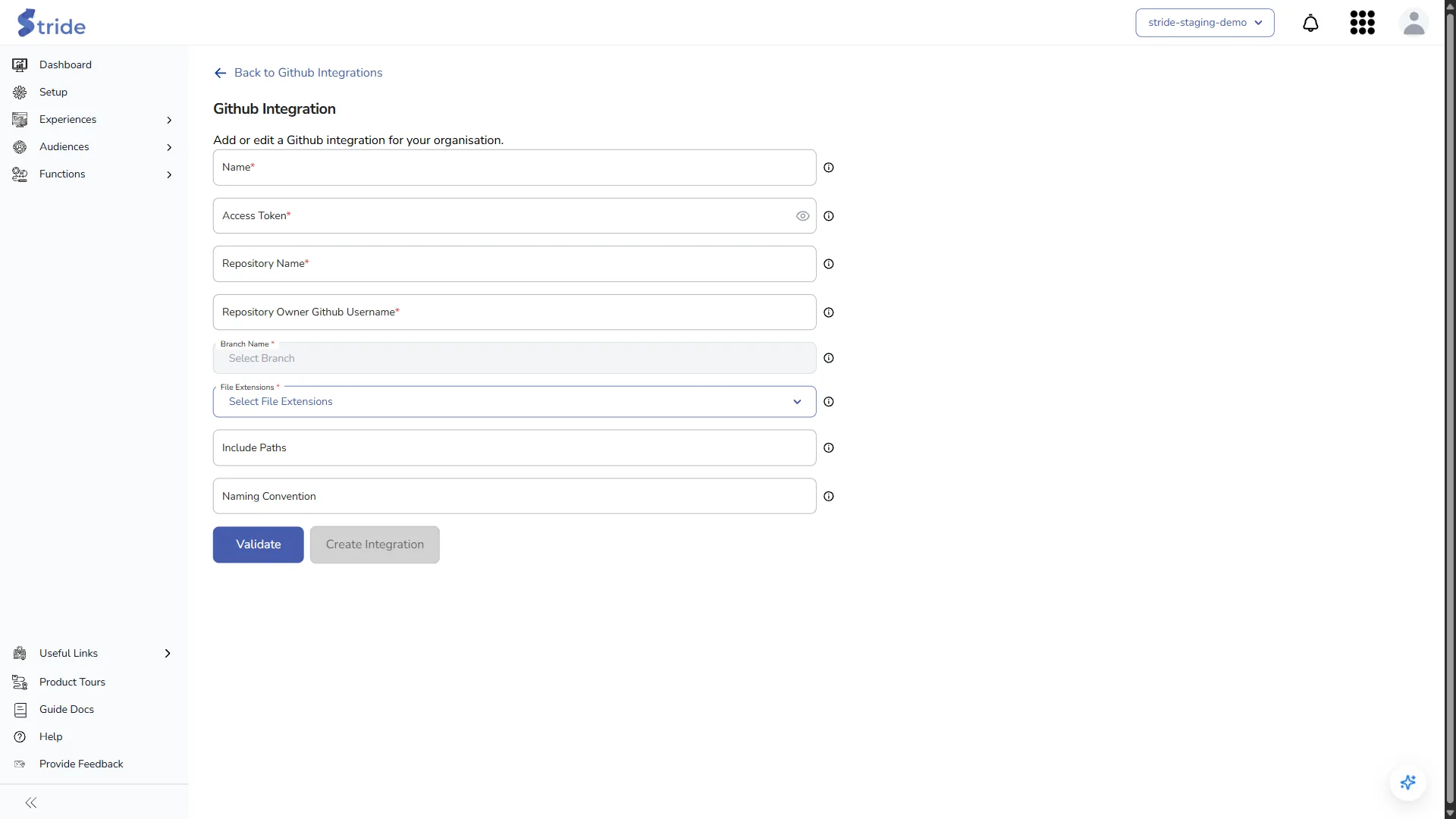
- Click Validate. Stride checks that the include paths exist and shows “All paths are valid.”, or lists the invalid paths.
- Click Create Integration. It stays disabled until validation succeeds.
To change an integration later, click ⋮ → Edit, validate again and click Update Integration.
Stride stores the access token encrypted. To keep your experiences in sync with the repository, set up the GitHub Experience Synchronization task.
GitHub Experience Synchronization #
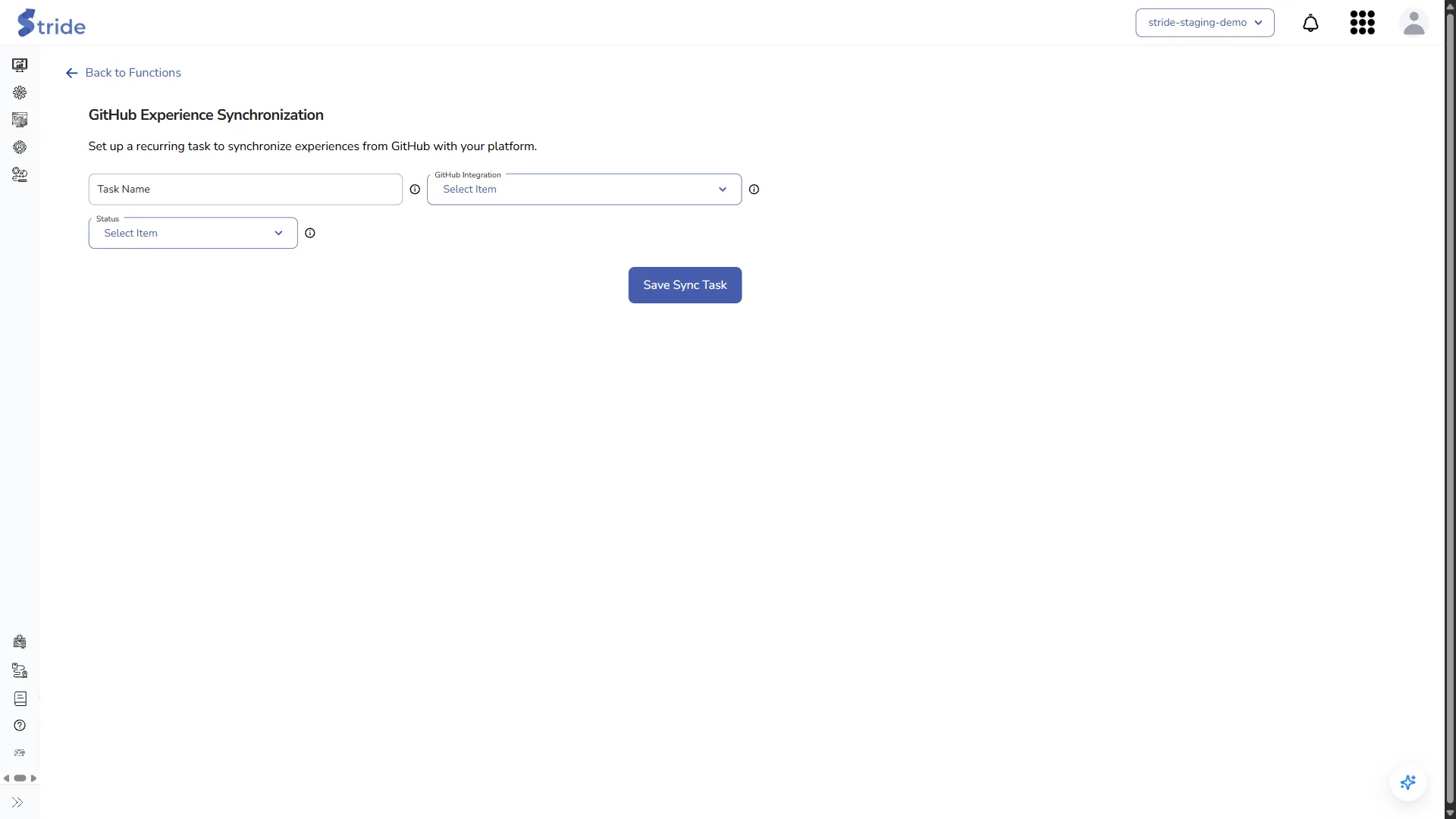
This function keeps your experiences in sync with the repository. When someone changes a file in GitHub, the matching experience gets a new version with the source github.
Plan
GitHub Experience Synchronization is a function, so it needs a plan that includes Functions (not Starter).
- Open Functions and choose GitHub Experience Synchronization.
- Enter a Task Name and choose the GitHub Integration.
- Set Status to ENABLED.
- Click Save Sync Task.
A change creates a new version only when:
- the task is ENABLED;
- the change is on the integration’s repository and branch;
- the file matches the integration’s file extensions, include paths and naming convention;
- the file is already linked to an experience. Stride ignores new files.
Note
Synced edits arrive as new experience versions with the source github. See Edit, version, duplicate or delete an experience.


