

An experience is a filled-in copy of a template that Stride can send to Adobe Target, AEM, Contentful or Tealium. This page explains how templates, experiences, versions and activations fit together, and how to read the Manage Experiences list.
Plan
Every experience you create, duplicate or upload counts against your plan’s Create Experience quota (5 per month on Starter). When the quota is used up, the + Create Experience and Bulk Upload Experiences buttons disappear until it renews. Check your usage on My Plan.
From template to activation #
Template ──(fill in the form)──▶ Experience ──(save)──▶ Version: Draft or Approved ──(activate)──▶ Target offer · AEM fragment · Contentful entry · Tealium extension- Template: the HTML, CSS and form definition (Config JSON), built once in the template editor.
- Experience: one set of form values for a template. You can create as many experiences from a template as your plan allows.
- Version: every save of an experience is a version, up to 10 per experience. One version can be Approved; the others are Draft. A new experience starts as a draft. It’s approved automatically the first time you create an offer, entry or Tealium extension from it.
- Activation: a copy of the experience in a destination, such as an Adobe Target offer or a Contentful entry. Stride remembers each one. When the approved version changes, Stride updates all of them, including linked files in a synced GitHub repository.
Activate an experience and Edit, version, duplicate or delete an experience explain each part in detail.
Manage experiences #
Go to Experiences → Manage Experiences.

| Column | Meaning |
|---|---|
| Status icon | Green tick = Approved (the experience has an approved version). Orange clock = Draft (nothing approved yet). |
| Experience Name | Click it to open the experience details. |
| Template Name | The template the experience was built from. “Template deleted” means the template no longer exists. |
| Last Edited / Managed By | When and by whom it was last changed. |
| Activations | The IDs of the offers, entries and extensions (and GitHub file paths) the experience is linked to. A dash means it hasn’t been activated. |
Use Search Experience to filter by name. Tick the checkboxes of two or more rows to show Bulk Actions (see bulk actions).
The ⋮ menu on a row offers:
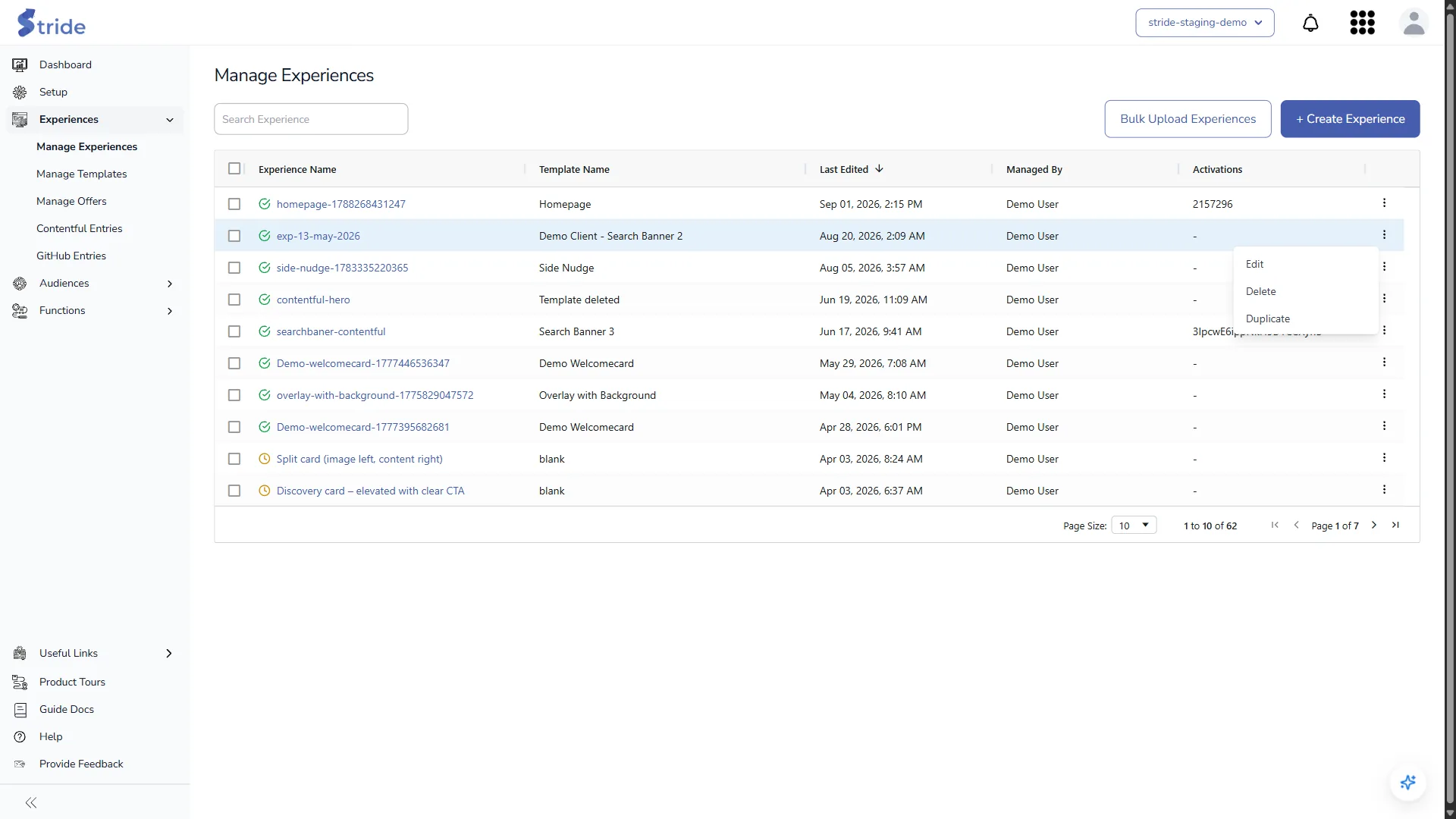
- Edit: open the experience in the editor. See Edit a version.
- Delete: Stride checks for activations, then asks you to confirm. See Delete an experience.
- Duplicate: copy the experience as a new draft. See Duplicate an experience.


