

Contents
Stride shows a page or button only when five checks pass, so a missing feature usually comes down to your plan, your role, an integration, a used-up quota or function access.
The five checks #
| Check | The question Stride asks | Where to look |
|---|---|---|
| Plan | Is this page or feature in your organisation’s plan? | My Plan, in the account menu (Owners). See Your plan and usage. |
| Role | Does your role (Owner, Admin or Editor) allow it? | Profile shows your Organisation Role. See Invite and manage users and roles. |
| Integration | Is the source or destination ticked in Setup, and is there an integration for it? | Setup, and the default integrations menu in the header. See Sources, destinations and how Setup works. |
| Quota | Is there usage left for this feature in the current period? | My Plan → Features (Usage). |
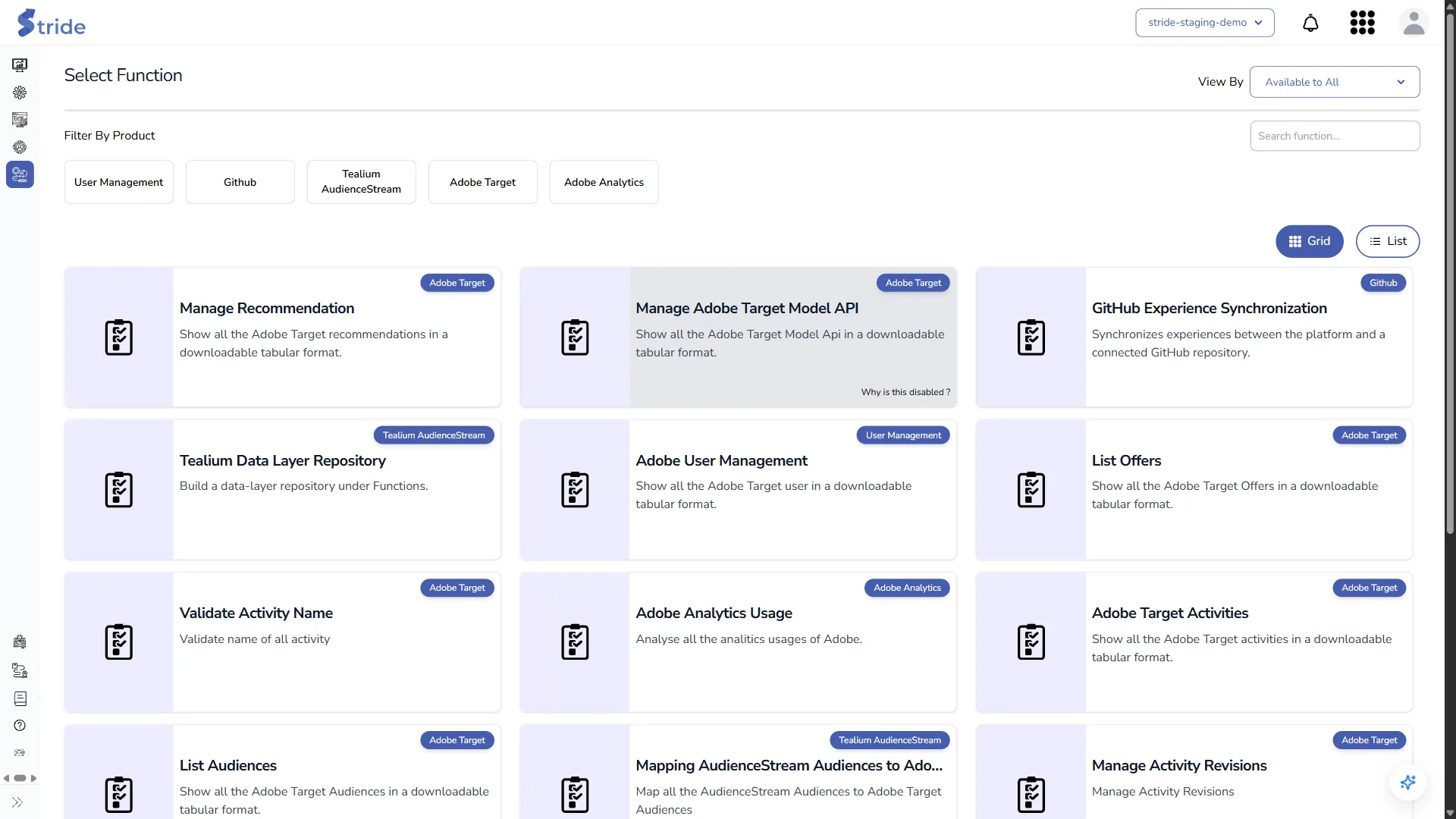
| Function access | For Functions and Product Feeds: is this function allowed for your plan and your role? | The function card. Hover over Why is this disabled ?. |
When a check fails, Stride usually hides the menu item or button rather than showing an error. If you follow a link to a page your plan doesn’t include, you see Page Not Found, or Stride takes you back to the dashboard.
Note
Changes to your role, plan or Setup can take up to 5 minutes to apply, because permissions are cached. Reload the page to pick up the change.
Symptoms and fixes #
Navigation and account #
| What you see | Likely cause | What to do |
|---|---|---|
| Functions isn’t in the left navigation. | Your plan doesn’t include Functions (Starter, for example). | Check My Plan and upgrade if you need Functions. |
| Manage Offers, Contentful Entries, GitHub Entries or AEM Content Fragments is missing under Experiences. | That source isn’t ticked in Setup, or your plan doesn’t include it. | Ask an Owner or Admin to tick it in Setup. |
| Manage Users and My Plan are missing from the account menu. | They are for Owners only. | Ask an Owner. |
| Access Denied after you log in. | You don’t belong to an organisation, or every organisation has blocked you. | Ask an Owner to invite or unblock you. See Log in and reset your password. |
| + Invite User is missing, or Unblock says “Usage limit reached. Unblock denied.” | Your plan’s user limit is reached. Members and pending invitations both count. | Revoke unused invitations, or upgrade. See Invite and manage users and roles. |
Setup #
| What you see | Likely cause | What to do |
|---|---|---|
| Ticking a box in Setup does nothing. | Your role can’t change Setup (Editors). | Ask an Owner or Admin. |
| Manage is missing beside a source or destination. | The item isn’t ticked, or your role can’t manage integrations. | Tick it first, or ask an Owner or Admin. |
| + New Adobe IO Integration, + New Tealium API Key Integration or the row ⋮ menu is missing. | Your role can’t create or change integrations. | Ask an Owner or Admin. |
| “Admin or Owner role required for this organization.” when you save. | Only Owners and Admins can save integrations. | Ask an Owner or Admin. |
Experiences and templates #
| What you see | Likely cause | What to do |
|---|---|---|
| + Create Experience and Bulk Upload Experiences are missing. | Your Create Experience quota is used up for this period. | Check My Plan → Features (Usage). Wait for the quota to renew, or upgrade. |
| The button reads Save and Close and there is no Activate Experience step. | Your role can’t activate experiences. | Ask an Owner or Admin to activate it. See Activate an experience. |
| Save and Activate is missing when you edit a draft. | Only experiences with an approved version can be activated from the editor. | Save the draft, then activate the approved version. See Edit, version, duplicate or delete an experience. |
| Gallery (or List or Preview) is missing in Choose Template. | Your role doesn’t include that view. | Use another view, or ask an Owner or Admin. |
| Bulk Actions doesn’t appear. | It only appears once you tick two or more experiences. | Tick at least two. See Preview, activate or delete experiences in bulk. |
| Bulk Preview, Bulk Activation or + Create Template is missing. | Your plan or role doesn’t include it. Starter, for example, can’t create its own templates. | Check My Plan, or ask an Owner or Admin. |
| Create Offer or Update Offer is missing in the Activate step, or it says “No activation found.” | The destination isn’t ticked in Setup, or your role can’t use it. | Ask an Owner or Admin to tick the destination. |
| ‘No Contentful integration selected for upload field “…”‘ when you click Next. | You have no Contentful integration in use. | Add one and make it the default, or pick one in the default integrations menu. See Connect Contentful. |
| Manage Offers says “Please add at least one Adobe IO Integration to view offers.” | Your organisation has no Adobe IO integration. | Add one. See Connect Adobe Target, Analytics and User Management. |
| Manage Offers shows only its title, with no table. | No Adobe IO integration is selected as the default. | Set one as the default, or pick one in the default integrations menu. |
| GitHub Entries says “Please add at least one Github Integration to view Github Entries.” | Your organisation has no GitHub integration. | Add one. See Connect and sync a GitHub repository. |
| GitHub Entries is empty although you have an integration. | The integration’s branch, file extensions, include paths or naming convention match no files. | Edit the integration and check those fields. |
Warning
Contentful Entries and AEM Content Fragments also need an Adobe IO integration in use. Without one, they ask you to add an Adobe IO integration, even when Contentful or AEM is set up.
Functions #
| What you see | Likely cause | What to do |
|---|---|---|
| A function card is greyed out with Why is this disabled ?. Hover over it: “This function is not accessible to your organisation.” | Your plan doesn’t include the function. | Check My Plan, or upgrade. |
| The hover text is “This function is not accessible to you”. | Your role can’t run the function. | Ask an Owner or Admin. |
| The hover text is “This function is not accessible to you and your organisation.” | Both your plan and your role block it. | Check My Plan and ask an Owner. |
| A function you expect isn’t listed at all. | View By is set to Available to you. | Choose Available to all to see the full catalogue. See Find and run functions. |
| Adobe User Management says “Please select Adobe IO Integration”. | No Adobe IO integration is in use. | Set one as the default, or pick one in the default integrations menu. |
| Adobe User Management says “Please select adobe integration io with user management scope to view users data”. | The Adobe IO integration in use doesn’t include User Management. | Edit the integration, tick User Management, validate and submit. |
AI Assistant #
| What you see | Likely cause | What to do |
|---|---|---|
| AI Assistant Unavailable with Upgrade Plan. | Your plan has no AI credits. | Upgrade the plan. See Your plan and usage. |
| “Insufficient AI Credits. Please top up your organisation AI credits to continue using AI features.” | Your AI credits for this period are used up. | Wait for them to renew, or ask an Owner to add credits. |
Still stuck? #
- Ask an Owner to check My Plan and your Organisation Role in Manage Users.
- Reload the page and wait up to 5 minutes after any change.
- If it still doesn’t work, tell the Stride team through Provide Feedback. See Product tours, useful links and feedback.


