

Two recurring functions for Adobe Target activities: one emails a regular list of activities that break your naming rules, the other copies Target’s revision history into Stride.
Note
Both are recurring tasks. Task names may contain letters, numbers, dots, dashes and underscores. Press Enter after each recipient email address.
Validate Activity Name #
Checks that your Adobe Target activity names follow your naming convention, and emails a report of the ones that don’t.
- Go to Functions and open Validate Activity Name.
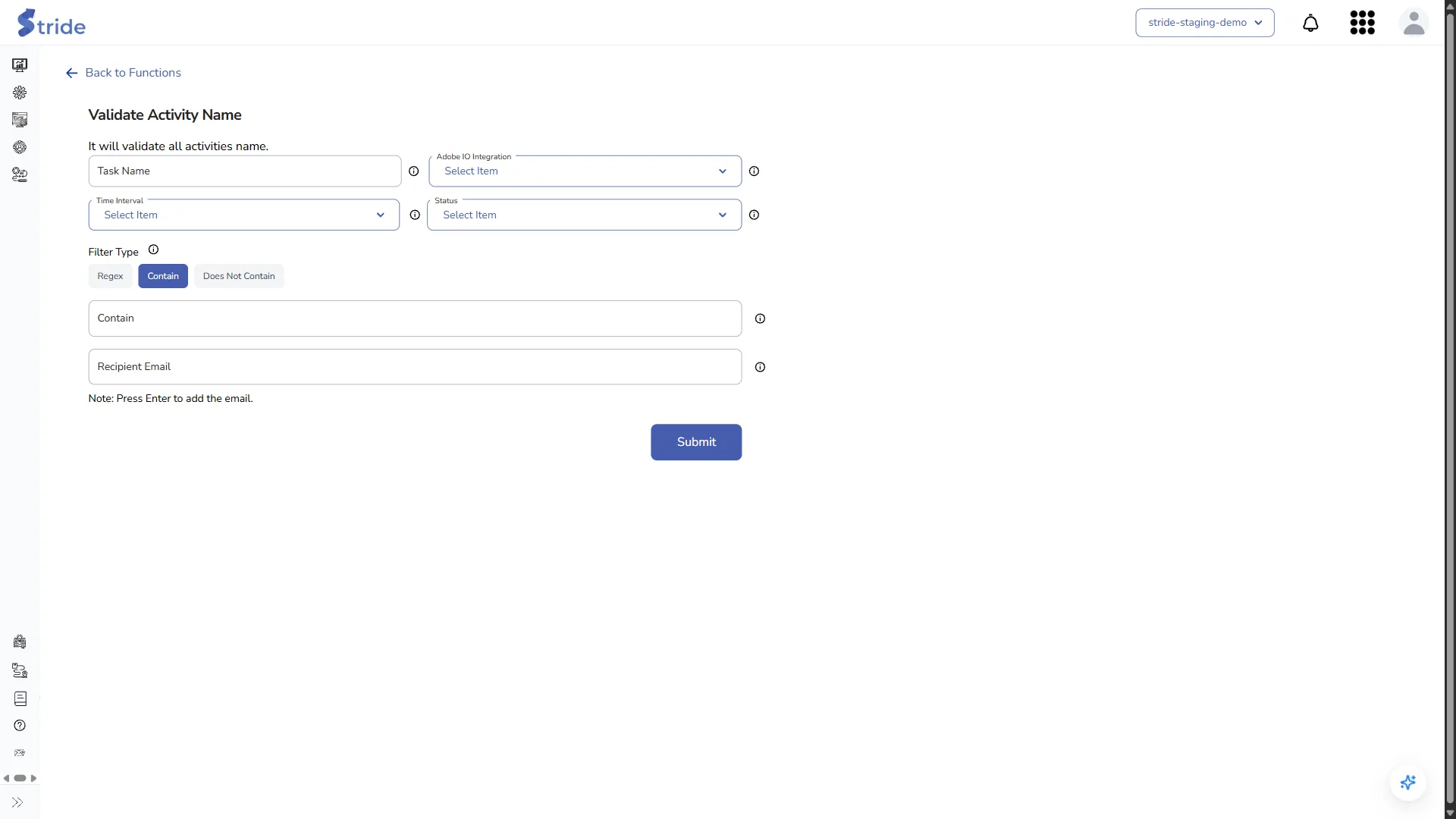
- Enter a Task Name.
- Choose the Adobe IO Integration: the Target account to check.
- Set the Time Interval and the Status; see recurring tasks.
- Choose the Filter Type and enter the value to test names against:
- Regex: names must match a regular expression, for example
^\d{2}/\d{2} - (AB|XT) - .+$. - Contain: names must contain the text.
- Does Not Contain: names must not contain the text.
- Regex: names must match a regular expression, for example
- Add each Recipient Email and press Enter after each one.
- Click Submit.
Manage Activity Revisions #
Copies the revision history of your Adobe Target activities into Stride, so you can see who changed what and when. Activities from every workspace are included.
- Go to Functions and open Manage Activity Revisions.

- Enter a Task Name, then choose the Adobe IO Integration, Time Interval and Status.
- Choose the State: All, Approved, Saved or Deleted. This filters the activities.
- Choose the Modified Year: All, or a year from 2023 to 2027. This filters the revisions, so an activity edited this year can still show its older revisions.
- Add each Recipient Email, then click Submit.
See the collected revisions #
- Go to Functions → Saved Tasks.
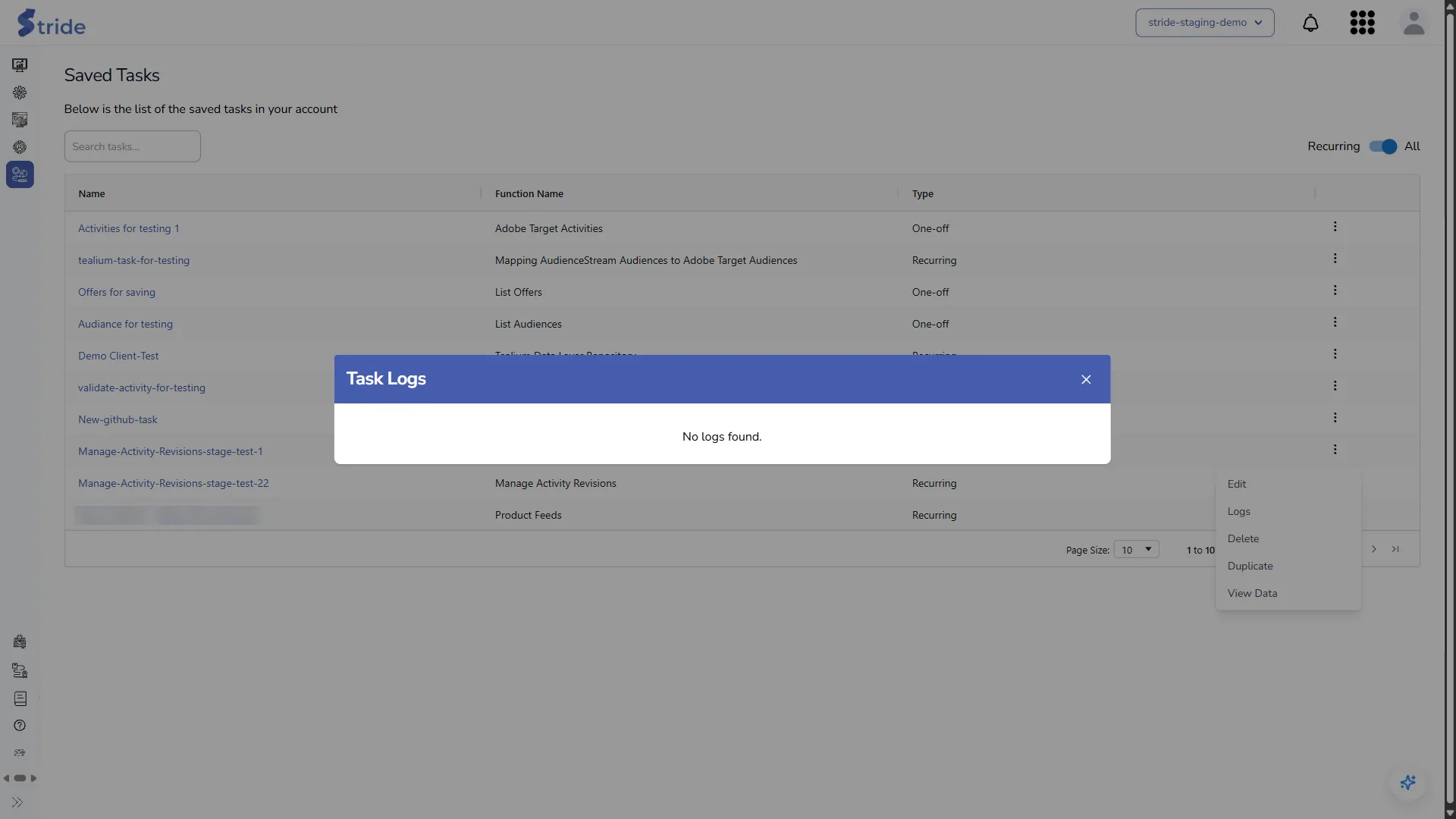
- Open the ⋮ menu on the revision task and choose View Data.
The Adobe Target Activity Revisions screen shows the revision history of each activity, added up across all the runs of your revision tasks:
- Activity Name, Total Revisions, a count per operation (for example create, update and delete) and Unique Users.
- Click an activity row to expand it and see the counts per user (User Email and User Name).
- Use Search activity… and Filter by date (the last month by default) to narrow the list, the refresh icon to reload it, and the download icon to save it as CSV.
If the task hasn’t run yet, the screen says “No revision data found. Run the task first to populate data.”


