

Learn what is in the header and the left navigation, and how to switch organisation, read notifications and see which integrations you are using.
The Stride layout #
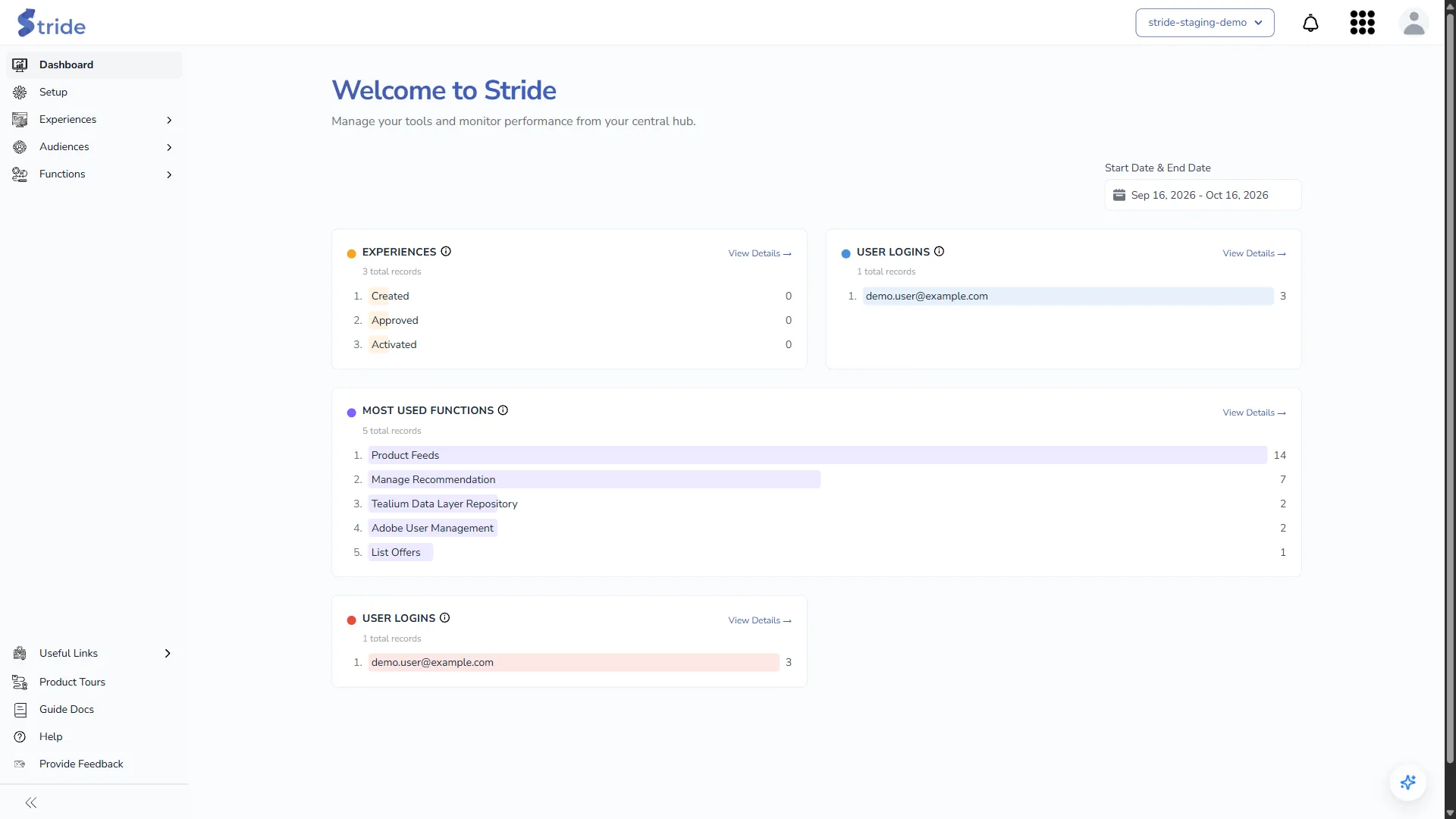
| Area | What it contains |
|---|---|
| Header (top right) | Organisation switcher, notifications bell, default integrations menu (the grid icon), account menu (the person icon). |
| Left navigation (top) | Dashboard, Setup, Experiences, Audiences, Functions. |
| Left navigation (bottom) | Useful Links, Product Tours, Guide Docs, Help, Provide Feedback. |
| AI Assistant button (bottom right) | Opens the AI Assistant panel. See Ask the AI Assistant. |
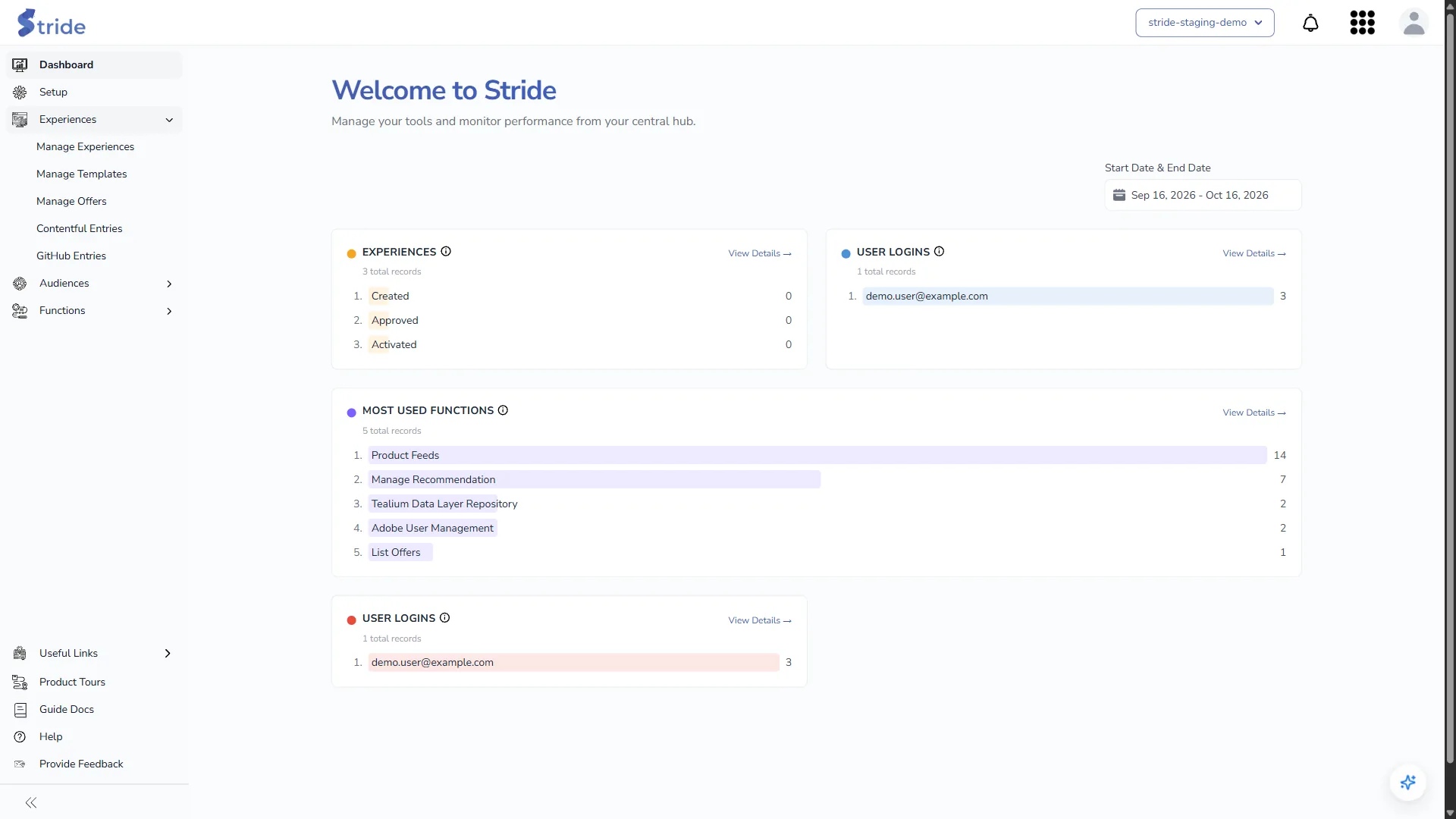
Click the arrow beside a menu item to expand it. For example, Experiences expands to Manage Experiences, Manage Templates, Manage Offers, Contentful Entries and GitHub Entries, plus AEM Content Fragments and Tealium Experiences if your organisation uses them.
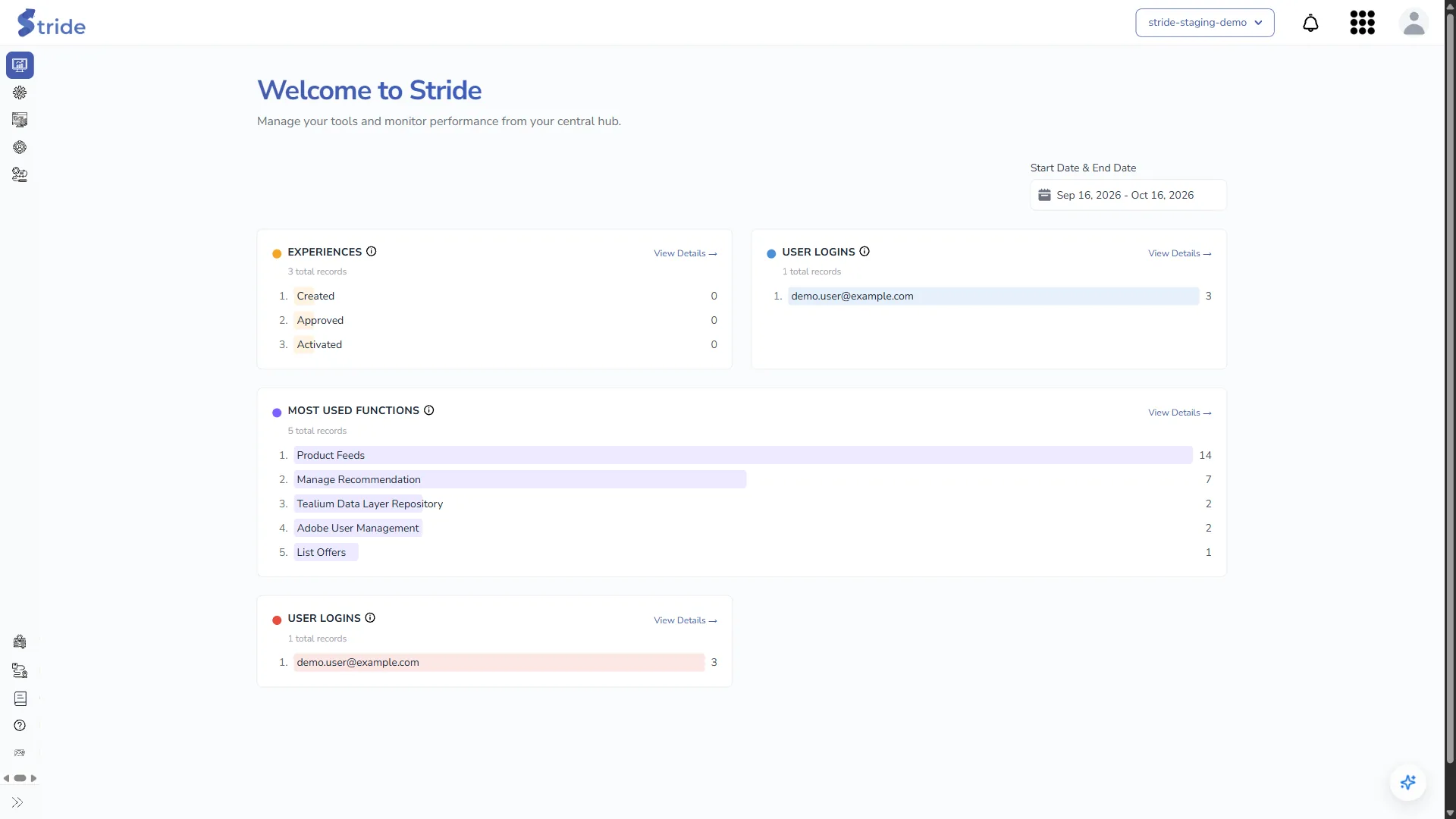
Click the « button at the bottom of the navigation to collapse it to icons only. Click it again to expand it.
Plan
Menu items appear only if your organisation’s plan includes them, and some also need a source ticked in Setup. For example, Functions is not on the Starter plan. If a page you expect is missing, see Why can’t I see a page or button?.
Switch organisation #
If you belong to more than one organisation:
- Click the organisation name in the header.
- Choose another organisation from the list.

Stride loads that organisation’s integrations and takes you to its dashboard. Stride remembers your choice in this browser. An organisation that has blocked you is greyed out in the list.
Note
Everything you do after switching applies to the selected organisation only, including which integrations are used.
To choose the organisation Stride opens when you log in, use Set as Default on the Organisation page. See Your profile and organisations.
Notifications #
Click the bell to see release announcements and plan reminders.
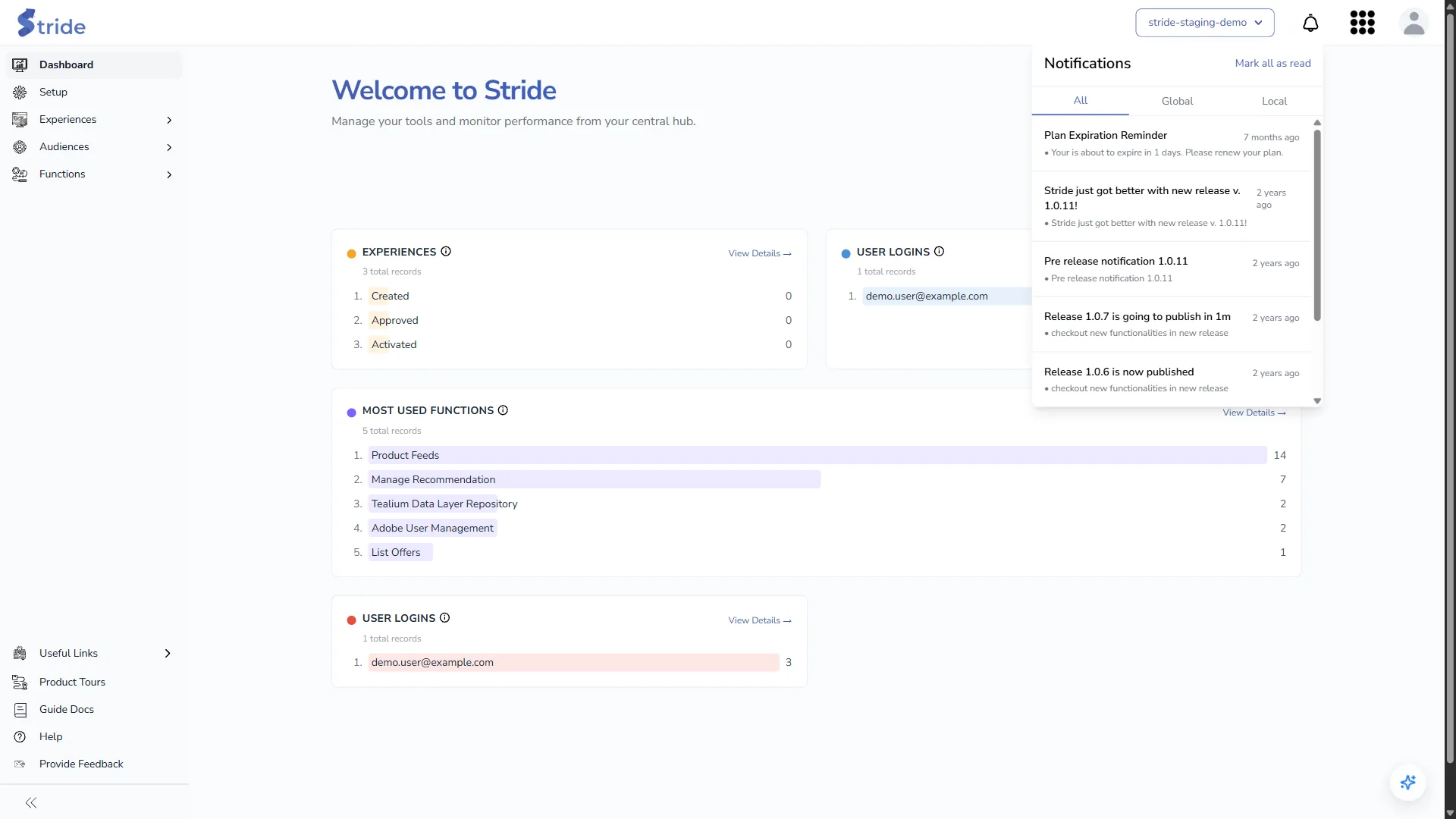
- The All, Global and Local tabs filter the list. Global notifications come from the Stride team. Local notifications are for your organisation, for example when a background AI Assistant answer is ready.
- Click a notification to mark it as read and open its link.
- Mark all as read clears the unread badge.
- Stride checks for new notifications every 15 seconds and whenever you switch organisation.
Default integrations menu #
The grid icon shows which integration of each type you are using now: Adobe IO Integration, GitHub Integration, Tealium Integration, Contentful Integration, AEM Adobe IO and, once you have an Adobe IO integration, Adobe Target Workspace. You only see the types your plan includes.
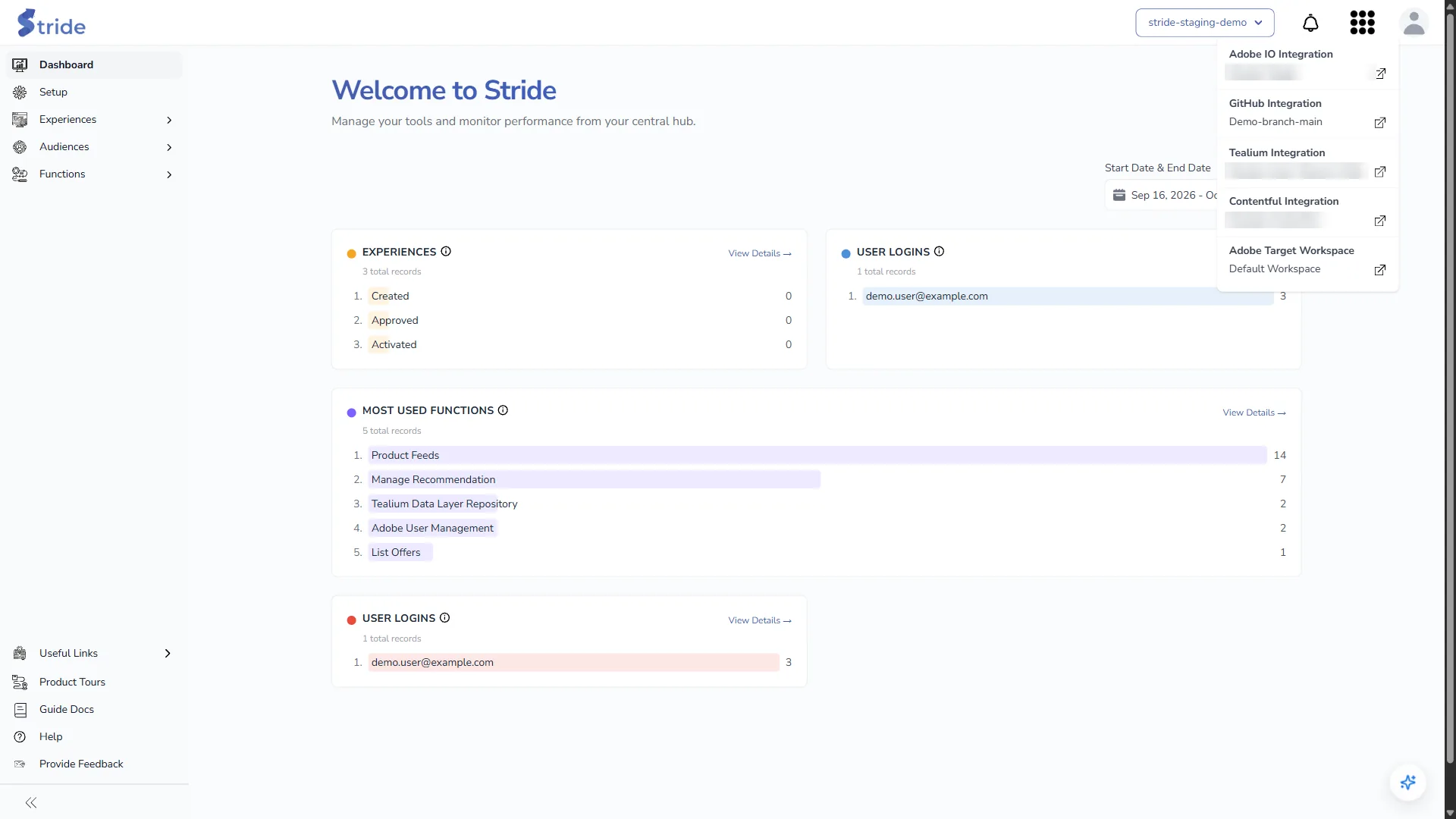
- When you log in, each entry starts as your organisation’s default integration.
- Click an entry to pick a different integration of that type. The choice applies to your current session only and doesn’t change the organisation default for anyone else.
- If a type has no integration yet, the entry reads Add new … and opens the page to create one.
Manage Offers, Functions, image uploads in experiences and the AI Assistant use the integration shown here. To change the default for the whole organisation, see Set a default integration.
Account menu #
Click the person icon to open:
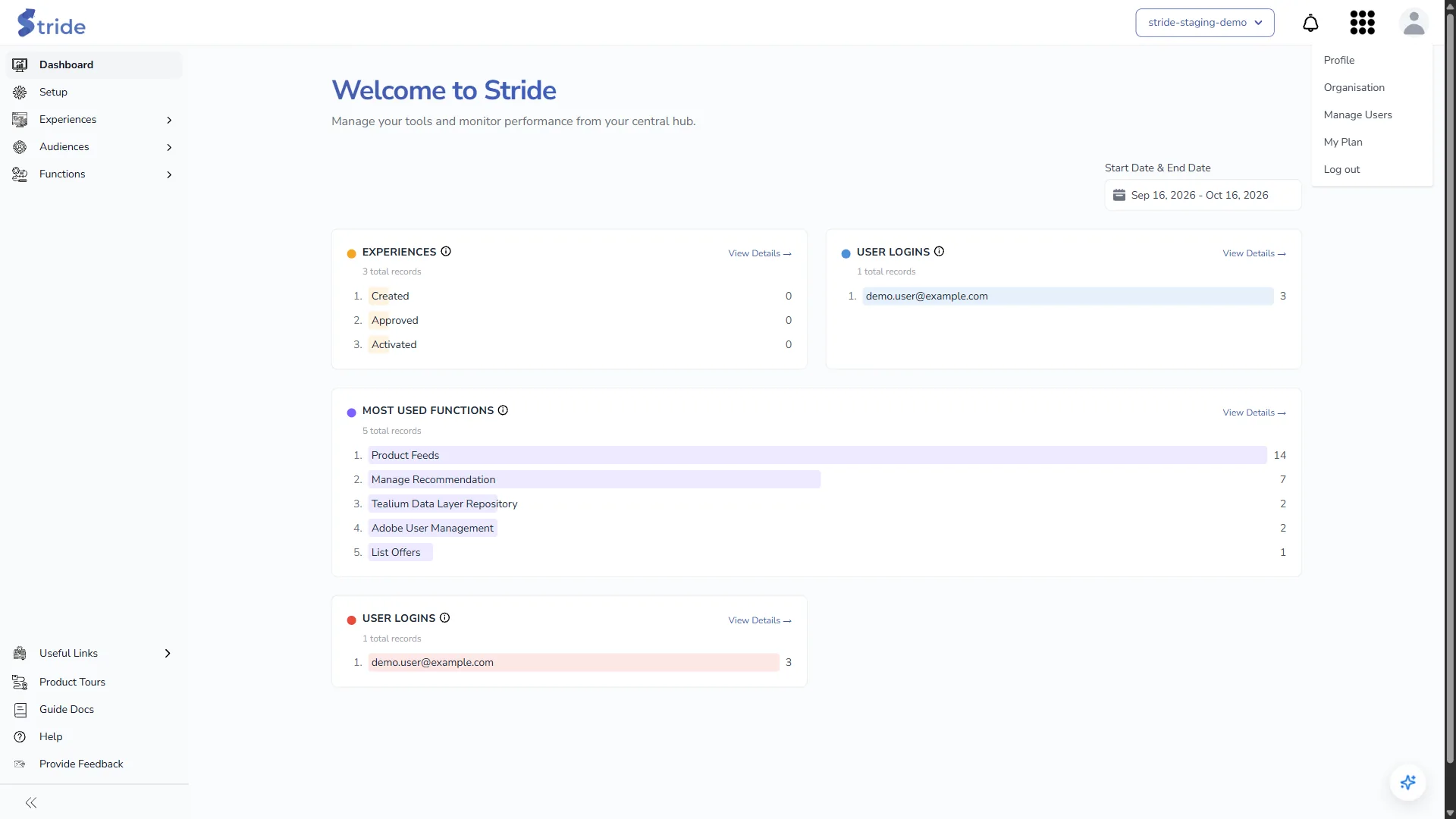
- Profile: your name, password and account deactivation.
- Organisation: the organisations you belong to.
- Manage Users: users and invitations for the current organisation. Owners only.
- My Plan: plan, usage and billing. Owners only.
- Log out.
See Your profile and organisations, Invite and manage users and roles and Your plan and usage.


