

Functions are ready-made jobs that run against your Adobe Target, Adobe Analytics, Tealium and GitHub accounts: some list data you can download as CSV, others check or change things, and many can run on a schedule.
Plan
Functions are not on the Starter plan. Each function can also be limited by plan or by role; a card you can’t use is greyed out and shows Why is this disabled ?.
Note
Functions use your default integration (see the Default integrations menu) unless the form asks you to choose one.
Find a function #
- Open Functions in the left navigation.
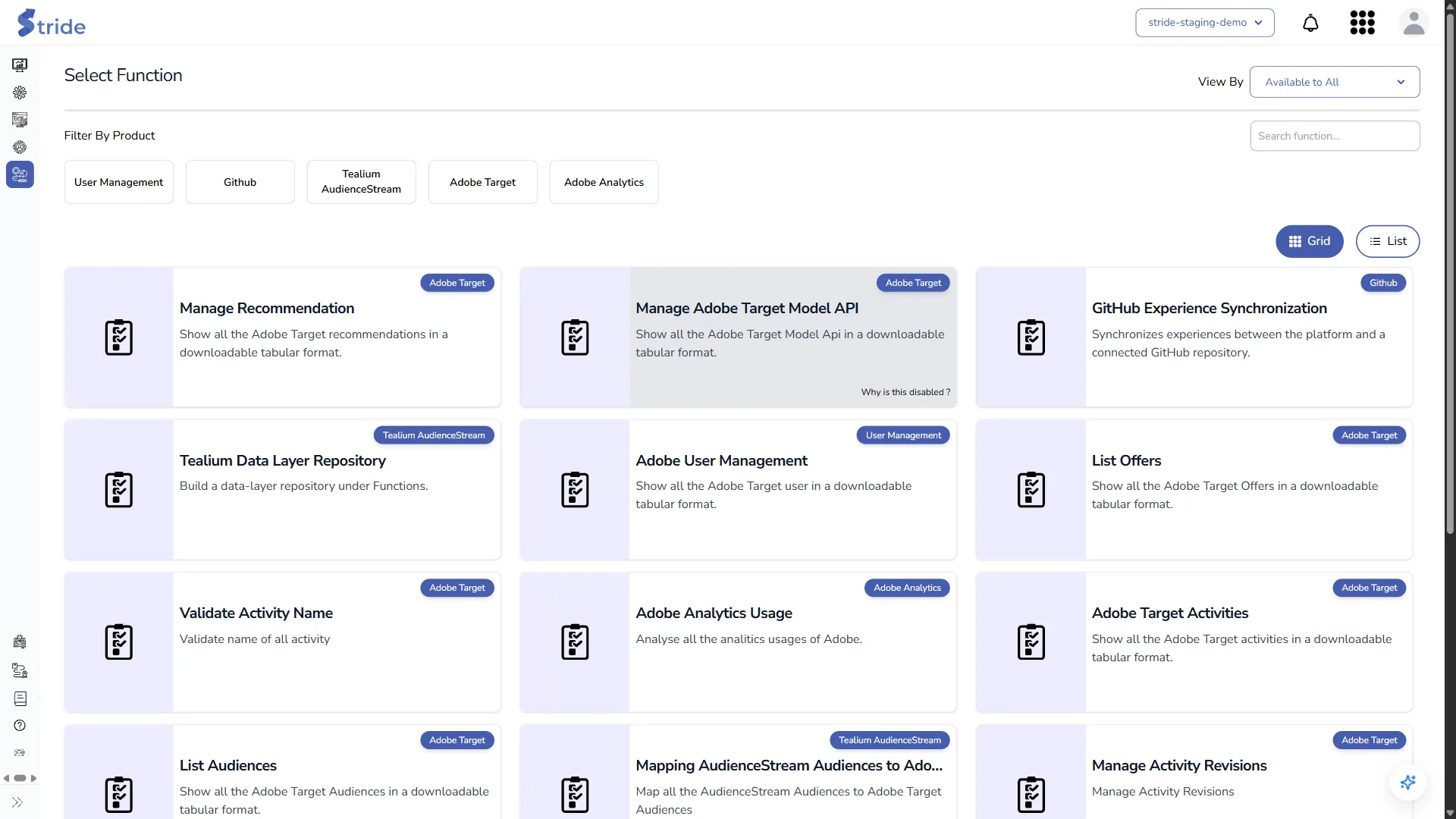
- Narrow the list:
- Filter By Product: User Management, Github, Tealium AudienceStream, Adobe Target or Adobe Analytics.
- Search function… filters by name.
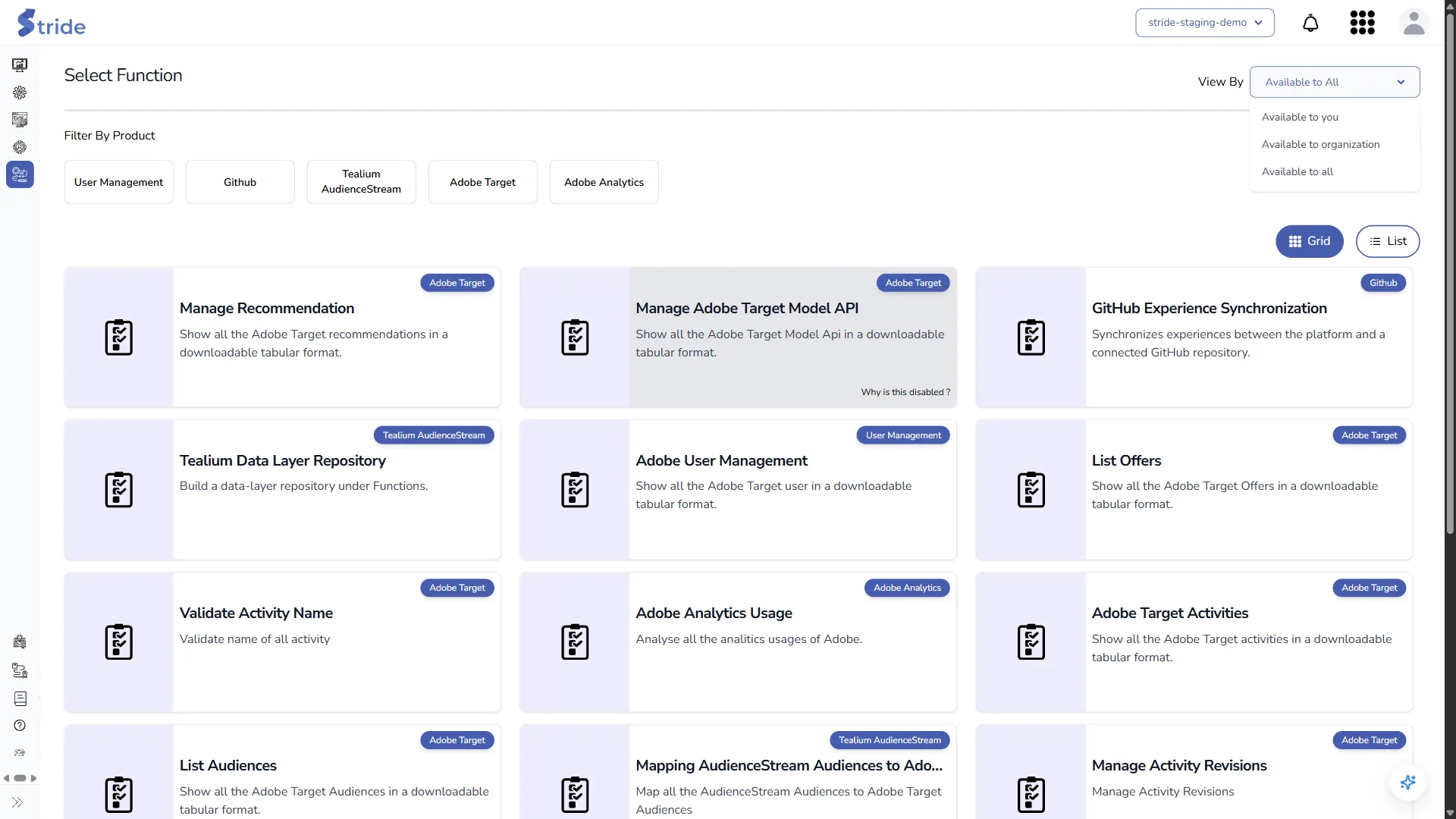
- View By: Available to you (your role can use it), Available to organization (your plan includes it) or Available to all (the full catalogue, including functions you can’t use). The page opens on the full catalogue.
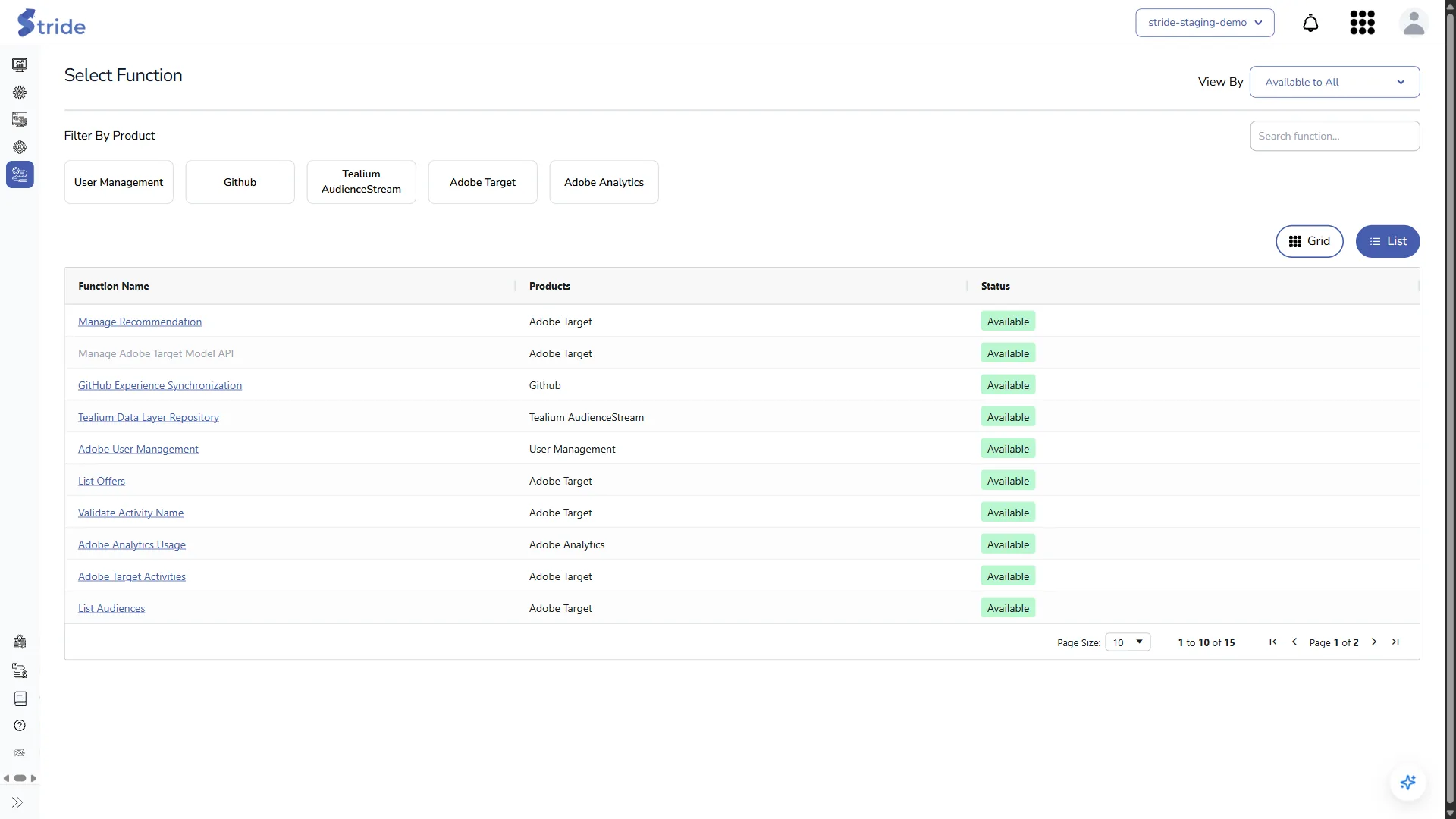
- Grid and List switch the layout. List view shows each function’s product and status.
- Click a card to open the function.
If a card is greyed out, hover over Why is this disabled ? to see the reason: the function isn’t available to you, to your organisation, or to either.
Upcoming Functions at the bottom of the page are announced but not released yet.
What each function does #
| Function | What it does | Page |
|---|---|---|
| List Offers | Lists every offer | Listings |
| Adobe Target Activities | Lists every activity in every workspace | Listings |
| List Audiences | Lists every Target audience | Listings |
| Validate Activity Name | Emails activities whose names break your rule (recurring) | Activity checks |
| Manage Activity Revisions | Copies activity revision history into Stride (recurring) | Activity checks |
| Tealium Data Layer Repository | Crawls your site and checks the data layer (recurring) | Data layer |
| Mapping AudienceStream Audiences to Adobe Target Audiences | Creates Target audiences from AudienceStream audiences (recurring) | Send audiences to Target |
| Adobe User Management | Lists Adobe users, their groups and metadata | Usage dashboards |
| Adobe Target Usage | Dashboard of who uses Target and how | Usage dashboards |
| Adobe Analytics Usage | Dashboard of who uses Analytics and how | Usage dashboards |
| GitHub Experience Synchronization | Brings changes made in GitHub back as new experience versions (recurring) | Connect GitHub |
| Product Feeds | Builds and pushes a Target Recommendations catalogue | Product feeds |
| Manage Recommendation | Browses, adds, edits and deletes products in Target Recommendations | Manage Recommendation |
Your catalogue may show other cards. Functions that aren’t in this table aren’t covered by these docs yet.
One-off, saved and recurring tasks #
| Type | What it is |
|---|---|
| One-off | Opening a listing function runs it straight away and shows the results. Click Save to keep it as a named task you can reopen. |
| Recurring | Functions with a Time Interval and Status run on a schedule and email their results after each run. |
To set up a recurring task:
- Choose a Time Interval: 2 Minutes, 1 Hour, 8 Hours, 12 Hours or 24 Hours.
- Set Status to ENABLED.
- Add each Recipient Email and press Enter after each one.
- Click Submit.
Note
Recurring tasks run in the background on Stride’s servers and email the results. Set Status to DISABLED to pause one without deleting it.
Every saved and recurring task is listed under Saved Tasks. For task name rules and intervals at a glance, see Functions and scheduling.


