

Review the Adobe users in your organisation and tag them with squads and chapters, then see who uses Adobe Target and Adobe Analytics, how much, and in which teams.
Adobe User Management #
Lists the Adobe users in your Adobe organisation: email, first and last name, username, status, type, country and domain.
Note
Adobe User Management needs an Adobe IO integration with the User Management product selected, and that integration must be your default. Otherwise you see this message instead of the list:
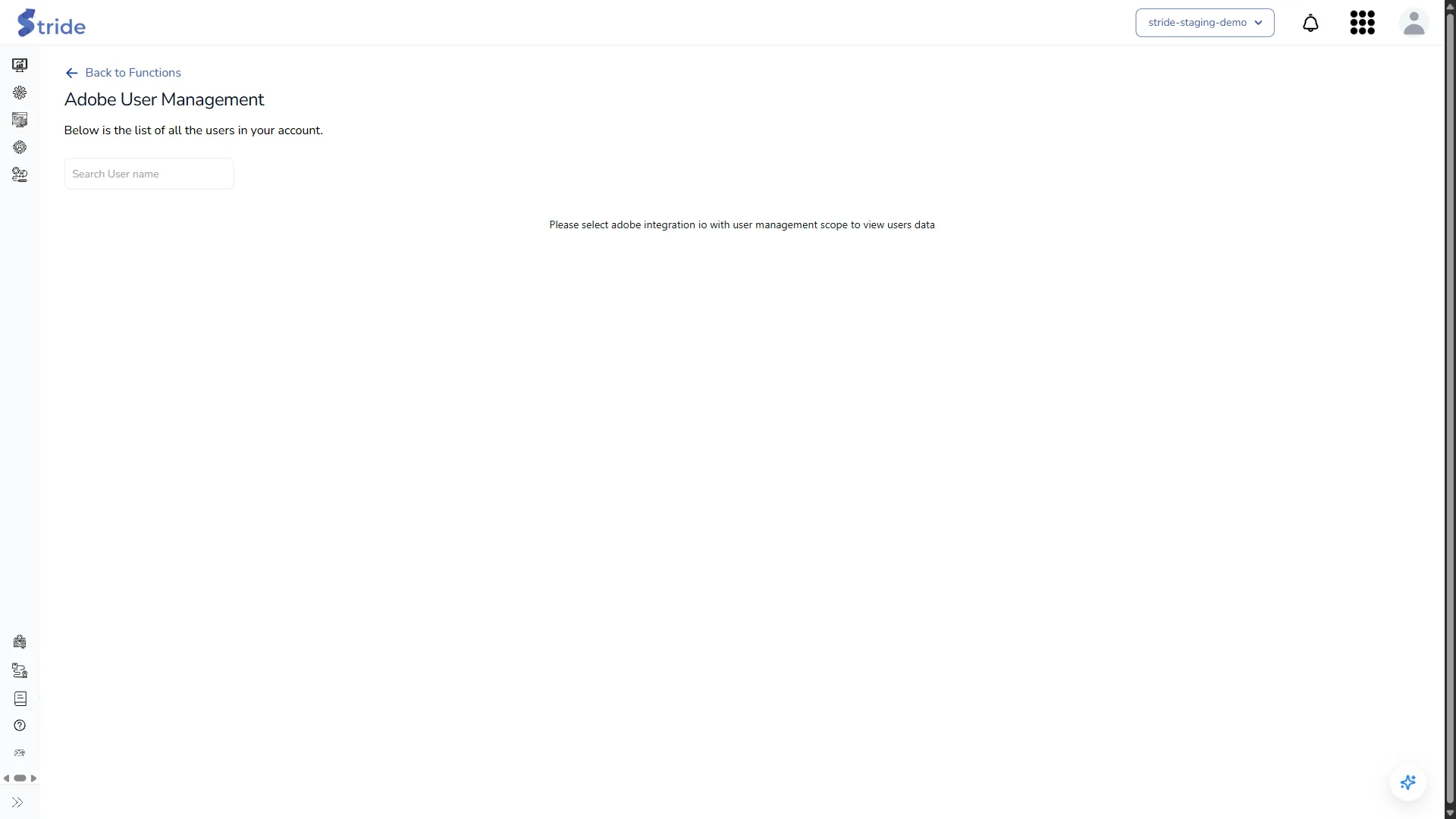
With the right integration you can:
- click a user’s email to see the groups they belong to (Associated Groups)
- download the list with Download as CSV (All or Filtered), or save it as a one-off task
- if you are an Owner or Admin, click Manage Adobe Users to add metadata to users, for example a squad or chapter, which the usage dashboards group by. Manage User Metadata adds or removes metadata keys, and can export or upload them as CSV.
Adobe Target Usage #
A dashboard of how your team uses Adobe Target: most active users, usage score, user-based usage score, and the most active squads and chapters (from the Adobe user metadata).
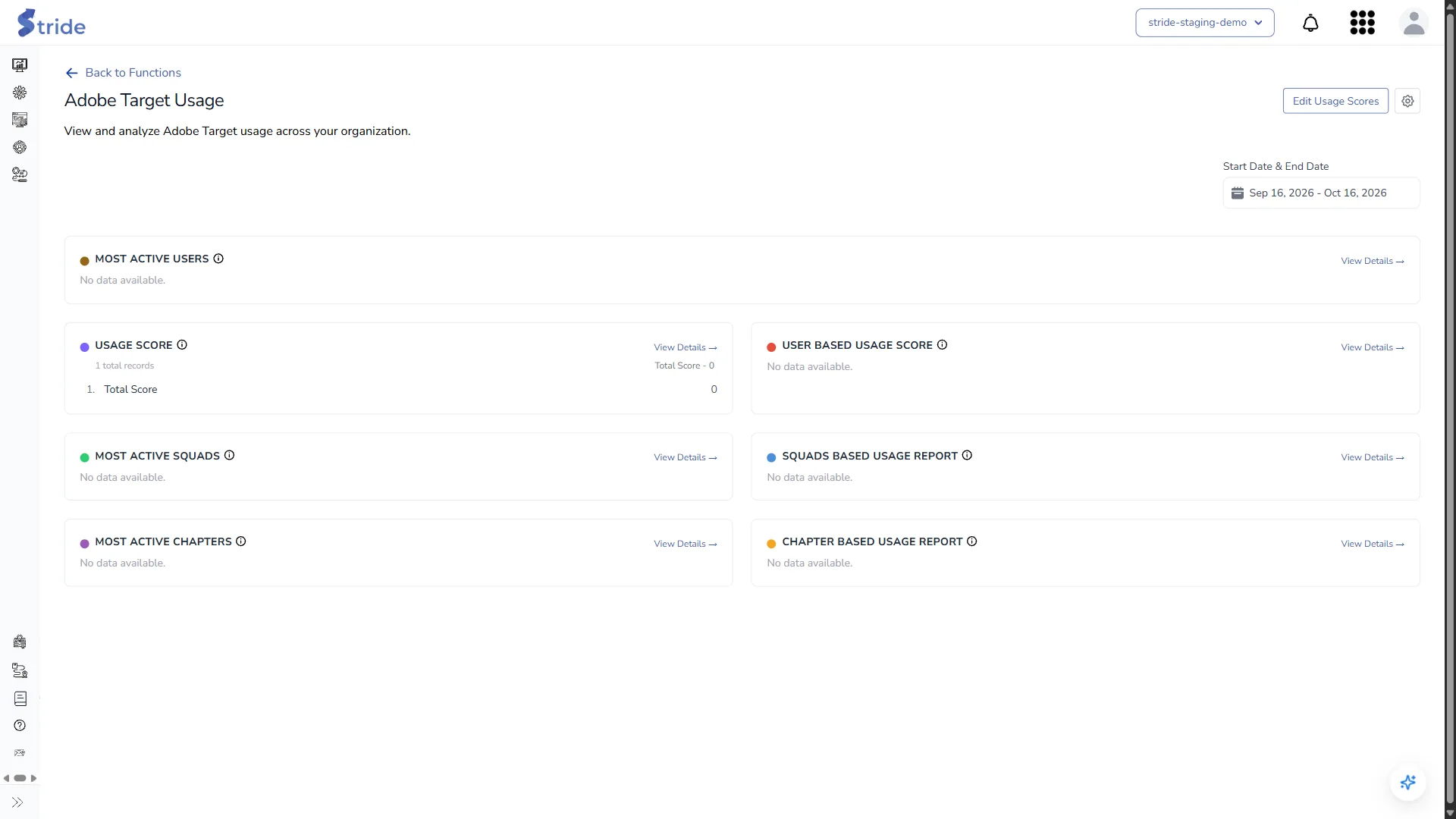
- Change the period with Start Date & End Date.
- Edit Usage Scores opens Configure Event Scores, where you set how many points each event is worth: Activity Created, Activity Updated and Activity Patched.

Warning
Score changes apply to all past usage data, not just future events, and everyone in your organisation sees the new scores.
- The gear icon opens Manage Dashboard Cards. Click + Add Card to add a card, drag cards to reorder them, and double-click a cell to edit it: label, event type, group by (user or project), event filters, display (list or summary), metadata key, visibility, width and colour. Click Save Changes when you’re done.

Who can do this
Only Owners and Admins see Edit Usage Scores and the gear.
Adobe Analytics Usage #
The same idea for Adobe Analytics: most popular dashboards, most data-driven users, active users, active traffic, usage scores, and activity by squad and chapter.
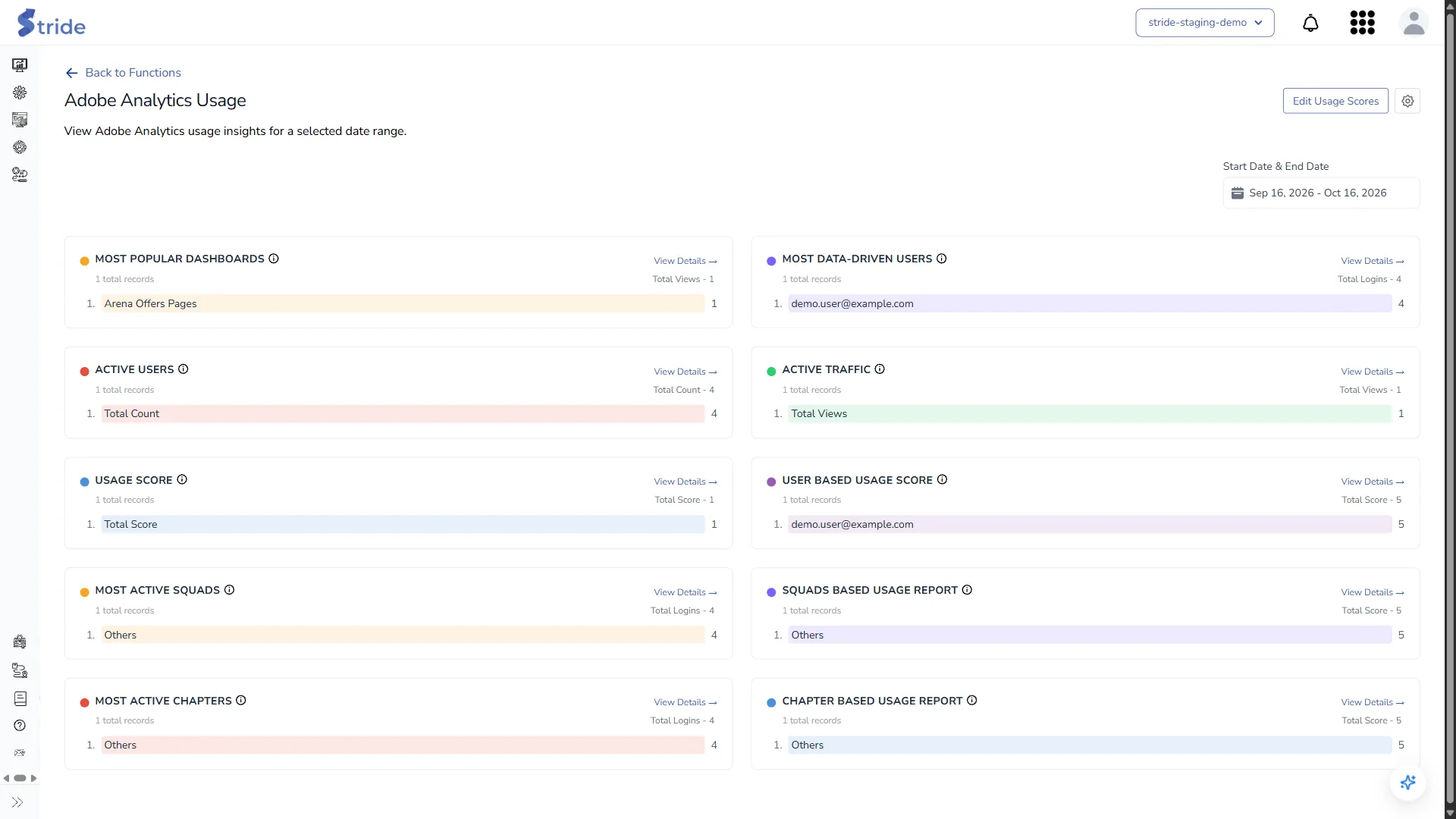
Edit Usage Scores and the gear (Manage Dashboard Cards) work here in the same way as on Adobe Target Usage. The Analytics events you can score are Project Viewed, Project Created, Project Updated, Project Shared, Login, Segment Created, Segment Updated, Calculated Metric Created and Calculated Metric Updated. Each dashboard keeps its own scores.


