

Saved Tasks lists every one-off task you saved and every recurring task you set up, so you can open, edit, copy, check or delete them in one place.
Saved tasks #
Go to Functions → Saved Tasks.
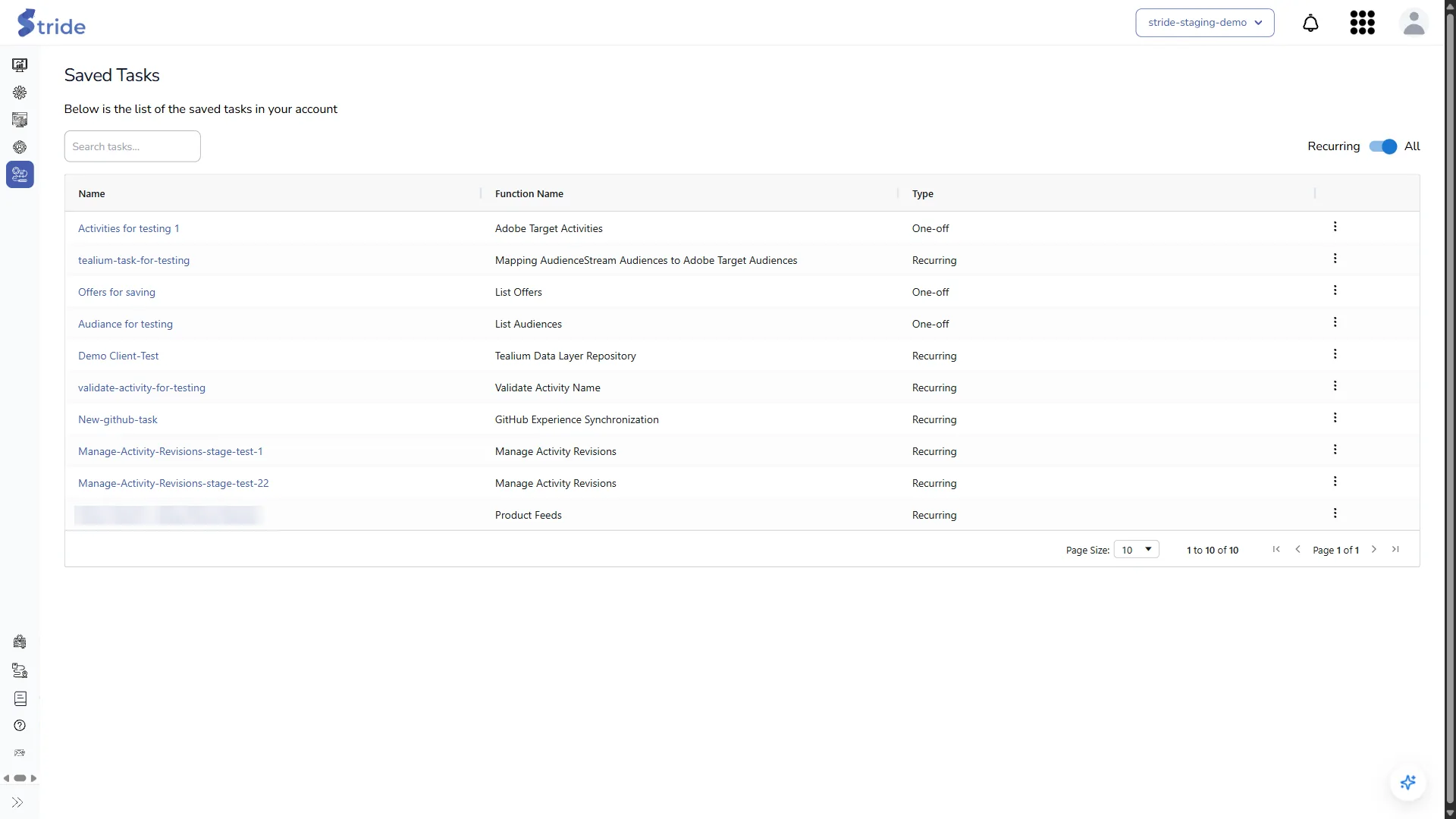
- Search by task name with Search tasks….
- The Recurring / All toggle shows only recurring tasks, or every task (the default).
- The Type column shows One-off or Recurring.
- Product feeds are listed here too, as recurring tasks of the Product Feeds function. Click one to open it in the feed editor.
Open or edit a task #
Click a task name:
- A one-off task opens its Task Configuration. Click View Data to run the listing again, or Update Task Configuration to change its settings.
- A recurring task opens its settings form. You can also choose Edit in the row’s ⋮ menu.
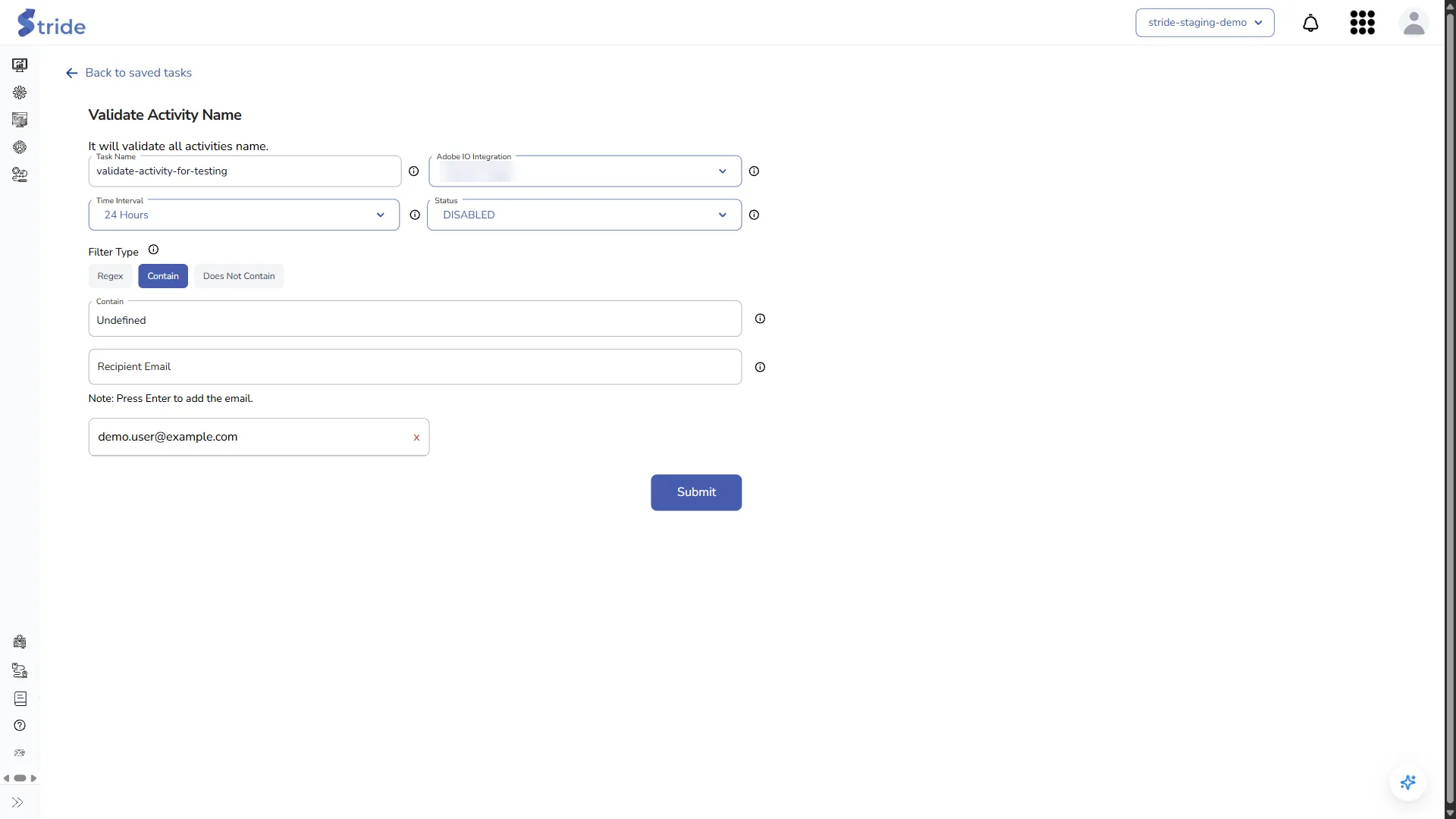
To pause a recurring task without deleting it, set Status to DISABLED and save.
The task menu #
Click ⋮ at the end of a row. Which items you see depends on the task and on your role.
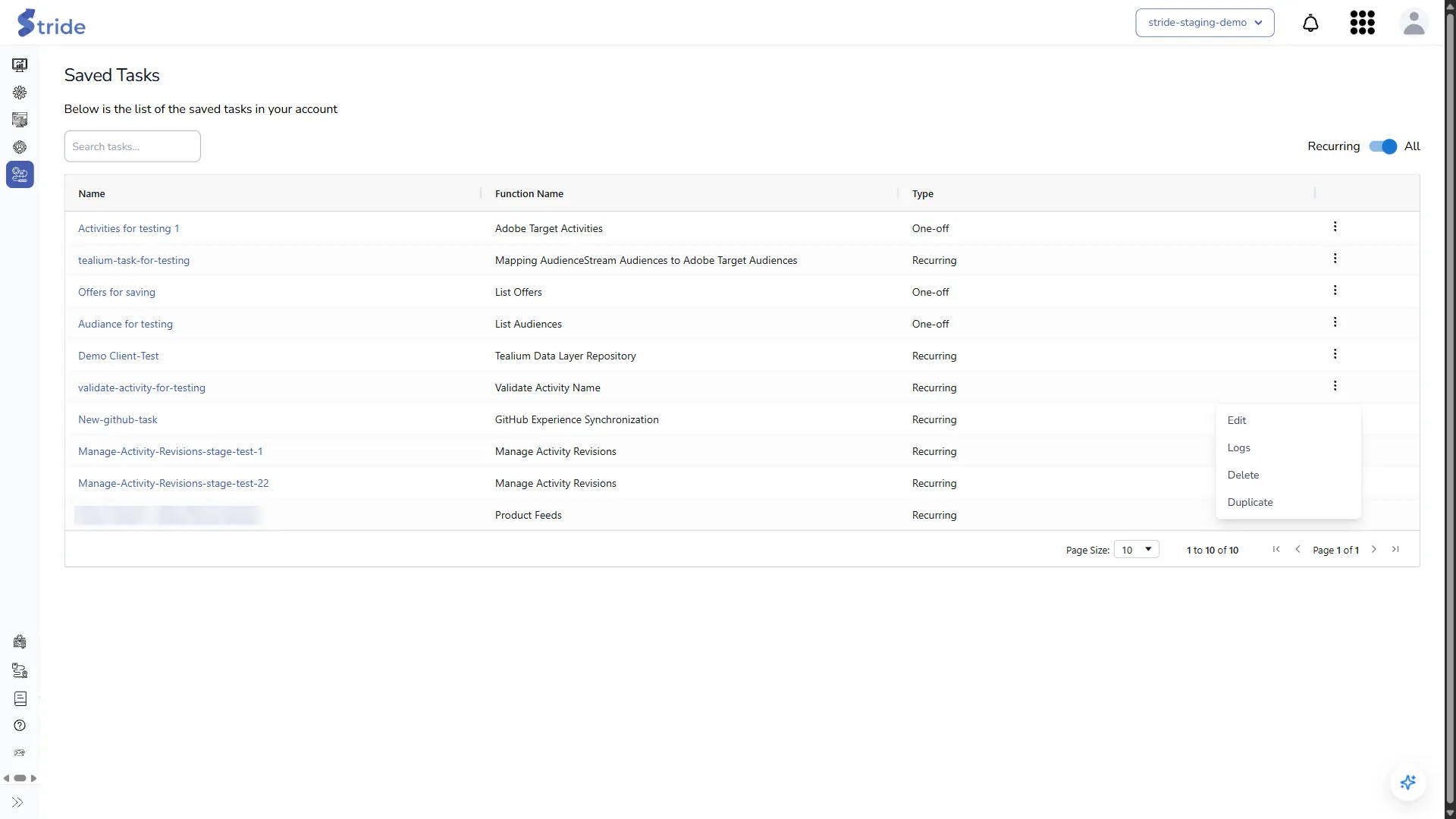
- Edit (recurring tasks): change the task’s settings.
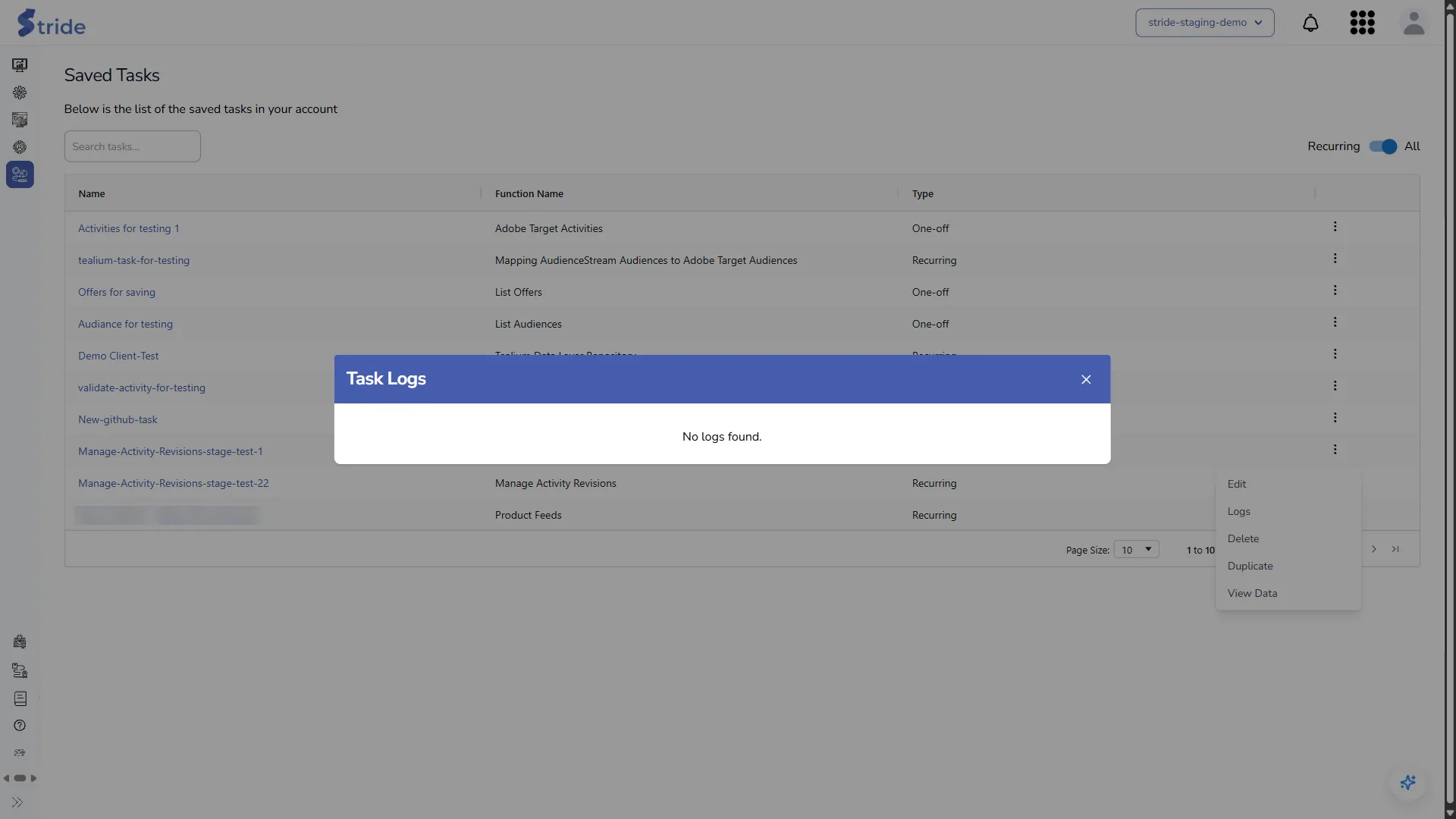
- Logs (recurring tasks): the task’s run history, with info and error messages.
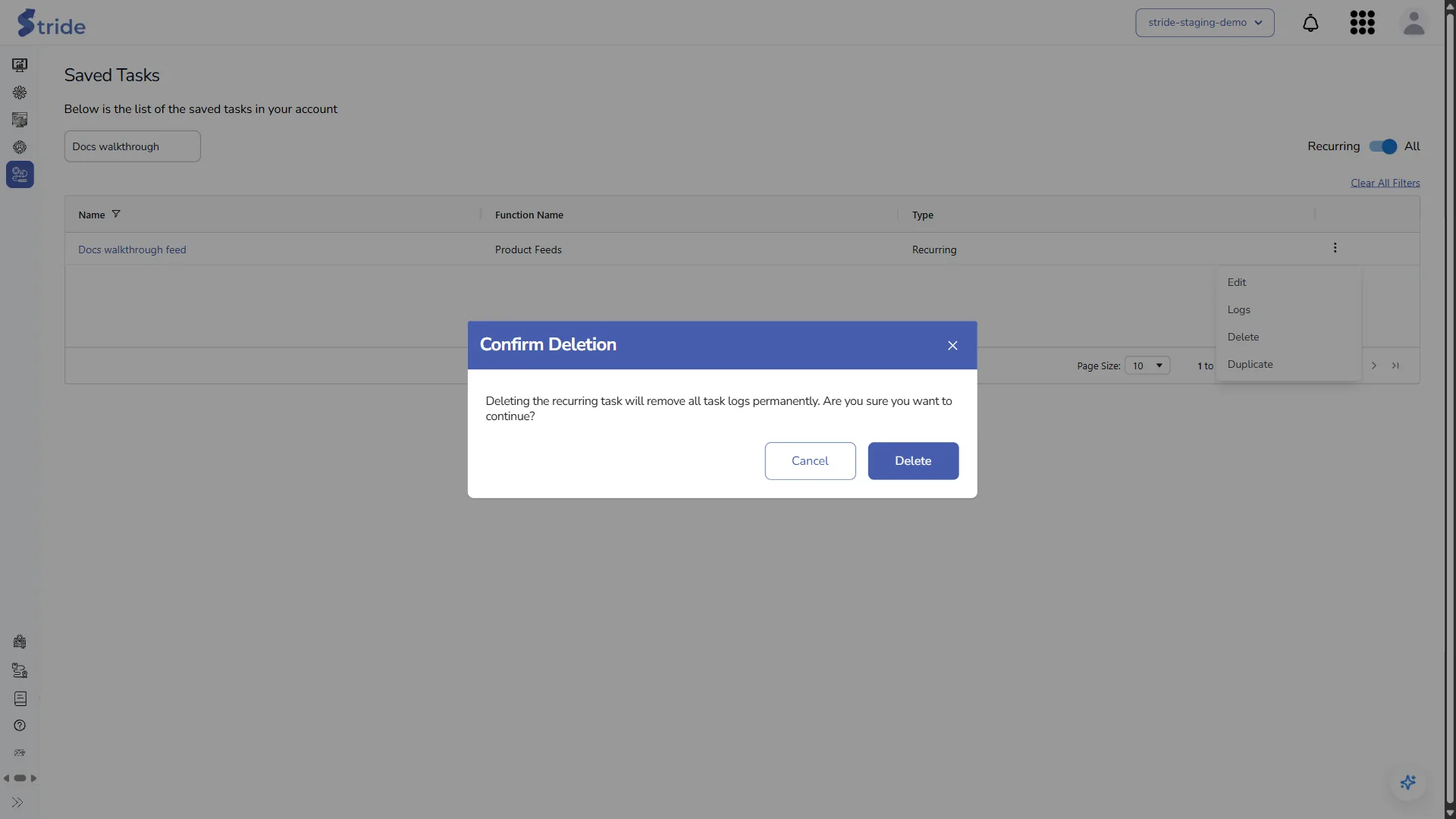
- Delete: remove the task.
- Duplicate: copy the task under a new name. For a recurring task, the copy keeps the interval, status, filter and recipients.
- View Report (Tealium Data Layer Repository tasks only): open the crawl report.
- View Data (Manage Activity Revisions tasks only): browse the revisions collected so far.
Read a task’s logs #
Choose Logs in the row menu. A task that hasn’t run yet shows “No logs found.”
Delete a task #
- Choose Delete in the row menu.
- For a recurring task, Stride asks you to confirm: deleting it removes all its logs permanently. Click Delete.
Changes live systems
Deleting a task can’t be undone. A one-off task is deleted straight away, without a confirmation. Deleting a Product Feeds task deletes the feed and its run history.


