

Listing functions show what is in your Adobe Target account as a table you can search, sort, download as CSV and save as a one-off task.
List Offers #
Lists every offer in Adobe Target: ID, name, type (json or content), state, workspace and modified date.
- Go to Functions and open List Offers. The list loads straight away.

- Search by offer name in Search Offers name, and click a column header to sort by it.
- To download the list, click the arrow button next to Save and choose All (every row) or Filtered (only the rows that match your search) as CSV.

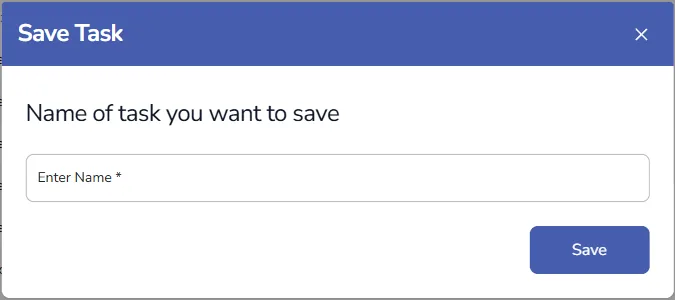
- To keep the listing, click Save, enter a name and save it as a one-off task.
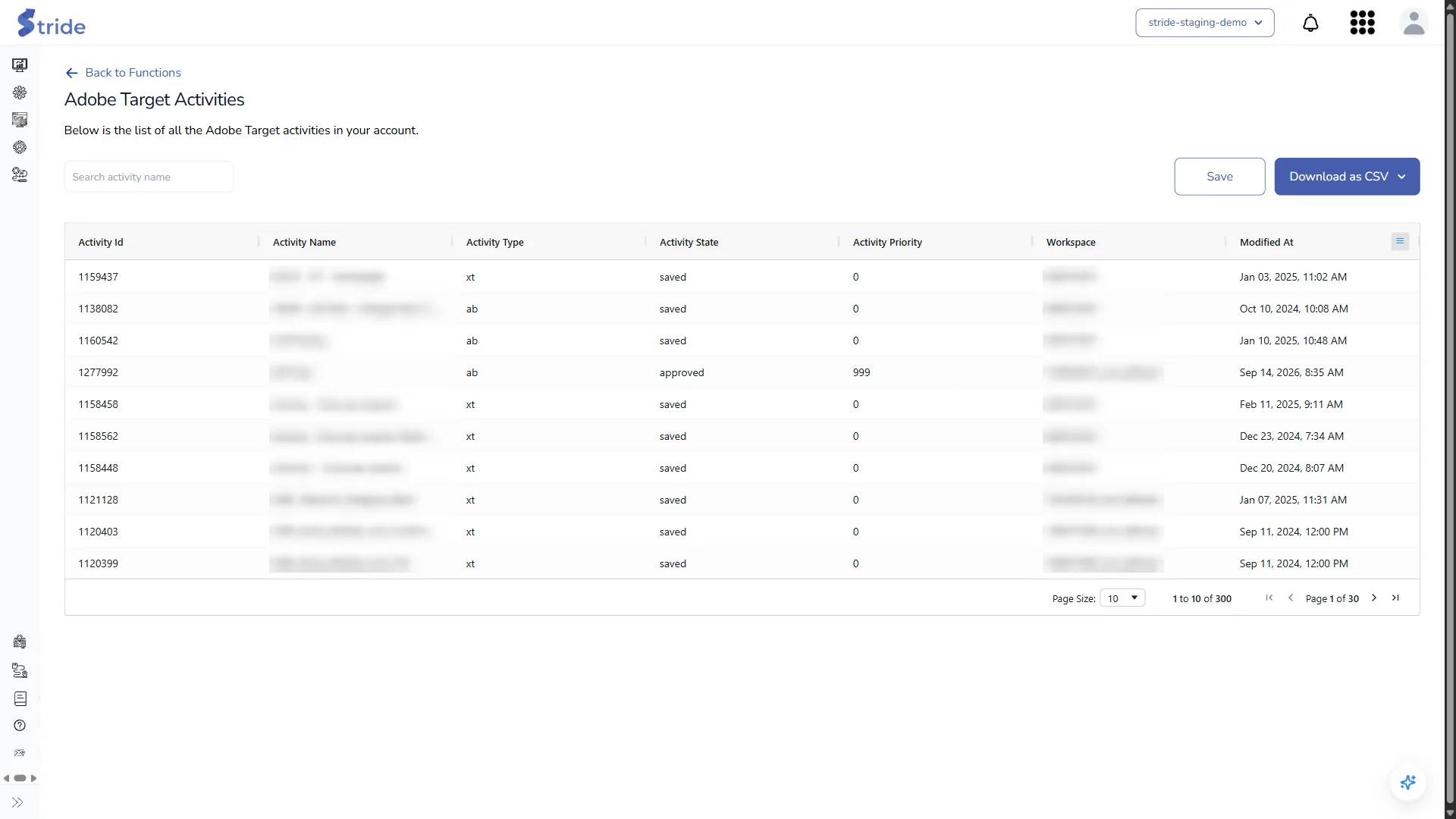
Adobe Target Activities #
Lists every activity across all workspaces: ID, name, type (ab, xt and so on), state, priority, workspace and modified date. Search by activity name, and use Download as CSV to export All or Filtered rows.
List Audiences #
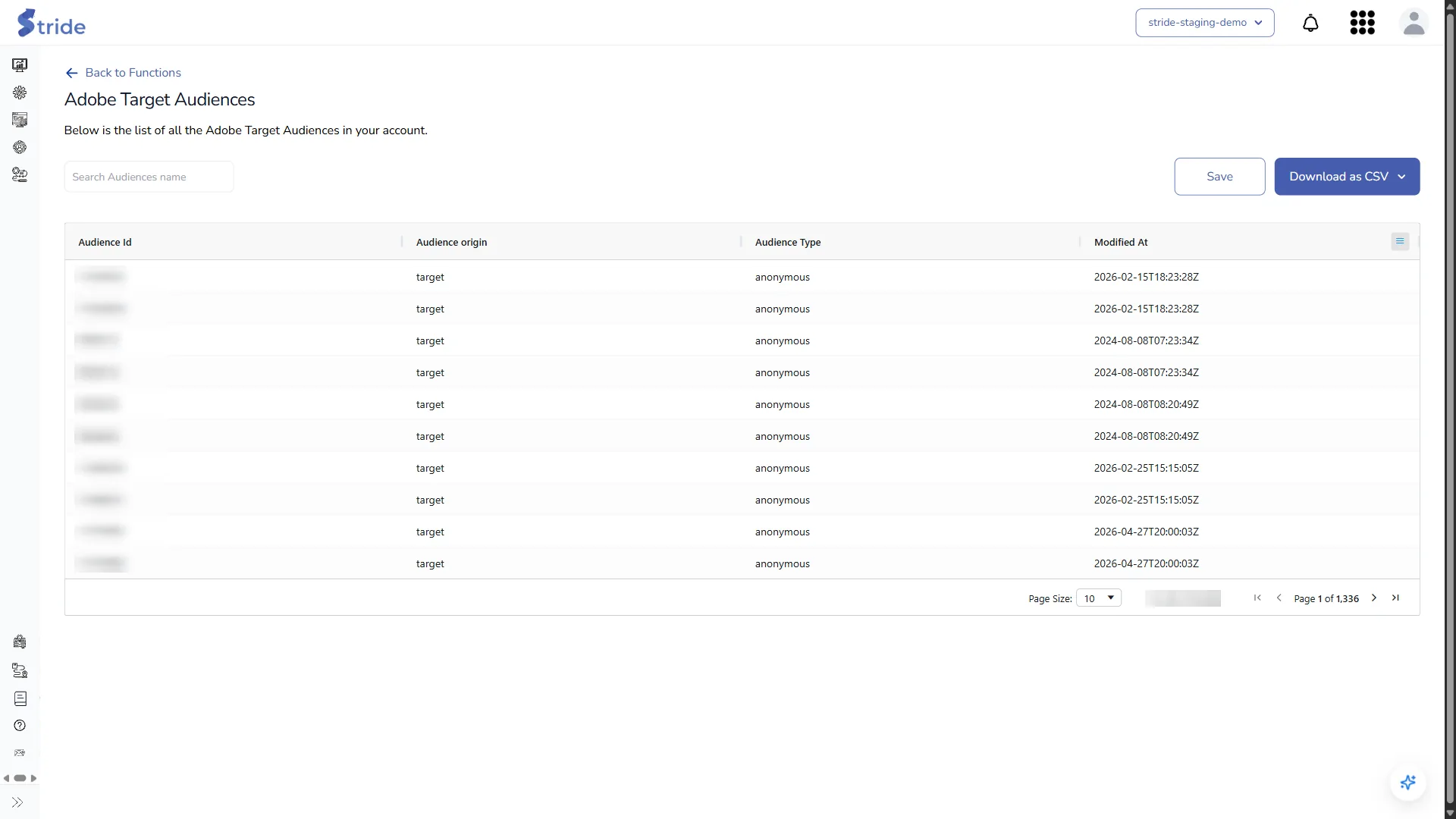
Lists every Adobe Target audience: ID, origin, type and modified date. Large accounts can have thousands of audiences, so search by audience name and use paging. Download as CSV exports the list.
One-off, saved and recurring tasks #
Opening a listing function runs it straight away. Click Save, enter a name of at least three characters in Enter Name, and click Save again to keep it as a one-off task you can reopen from Saved Tasks. Save appears once the list has rows.
Recurring tasks work differently; see One-off, saved and recurring tasks.


