

See the workspaces Stride imports from Adobe Target, add or rename one by hand, and choose the default workspace for new offers.
Who can do this
Owners and Admins. Editors can open the page, but Stride doesn’t save changes they make.
Adobe Target workspaces #
Workspaces tell Stride which Adobe Target workspaces exist, so offers are created in the right one. Every new organisation starts with one workspace. To open the Workspaces page, go to /setup/workspaces in your Stride address bar.
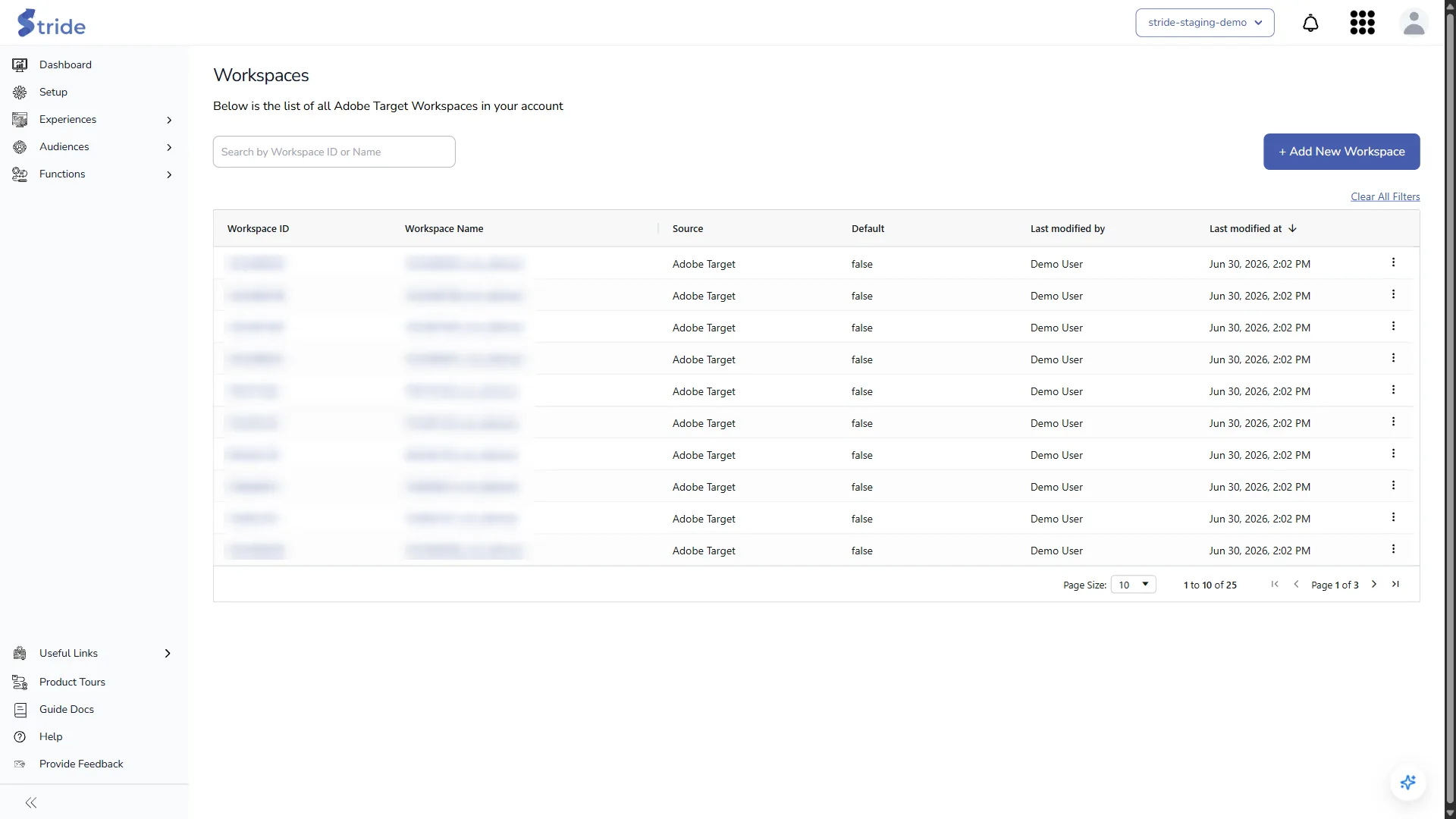
| Column | Meaning |
|---|---|
| Workspace ID | The workspace ID in Adobe Target. |
| Workspace Name | The name Stride shows. Click it to edit. |
| Source | Adobe Target for workspaces Stride imported, Stride for ones added by hand. |
| Default | The workspace used for new offers. |
| Last modified by / Last modified at | Who changed it last, and when. |
Workspaces imported from Adobe Target #
Each time the list opens, Stride reads the workspaces used by the Adobe Target properties of your default Adobe IO integration:
- New workspaces are added with the source Adobe Target and a placeholder name ending in
_not_defined. Use Edit to give them a readable name. - Imported workspaces that no longer appear in Adobe Target are removed from the list.
Add a workspace by hand #
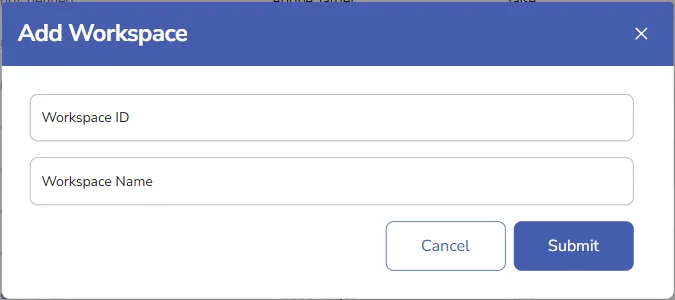
- Click + Add New Workspace.
- Enter the Workspace ID and Workspace Name, then click Submit.
Edit, delete or set the default #
Use the ⋮ menu on a row:
- Edit: change the Workspace Name. The ID can’t be changed.
- Delete: only for workspaces with the source Stride. Stride asks you to confirm with Delete Workspace. There is no dependency check, and you can’t delete your only workspace.
- Set as Default: makes it the workspace for new offers.
Warning
The default workspace is where new Adobe Target offers are created for everyone in the organisation. If you delete the default workspace, the oldest remaining one becomes the default.


