

Create an Adobe IO integration from an Adobe Developer Console OAuth Server-to-Server project, validate it, and edit it later.
Who can do this
Owners and Admins. Editors can see the list but not the create, edit or delete controls.
Adobe IO integrations #
An Adobe IO integration holds the credentials Stride uses to call Adobe Target, Adobe Analytics and Adobe User Management. You create the credentials in the Adobe Developer Console as an OAuth Server-to-Server project, then copy them into Stride.
View integrations #
In Setup, tick Adobe Target, then click Manage beside it. Adobe IO Integrations opens.
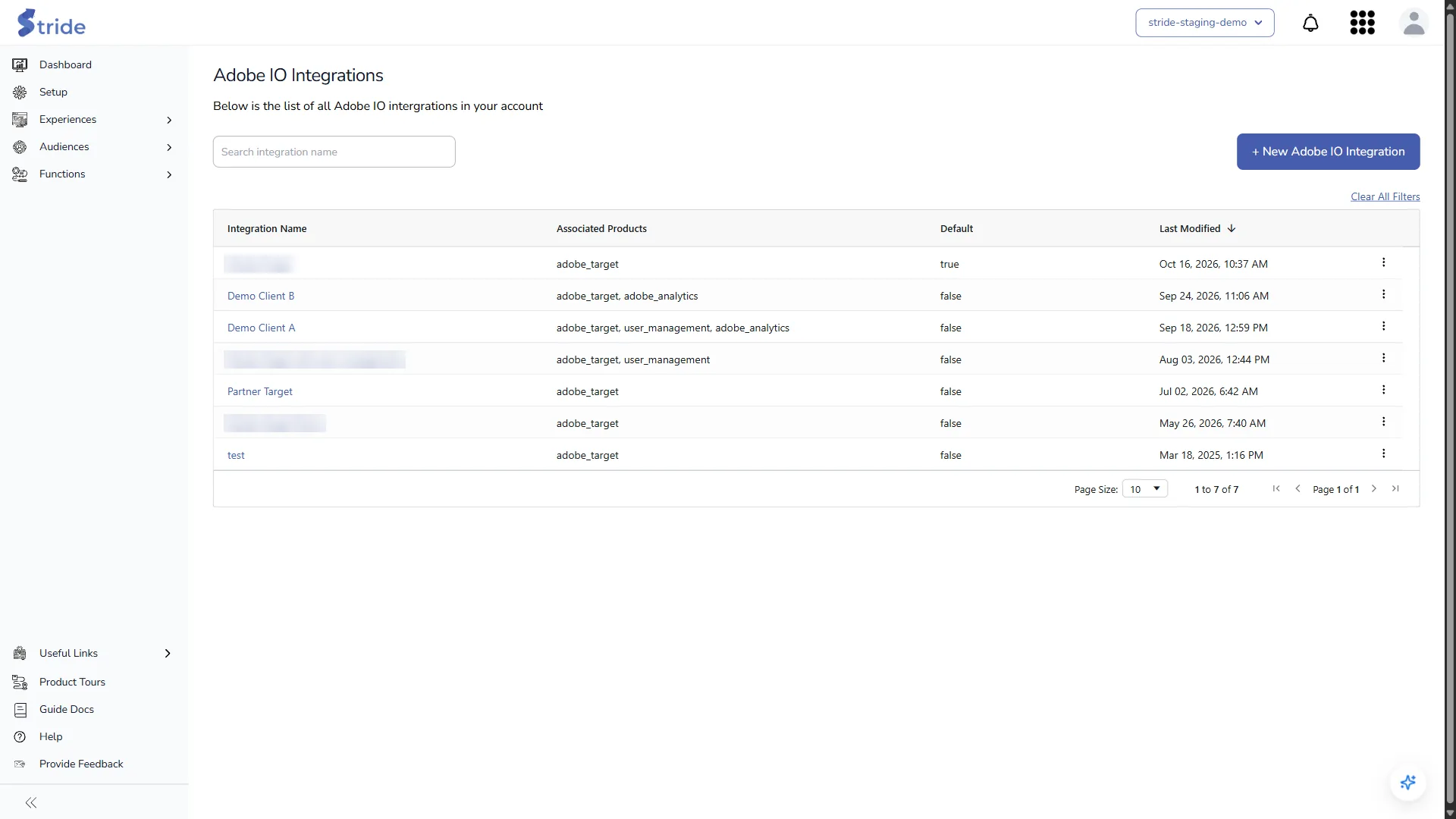
| Column | Meaning |
|---|---|
| Integration Name | Your label for the integration. Click it to open the edit form. |
| Associated Products | Which Adobe products it is used for: adobe_target, adobe_analytics, user_management. |
| Default | true for the integration Stride uses by default. |
| Last Modified | When it was last changed. |
Use the ⋮ menu on a row for Edit, Delete or Set as Default. See Edit, delete or set a default integration.
Create an Adobe IO integration #
- Click + New Adobe IO Integration.
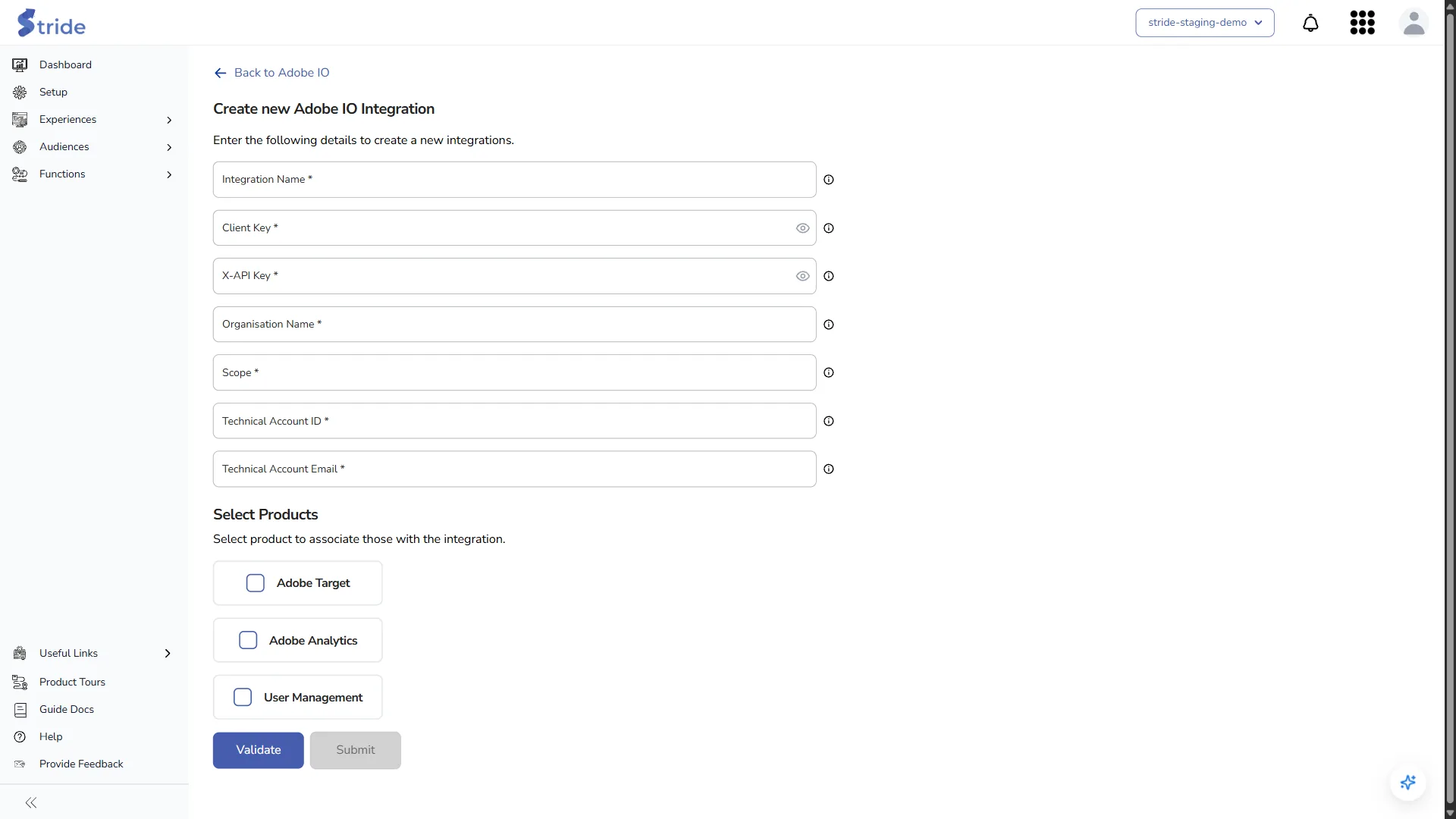
- Fill in the credentials from your Adobe Developer Console project:
| Field | Where to find it |
|---|---|
| Integration Name | Any label, for example “Production Target”. |
| Client Key | The project’s client secret. |
| X-API Key | The project’s client ID (API key). |
| Organisation Name | Your Adobe IMS organisation ID, which ends in @AdobeOrg. |
| Scope | Filled in for you when you select products (step 3). Only change it if Adobe told you to use different scopes. |
| Technical Account ID | The technical account ID from the project. |
| Technical Account Email | The technical account email from the project. |
Client Key and X-API Key are hidden as you type. Click the eye icon to check what you entered.
- Under Select Products, tick each product this integration is for:
- Adobe Target: adds two more fields, Client Name and Tenant Name. The tenant name is your Target tenant as it appears in Target URLs.
- Adobe Analytics: Stride looks up your Analytics Customer ID when you validate.
- User Management: lets the Adobe User Management function list your Adobe users.
Stride combines the scopes each product needs into the Scope field.

- Click Validate. Stride requests a token from Adobe and checks the account. When it passes, Stride shows “Integration validated successfully. You can now submit the form.” and the Validate button greys out. For Adobe Analytics, a read-only Customer ID field appears with the value Stride found.
- Click Submit.
Note
Submit stays disabled until validation succeeds. If you then change Client Key, X-API Key, Scope, the products, Client Name or Tenant Name, validate again before you submit.
Stride stores keys and tokens encrypted.
Edit an integration #
Click the integration name, or ⋮ → Edit. Edit Adobe IO Integration opens with the current values, including the read-only Customer ID.
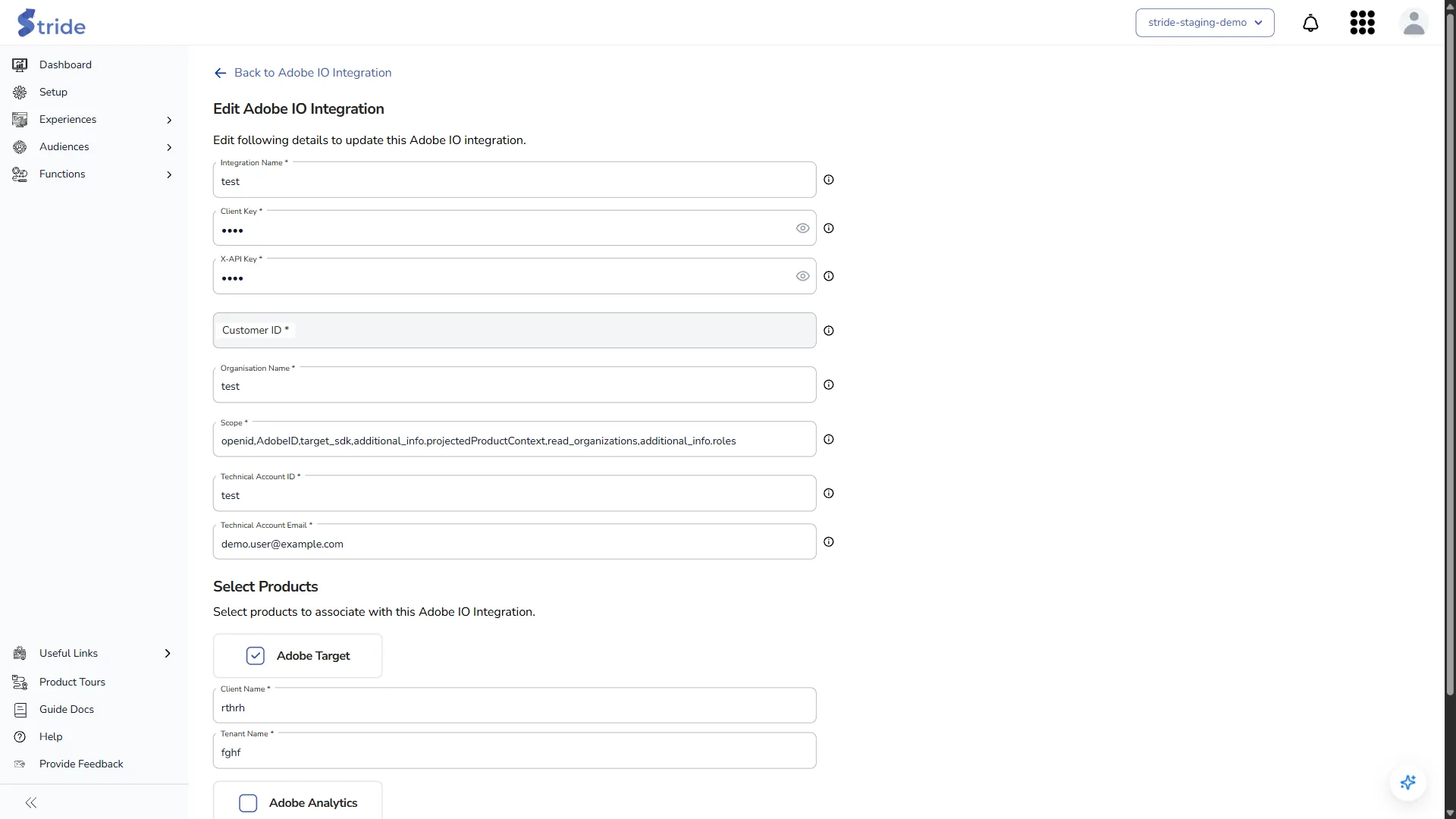
- Change the fields you need.
- Click Validate. Stride asks you to validate on every edit, even if you only changed the name.
- Click Submit. If nothing has changed, Submit does nothing.


