

The dashboard is the first page after login. It summarises how your organisation uses Stride over a date range, and each card opens as a full table you can download.
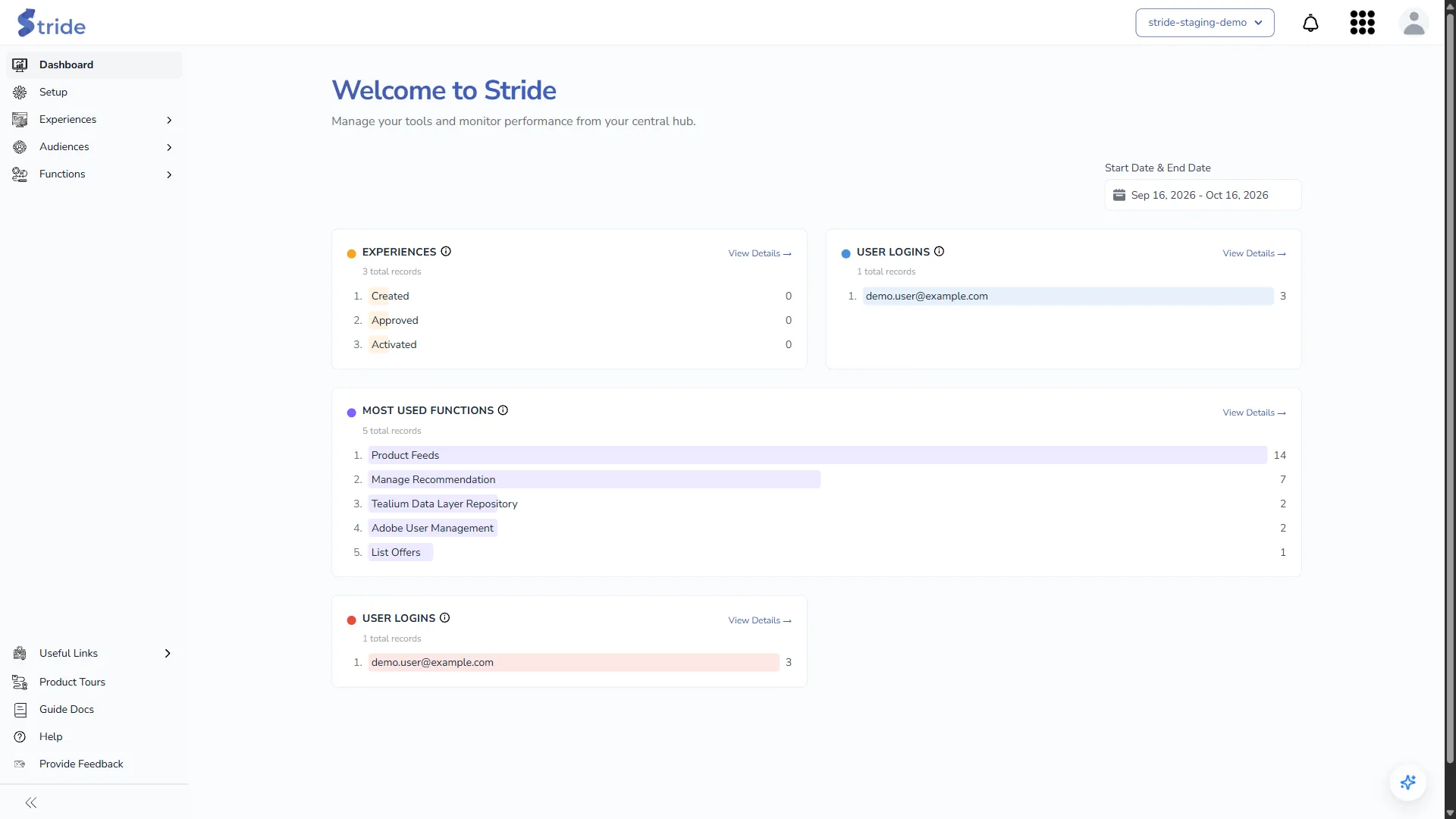
Cards #
| Card | What it shows |
|---|---|
| Experiences | How many experiences were created, approved and activated in the period. |
| User Logins | The users with the most logins. |
| Most Used Functions | The functions run most often, for example Product Feeds, Manage Recommendation or List Offers. |
Each card lists its top entries. Hover over the ⓘ beside a card title to see its description.
If User Logins appears twice, both cards show the same data.
Change the date range #
- Click the date range under Start Date & End Date. It starts at the last 30 days.
- Click a preset (Last 7 Days, Last 14 Days, Last 30 Days or Last 90 Days), which applies straight away. Or set a Start and End date under Custom Range and click Apply Range.
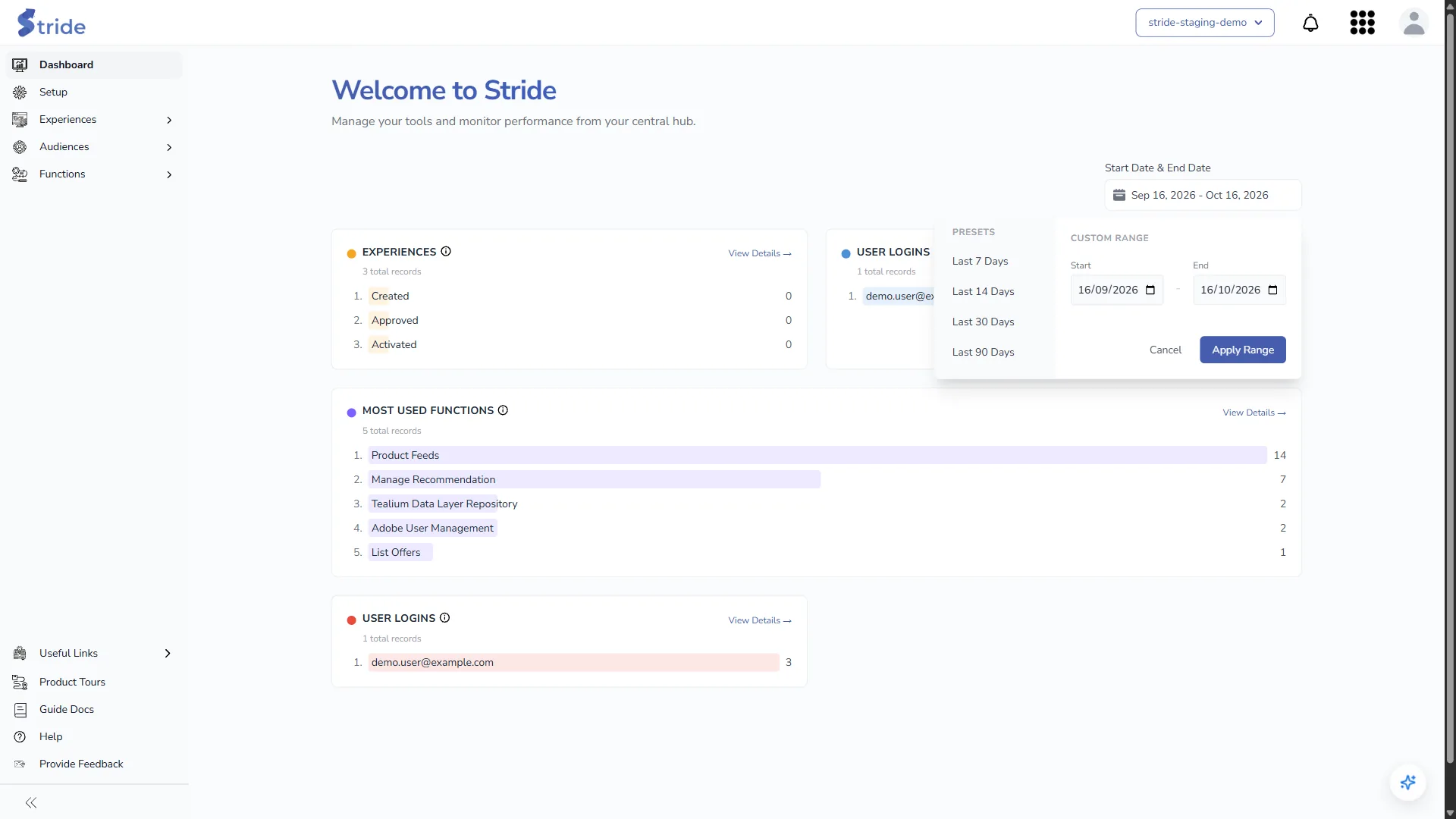
- Cancel closes the picker without changing anything.
See a card’s full list #
- Click View Details → on a card.
- The card opens as a full table. Use Search… to filter it, and choose 10, 20, 50 or 100 rows per page.
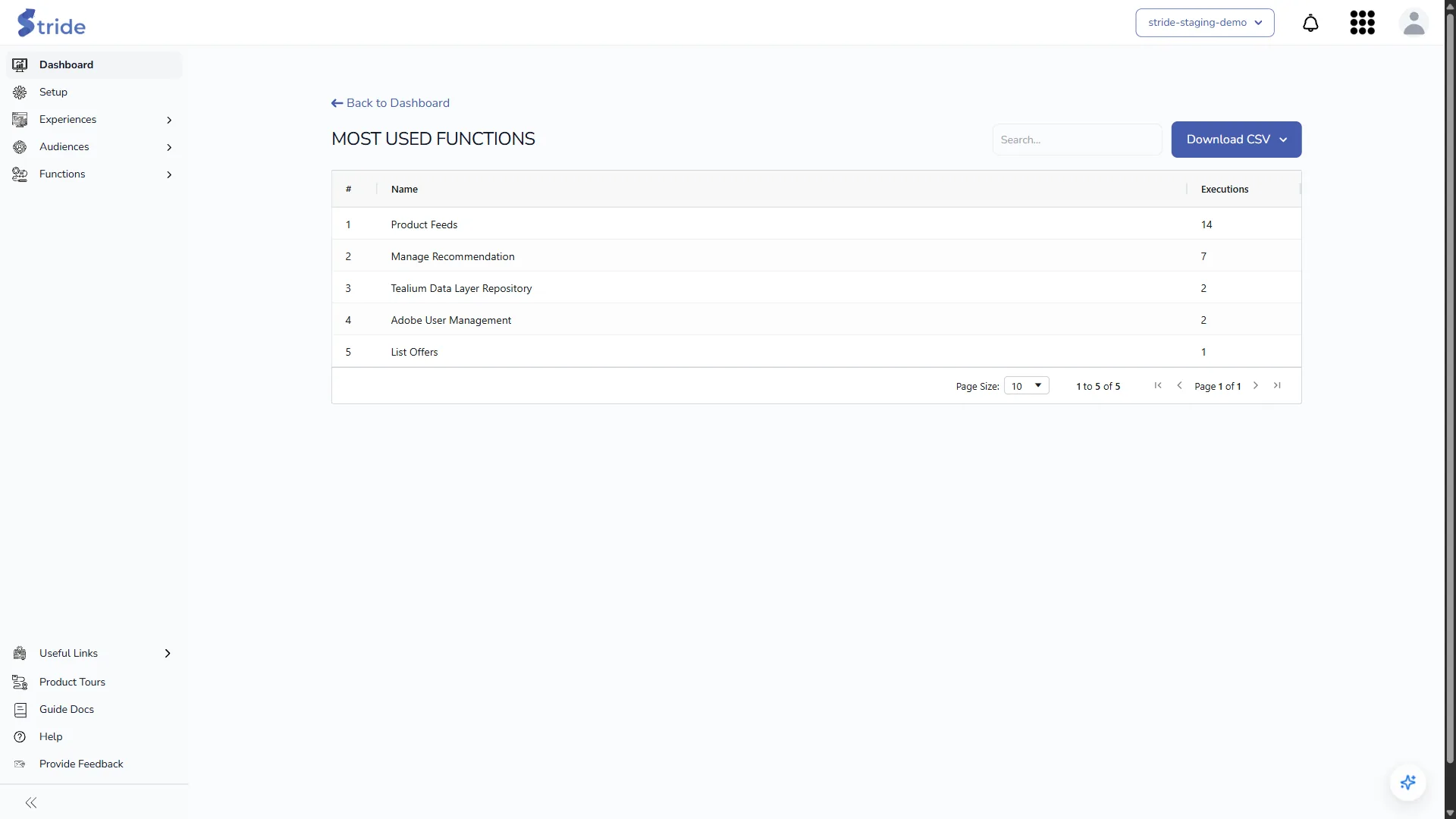
- Click Download CSV to download every row of the table as one CSV file. The button has an arrow but no menu.
- Click Back to Dashboard to return.
Notes #
- The counts come from usage events Stride records as you work, so a new organisation shows “No data available.” until there is activity.
- The Adobe Target and Adobe Analytics usage dashboards are separate functions. See Adobe Target and Analytics usage dashboards.


