

Open an experience’s details, save changes as a draft or approved version, go back to the previous approved version, copy an experience or delete it.
Who can do this
Saving changes, reverting and deleting experiences or versions need the Owner or Admin role in the organisation.
Experience details, versions and editing #
In Experiences → Manage Experiences, click an experience name to open its details.

- Template Name, Source, Created By/At and Last Edited By/At. Source is where the experience was made: Stride, bulk upload, the offer page or the browser extension.
- Available Activations: every offer, entry, extension or GitHub file the experience is linked to, with a badge for the destination.
- Versions: one row per save. Each row shows Approved (with the date it was approved) or Draft, and where the change came from:
stride, orgithubfor changes synced from GitHub. Expand a row to see who created it and when. The icons on the right are:- pencil: edit this version
- bin: delete this version (not shown on the approved version)
- curved arrow: revert to the previous approved version (shown on the approved version once there’s an earlier one)
An experience can have up to 10 versions. Delete drafts you no longer need to make room.
Edit a version #
- On the details page, click Edit Approved Version (shown once the experience has an approved version), or the pencil on any version row. ⋮ → Edit in Manage Experiences also opens the editor.
- Configure Experience: change the fields and watch the preview, then click Next.
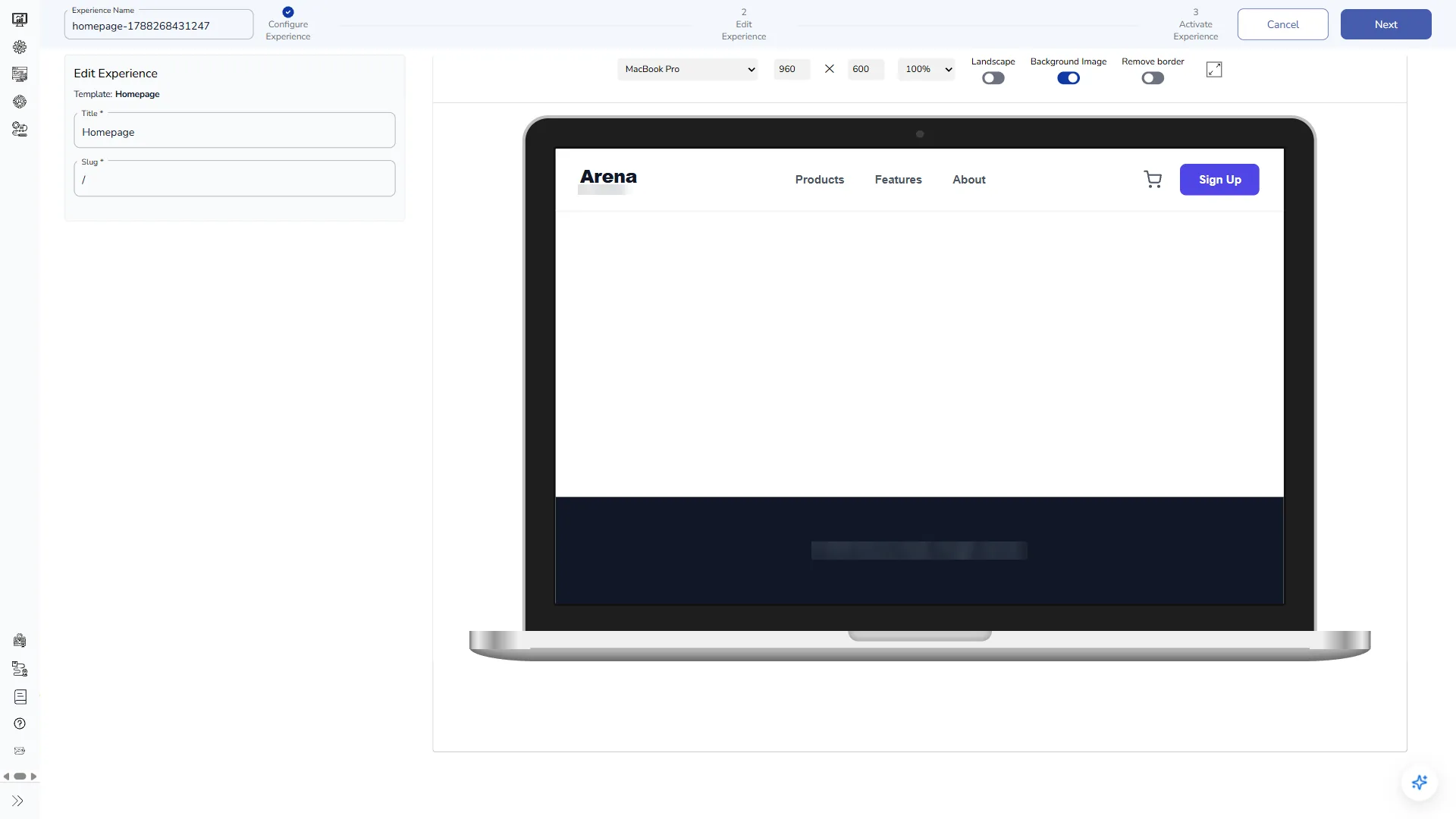
- Edit Experience: check the Experience Code, then save. The save button only works once you’ve changed something, and the options depend on the version you opened:
| You’re editing | Main button | Arrow menu |
|---|---|---|
| The approved version | Save and Activate | Save and Close, Save with New Version |
| A draft | Save and Close | Save and Approve, Save with New Version |
- Save with New Version saves your changes as a new draft. The approved version and its activations don’t change.
- Save and Close on a draft saves over that draft and returns to Manage Experiences.
- Save and Activate or Save and Close on the approved version, and Save and Approve on a draft, open Confirm Approval. It lists every activation that will be updated. Click Approve to go ahead, or Create New Experience to save your changes as a separate experience instead.
- After Save and Activate or Save and Approve, the Activate Experience step opens so you can add destinations. See Activate an experience.
Changes live systems
Approving updates all associated activations. Linked Adobe Target offers, AEM fragments, Contentful entries, Tealium extensions and GitHub files get the new content straight away; if an offer is in a live activity, visitors see the change.
Revert to the previous approved version #
- On the details page, click the curved arrow on the approved version (Revert Last Published Version).
- In Revert Version, click Revert.
The previously approved version becomes the approved version again, and Stride updates all associated activations with it.
Changes live systems
Reverting changes the content of every linked offer, entry, extension and GitHub file.
Delete a version #
- Click the bin on a draft version.
- In Delete Version, click Delete.
You can’t delete the approved version. If the experience has never been approved and this is its only version, Stride warns you that deleting it deletes the whole experience.
Duplicate an experience #
In Manage Experiences, choose ⋮ → Duplicate on the row.
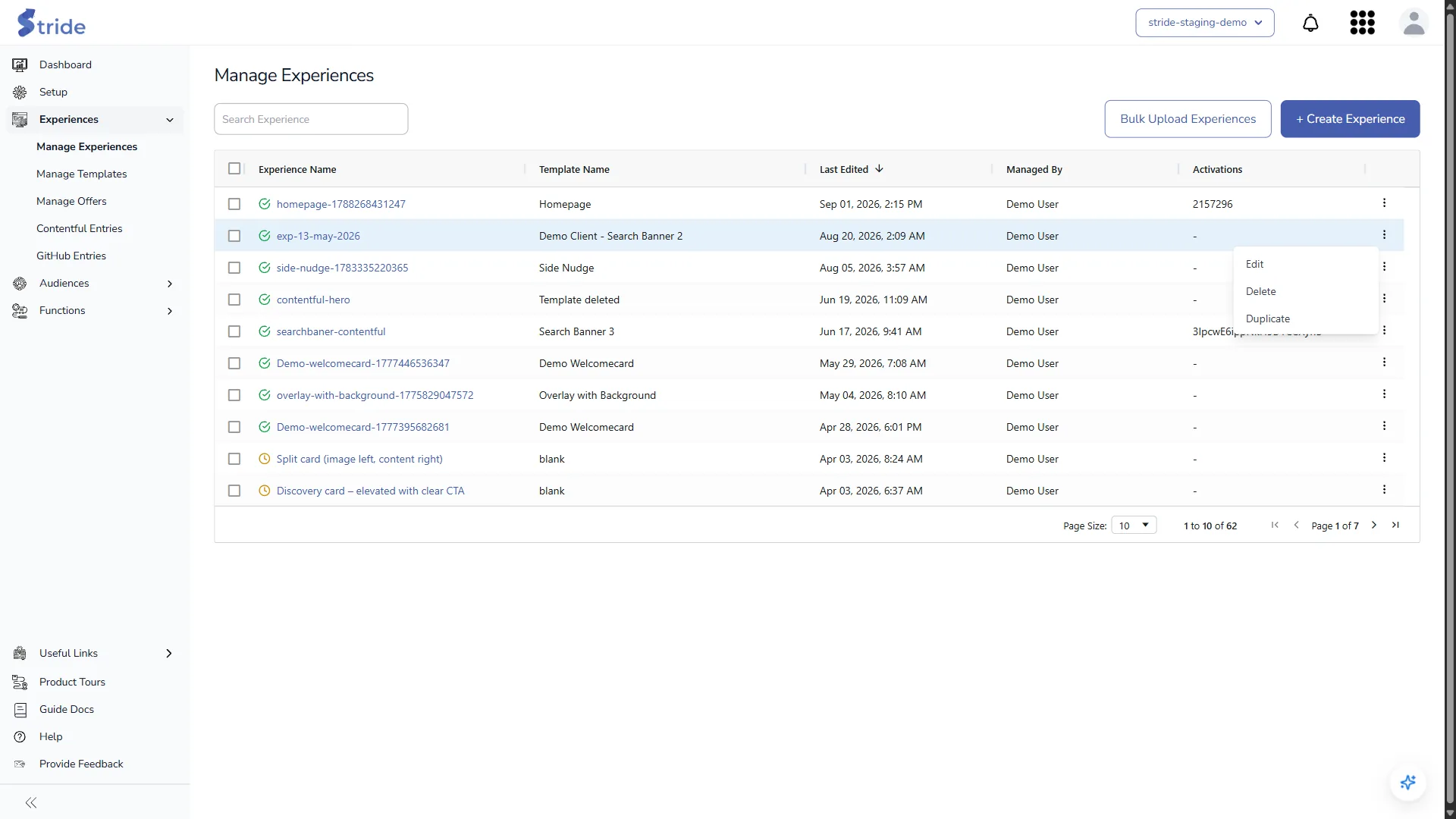
Stride creates a draft called <name> Copy (or <name> Copy 1, Copy 2 and so on if that name is taken) and opens it in the editor. The copy has no activations, and it counts against your Create Experience quota.
Delete an experience #
- In Manage Experiences, choose ⋮ → Delete on the row.
- Stride checks for activations. If there are none, click Delete Experience to delete it straight away.
- If the experience has activations, Stride says how many. Click Review Dependencies to see each one’s type, destination and ID, then Back.
- Click Delete Experience, then Delete in Confirm Deletion.
Stride deletes the experience, all its versions and its links to activations. The offers, entries and extensions themselves stay in Adobe Target, Contentful or Tealium: remove them there if you no longer need them.
Changes live systems
Deleting an experience can’t be undone.


