

Create the feed, then add a source: the product API the feed reads from, with its URL, parameters, headers, pagination and dependent calls.
Create a feed #
- Go to Functions and click Product Feeds.
- Enter a Name and, optionally, a Description. The name is also used as the saved task name.
- Click Create feed.
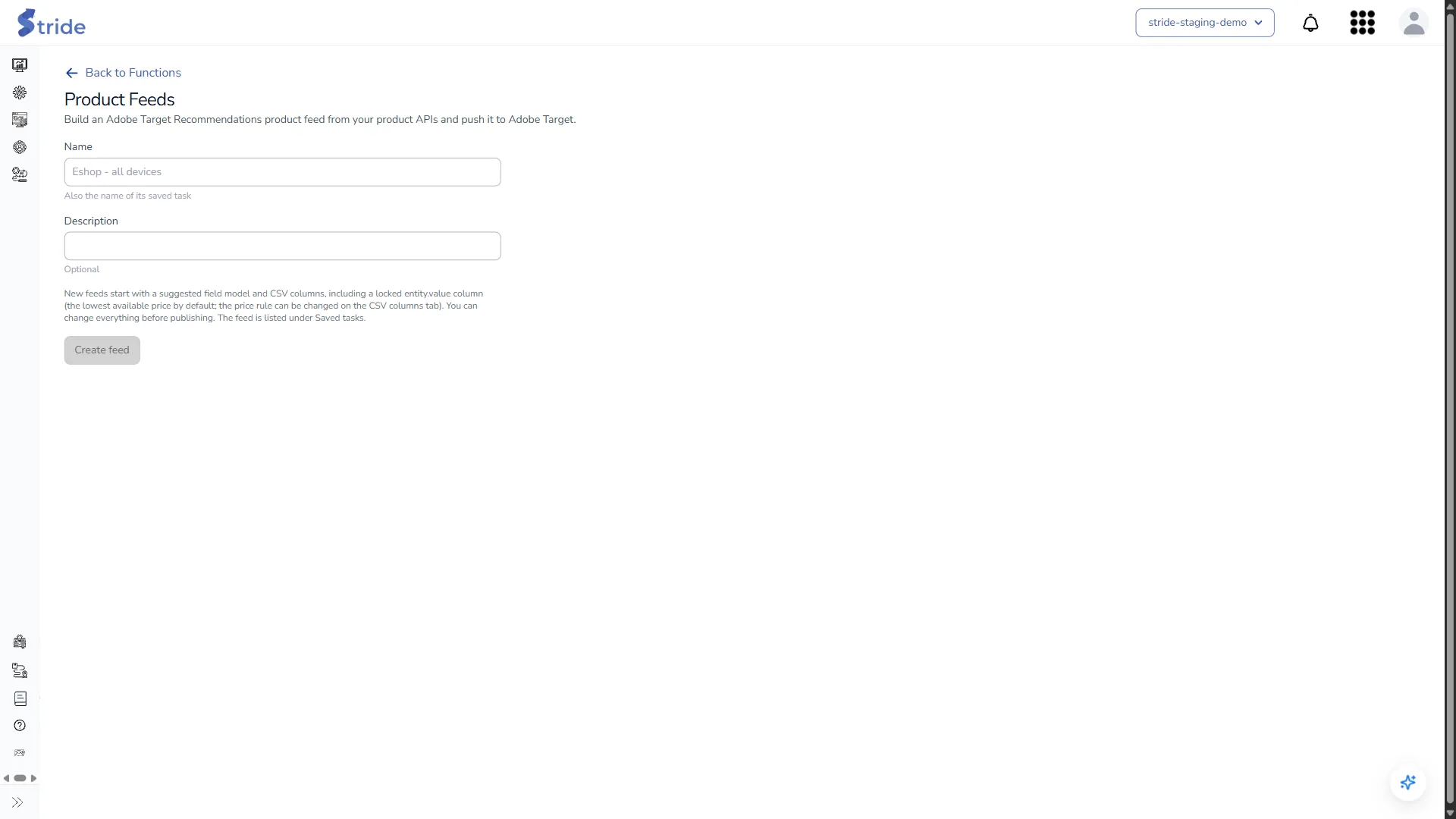
New feeds start with a suggested field model and CSV columns, including a locked entity.value column (the lowest available price by default). You can change all of it before you publish.
To edit a feed later, open it from Functions → Saved Tasks. Use Duplicate there to copy a feed.
Sources tab #
Sources are the product APIs the feed reads from. They are read in priority order: for each field, the first source with a value wins, unless the field’s merge rule says otherwise.
- Primary sources create products.
- Enrichment sources only add data to products that already exist, matched on the product key or a variant field.
To add a source:
- In the dropdown beside Add source, choose the starting shape that matches your API: Nested products → variants, Flat SKU list grouped by parent or Products only.
- Click Add source. The source drawer opens with four steps: 1. Request, 2. Structure, 3. Map fields and 4. Role & failure.
Edit sources as JSON opens the raw configuration of every source, if you prefer to paste or edit it directly.
1. Request #
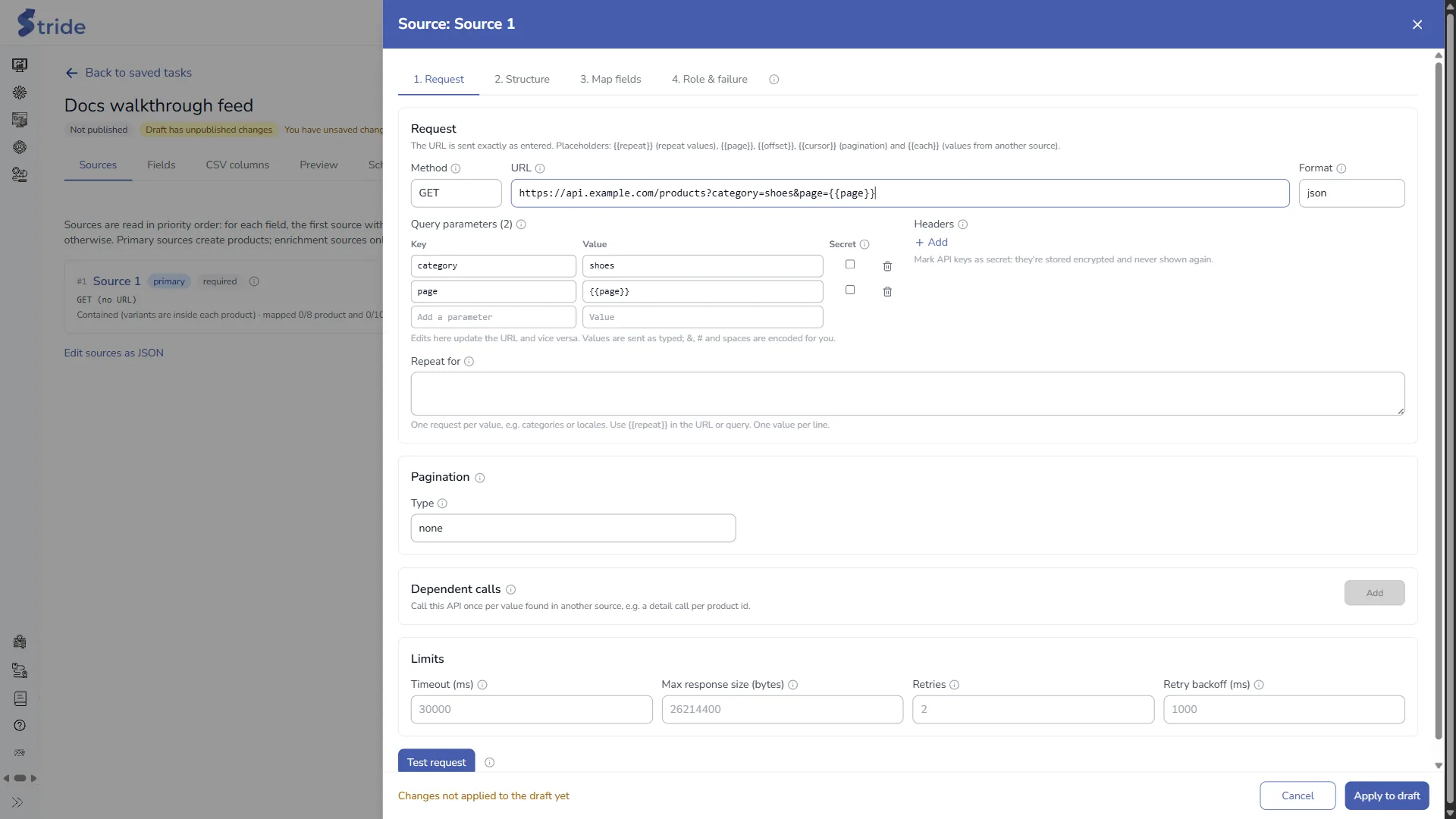
- Choose the Method (GET or POST) and the Format (
jsonorndjson), and enter the URL.
Note
Source URLs must be public https:// addresses. Private, internal and local addresses are blocked, and so are credentials written into the URL.
The URL can contain placeholders: {{repeat}} (repeat values), {{page}}, {{offset}} and {{cursor}} (pagination), and {{each}} (values from another source).
- Add Query parameters in the table. The table and the URL stay in sync. Values are sent as typed;
&,#and spaces are encoded for you. - Add Headers, for example an API key.
Note
Tick Secret on any parameter or header that holds a key or token. Secrets are stored encrypted. After you save, Stride never shows them again in full; they appear as ********.
- Optionally, fill in Repeat for with one value per line, for example categories or locales. Stride sends one request per value, using
{{repeat}}in the URL or query. - Under Pagination, choose the Type:
none,page,offset,cursor,next_urlorlink_header. - Optionally, add Dependent calls: call this API once per value found in another source, for example one detail call per product ID.
- Check the Limits: Timeout (ms) (default 30,000), Max response size (bytes) (default 25 MB), Retries (default 2) and Retry backoff (ms) (default 1,000). The maximums are on Product Feeds limits.
- Click Test request. Stride fetches up to three documents from the API so you can check the response and get structure suggestions for the next step.
Then go to step 2, Structure.


