

Add a Tealium API key so Stride can use it for Audiences, the Tealium data layer functions and the AI Assistant’s Tealium connector.
Who can do this
Owners and Admins. Editors can see the list but not the create, edit or delete controls.
Tealium API key integrations #
Tealium isn’t one of the sources and destinations on the Setup page. Open the Tealium Audience Stream API Key Integrations list in one of these ways:
- In the default integrations menu, click Add new Tealium Integration. This link shows while your organisation has no Tealium integration.
- Go to
/setup/tealium-api-key-integrationsin your Stride address bar.

The list shows each integration’s Tealium API Name, Tealium Account, Tealium Key, Tealium Profile, Tealium User, Default and Last Modified.
Add a Tealium integration #
- Click + New Tealium API Key Integration.
- Fill in the form:
| Field | Meaning |
|---|---|
| Tealium Api Name | Your label. |
| Tealium Account | The Tealium account name. |
| Tealium Key | The Tealium API key. |
| Tealium Profile | The profile, for example main. |
| Tealium User | The Tealium user (email) the key belongs to. |
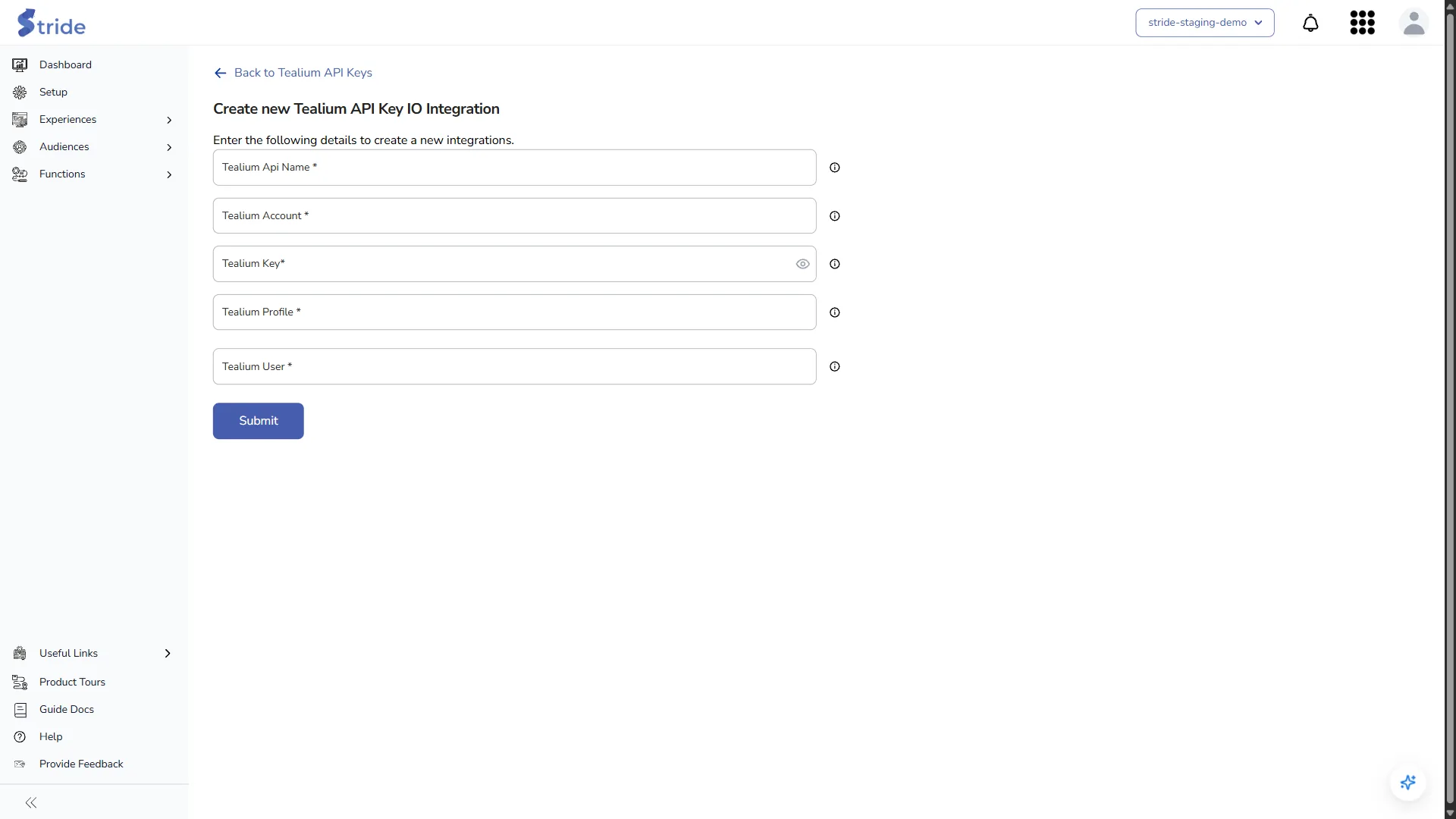
- Click Submit.
Note
There is no Validate step for Tealium, and Stride saves the values without testing them. Check the account, profile and user carefully before you submit.
To change an integration later, click ⋮ → Edit, change the fields and click Submit.
Stride stores the key encrypted.


