

Sign in to Stride, reset a forgotten password and find out why Stride logs you out after 30 minutes without activity.
Log in #
- On the Stride home page, click Login.
- Enter your email in Enter Email and your password in Enter Password, then click Log In.
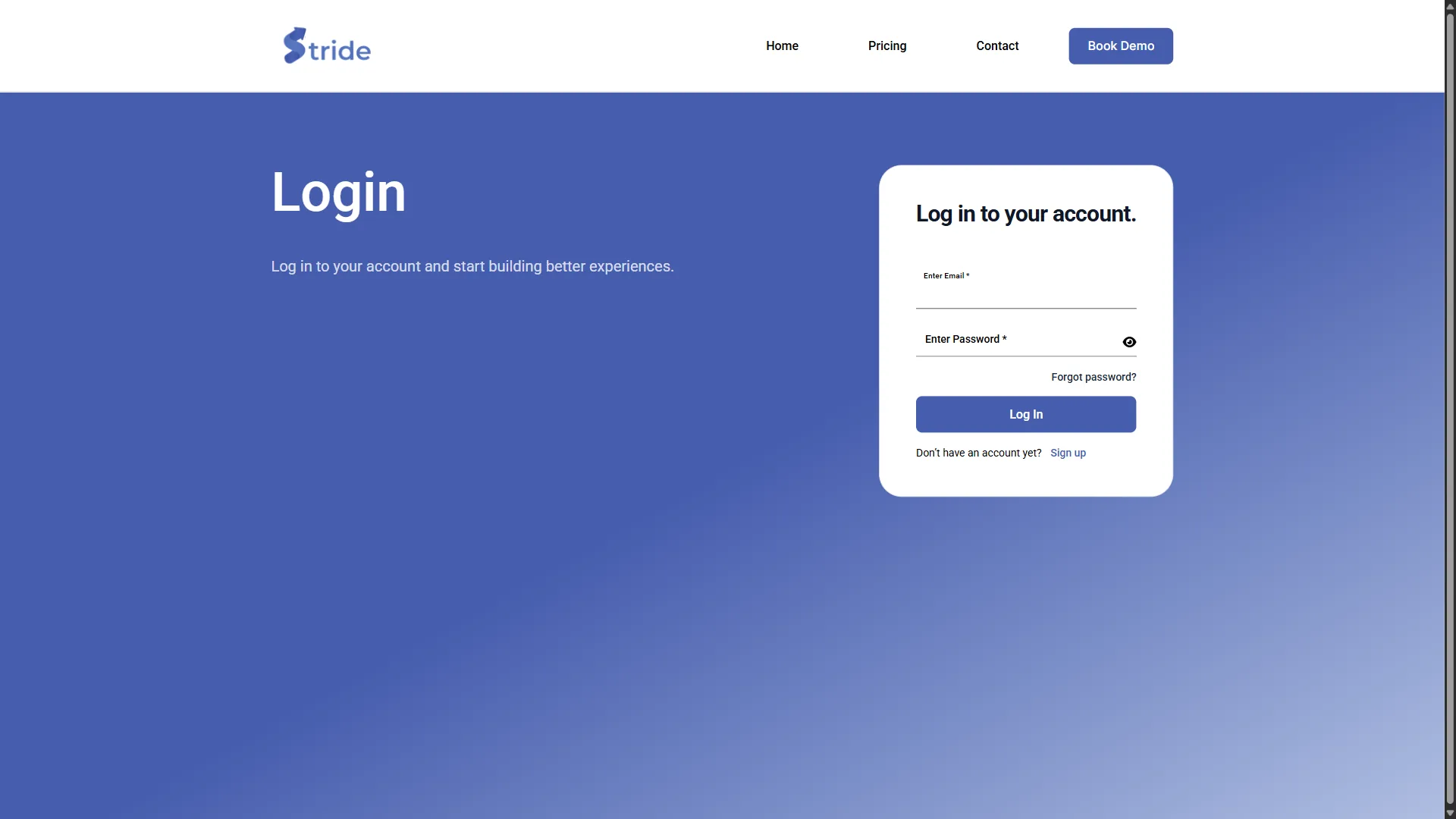
- Stride opens the Dashboard of your default organisation. To change which organisation opens first, see Your profile and organisations.
If you see Access Denied with “You currently do not have access to any organizations. Please contact your Owner.”, you don’t belong to an organisation yet, or every organisation you belong to has blocked you. Ask an Owner of your organisation to invite or unblock you.
If you see User is not activated yet., your Stride account itself is not active, for example because it was deactivated. Contact the Stride team through your usual support channel.
Reset your password #
- On the login form, click Forgot password?.
- Enter your email address and click Submit.
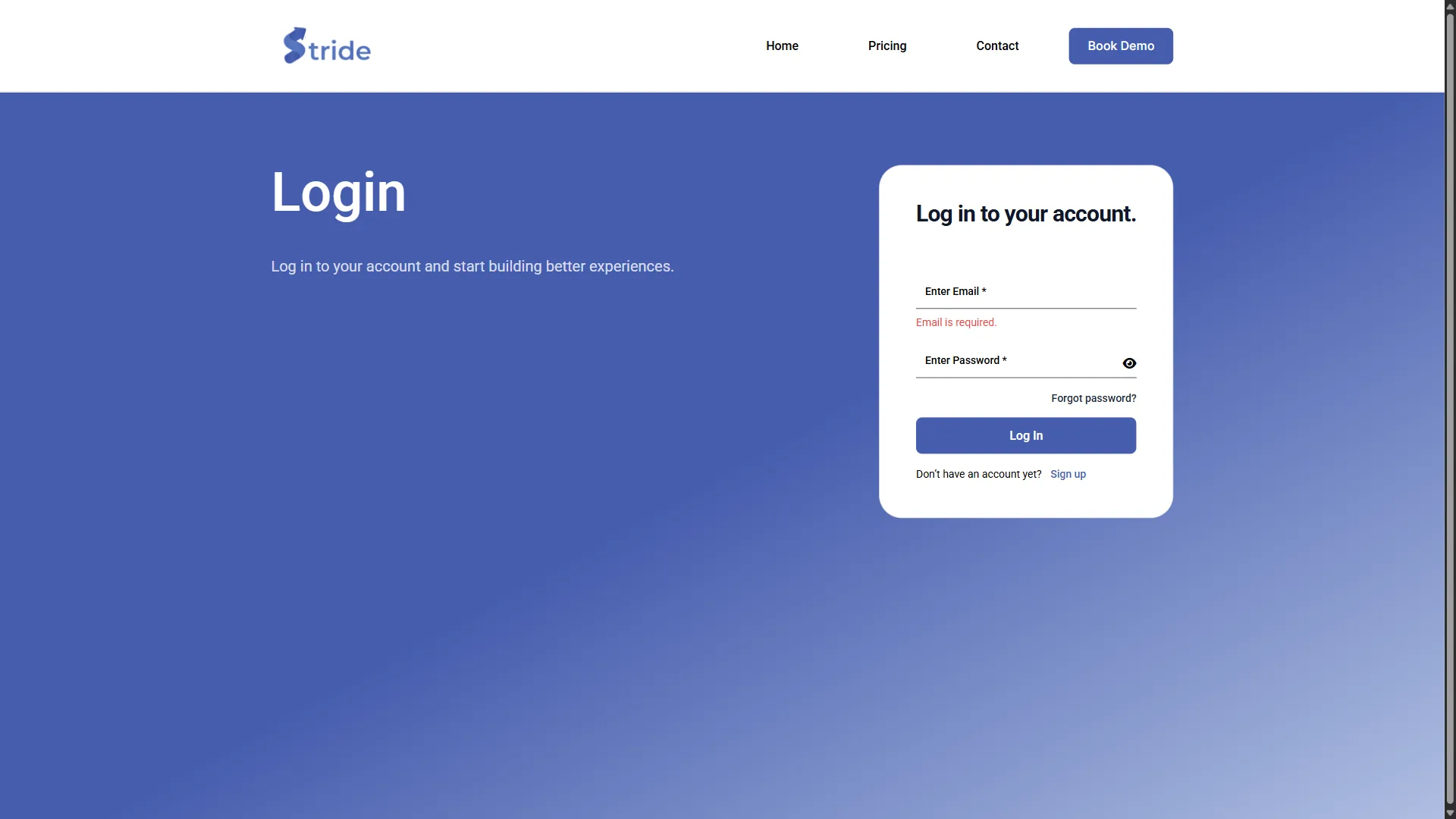
- Open the reset email and follow the link to choose a new password. If the email doesn’t arrive within a few minutes, check your spam folder.
Note
Choose a password with at least 10 characters, including one upper-case letter, one lower-case letter and one digit.
When you are logged in, you can also change your password from Profile. See Your profile and organisations.
Session timeout #
Stride logs you out after 30 minutes of inactivity and you need to log in again. Typing, clicking, scrolling and moving the mouse count as activity. A tab left open in the background does not, and each browser tab times out on its own, so save your work before you step away.
Sessions and authentication #
| Item | Value |
|---|---|
| Idle logout | 30 minutes without input (default) |
| New accounts | Locked until the email address is verified |
| Password rules | At least 10 characters, with one upper-case letter, one lower-case letter and one digit. The sign-in page shows any rule your password doesn’t meet. |


