

The bottom of the left navigation has guided tours of the real pages, two A/B testing calculators, these docs, and a form to report a problem or suggest a feature.
Useful Links #
Click Useful Links to expand it:
- Adobe Sample Size Calculator: Adobe Experience League’s A/B test sample size calculator.
- CXL Test Calculator: CXL’s A/B test significance and duration calculator.
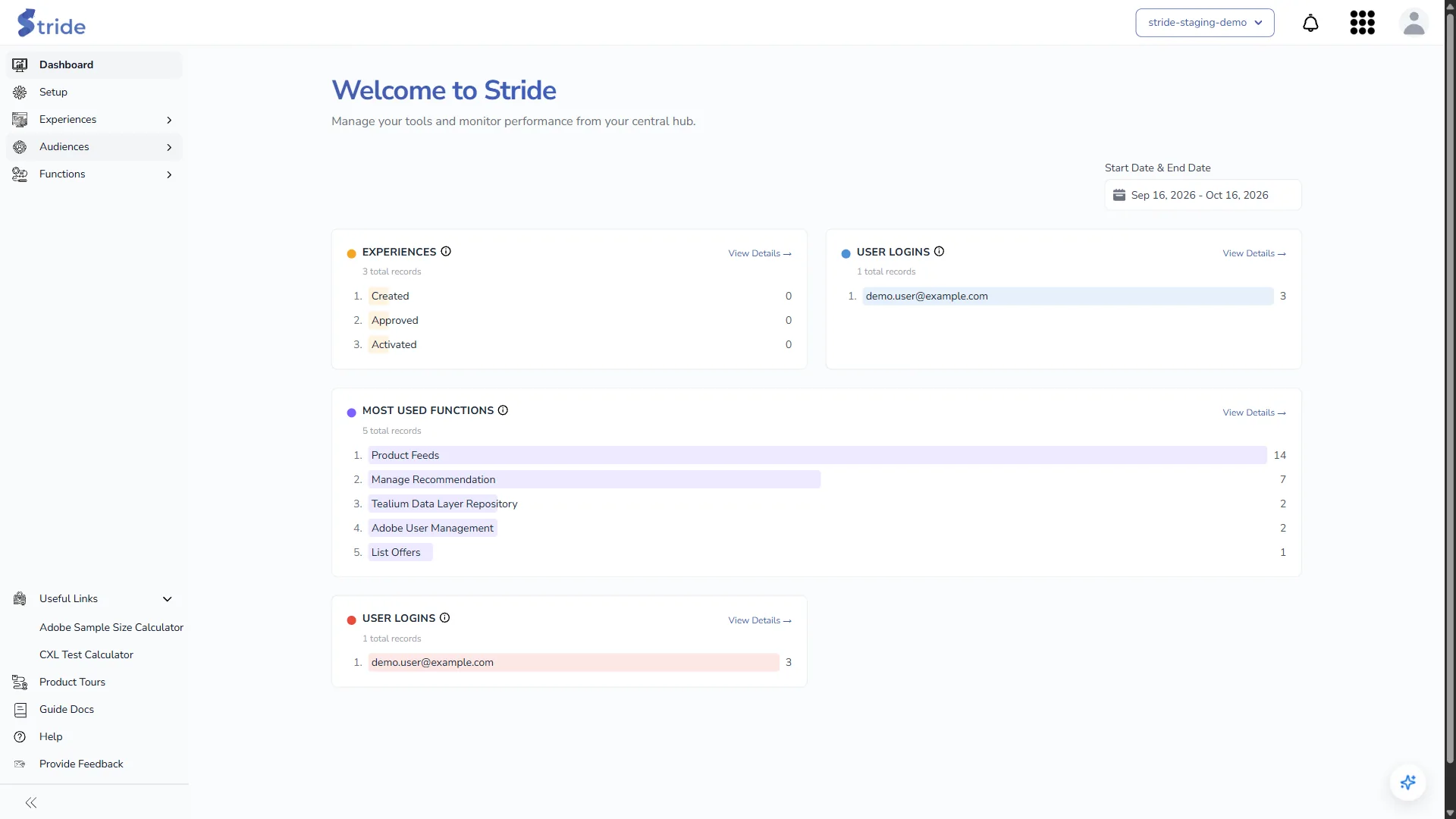
Both open in a new tab.
Product Tours #
Product Tours opens Interactive Product Tours: guided walkthroughs that highlight each control on the real pages.

Tours include Setup Tour, Reset Password, Invite User, Create Experience, Create Template, Edit Experience Draft version, Edit Experience Approved version, Bulk Upload Experience, One-Off Task, Recurring Task and Upgrade Plan. Which ones you see depends on your plan, your role and your data. For example, Invite User is for Owners, and the edit tours only appear once you have a draft or an approved experience.
- Click Start Tour on a card.
- Stride takes you to the right page and shows the first step.
- Click Next to move on, Back to go back, or Skip to end the tour. On the final step, click Last.

The template editor also has a ? button with Start Interactive Tour and View Guide Doc. View Guide Doc opens Create or edit a template in a new tab.
Guide Docs #
Guide Docs opens these docs inside Stride, at /docs.
Help #
Help opens Help and troubleshooting, starting with Why can’t I see a page or button?.
Provide Feedback #
Provide Feedback opens Contact Us.
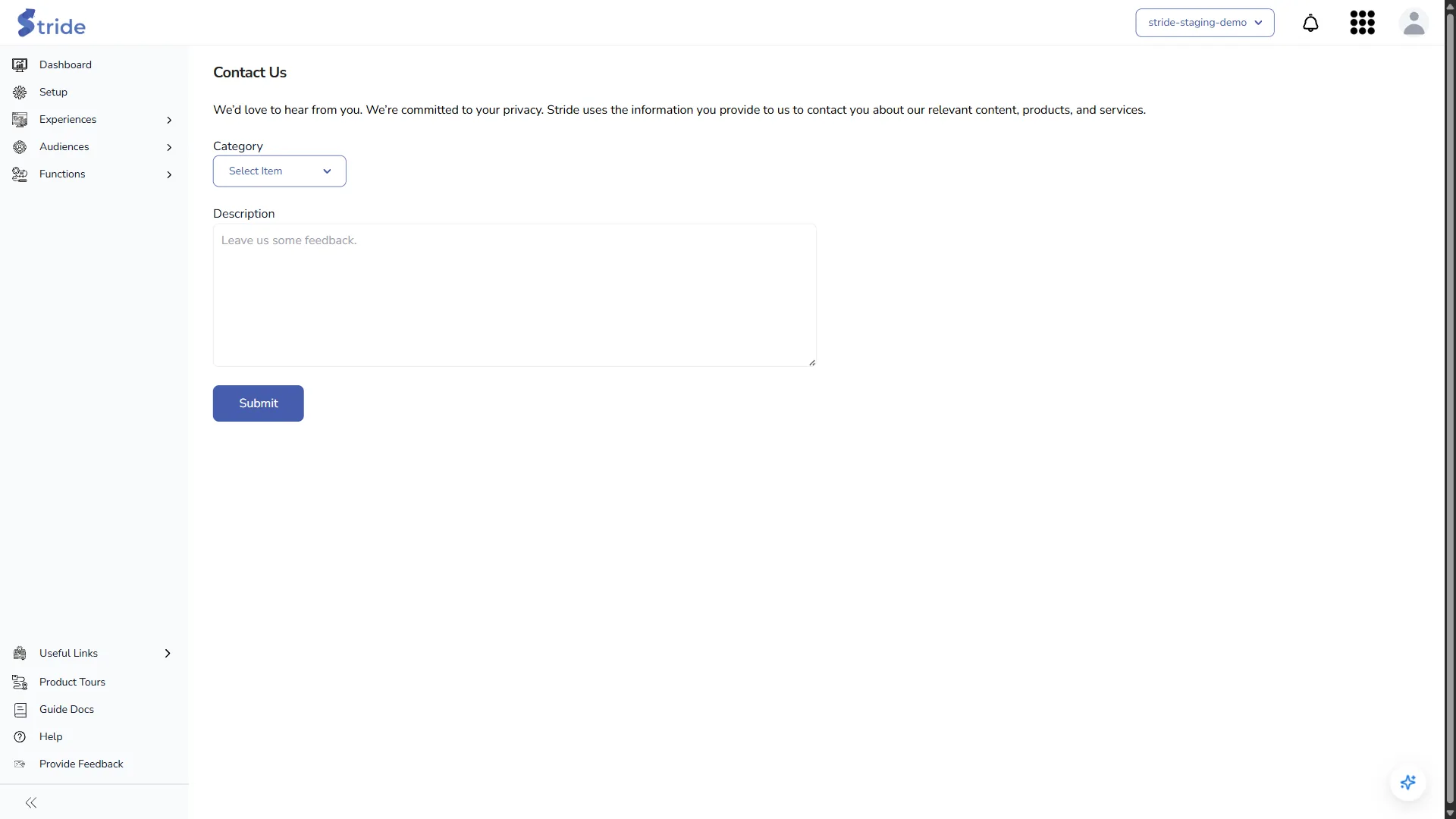
- Choose a Category: Raise an defect or issue or Provide a suggestion.
- Write a Description.
- Click Submit. Stride shows “Your details submitted successfully.” and the Stride team receives your message by email.


