

Browse the entries in your default Contentful space and the files in your synced GitHub repository, preview them with a template and activate them to other destinations.
Contentful entries #
Go to Experiences → Contentful Entries. It lists the entries in the space of your default Contentful integration, with their content type, published version and dates.

Use Search by ID to find an entry, and click its Sys Id to open it.
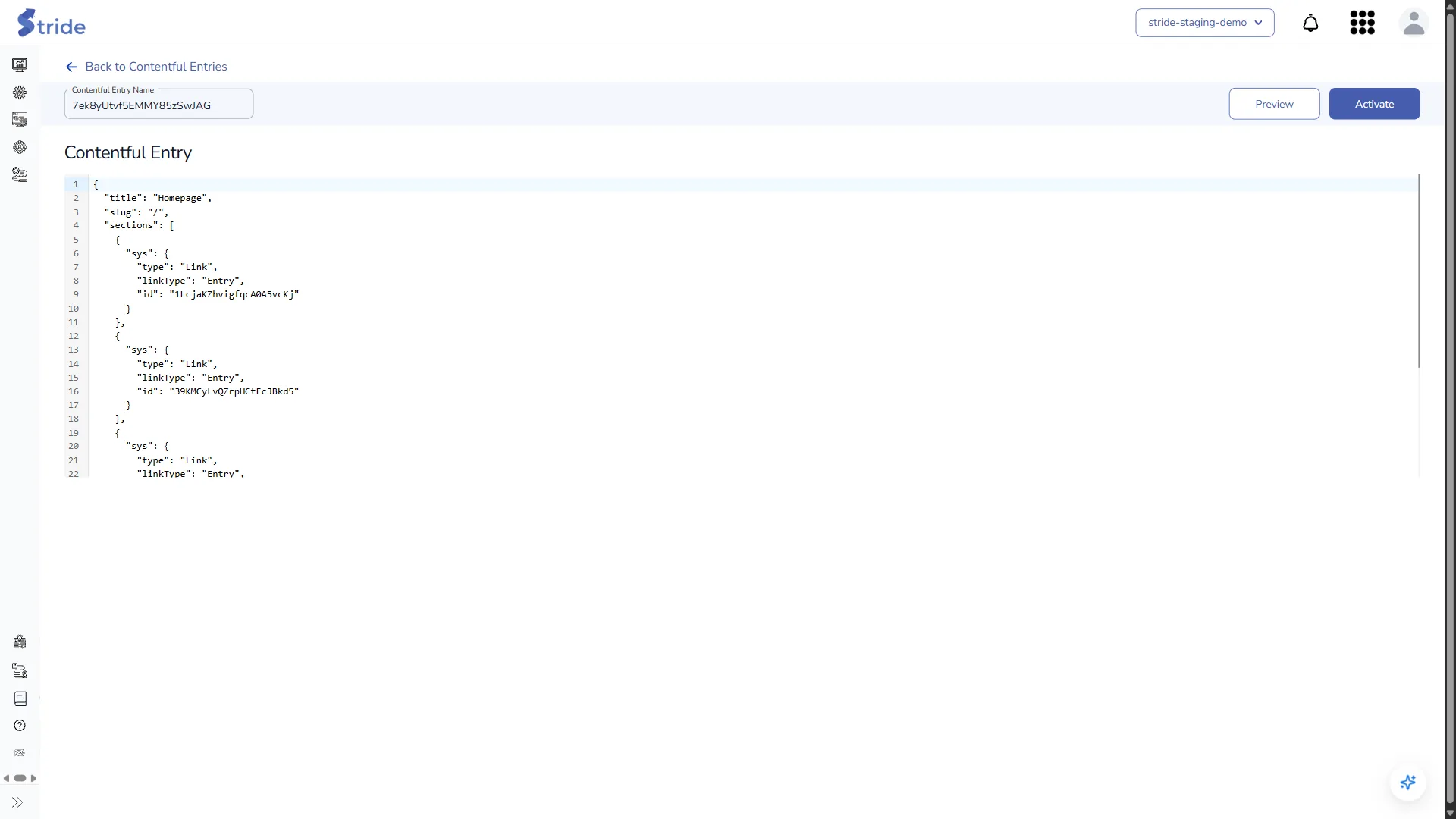
- Activate opens the activation step for the entry’s content, the same as step 4 of the experience wizard.
- Preview opens a wizard: choose a template that matches the entry’s fields, check and change the content in the preview, then use Update In Contentful to save the change to the entry. The arrow menu also offers Create Experience, Activate and Activate & Create Experience.
Changes live systems
Update In Contentful changes the entry in Contentful, and Activate sends the content to a live destination such as Adobe Target.
GitHub entries #
Go to Experiences → GitHub Entries. It lists the files in the repository of your default GitHub integration: File Path, Size, Last Updated By and Last Updated At. The list is empty until a GitHub integration is set up and synced (see Connect and sync a GitHub repository).
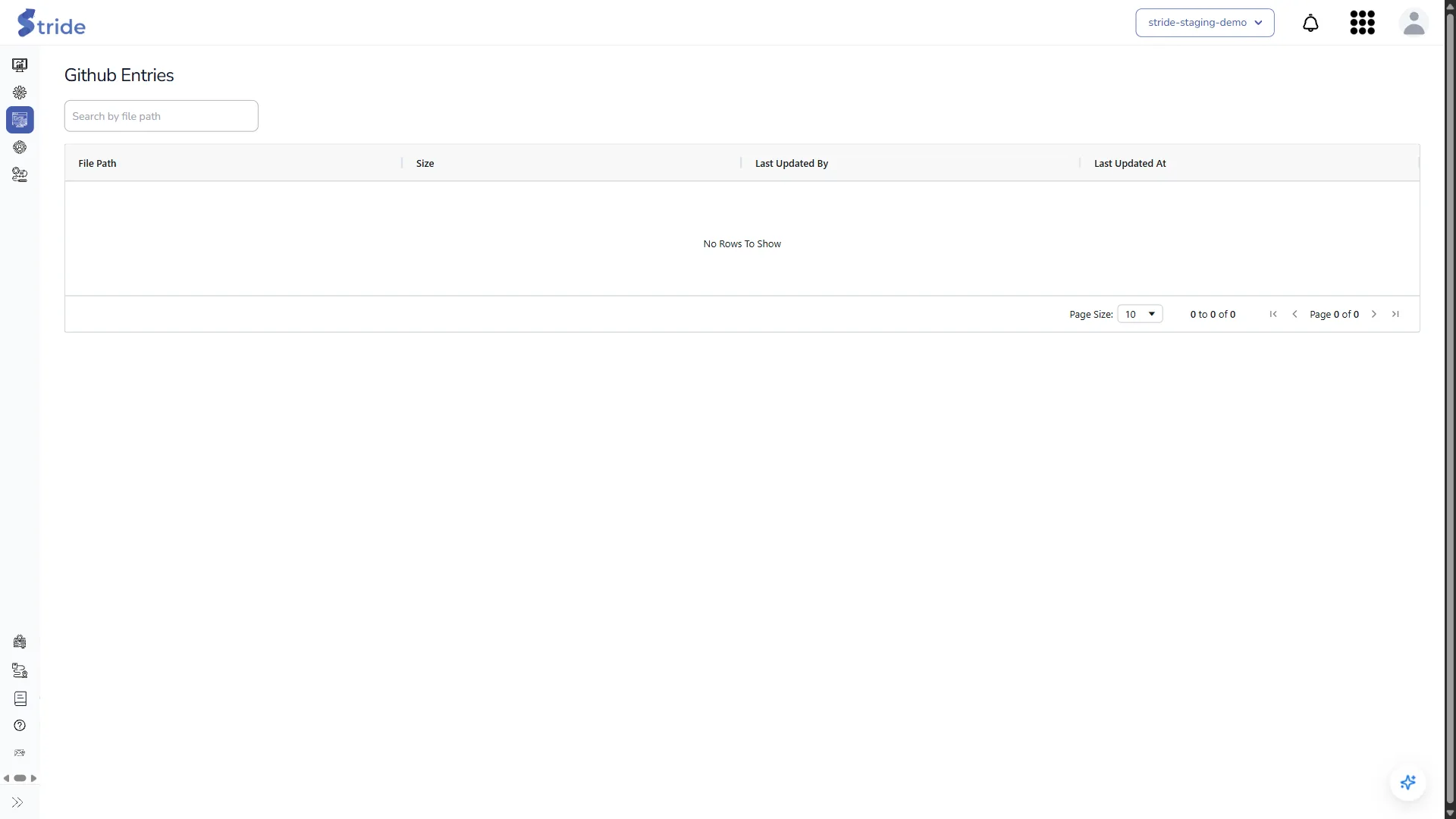
Click a file path to open the file. Preview and Activate work as they do for Contentful entries; the preview wizard saves changes with Update In Github.


