

Steps 2 to 4 of the source drawer tell Stride where the products and variants are in the API response, which value fills each feed field, and what happens when the source fails.
Note
Run Test request in step 1 first. The structure suggestions, the Response explorer and Load samples all work from the test response.
2. Structure #

- Under Prepare, click Add prepare step for optional steps that tidy each response before extraction: parse embedded JSON, pivot, force an array, rename or drop fields.
- Under Products and variants, choose the Relation: how variants relate to products.
- Contained: variants are inside each product.
- Key: separate lists linked by an ID.
- Group: flat rows grouped into products.
- Self: each product is its own variant.
- Zip: parallel arrays on the product.
- Cartesian: every combination of option lists.
- Enter the JSONPath for Products (for example
$.products[*]) and for Variants, relative to each product (for example@.variants[*]). Each level gets a Name (as) that field mappings can read, such as$product.brand. Use Add level for deeper structures, for example colour → size. - Optionally, add a JSON condition in Only keep products where to filter products out.
- Click Check extraction to test the paths against the sample response.
In the Response explorer, click a pick button, then click a node to fill in its path.
- Click Next: map fields.
3. Map fields #
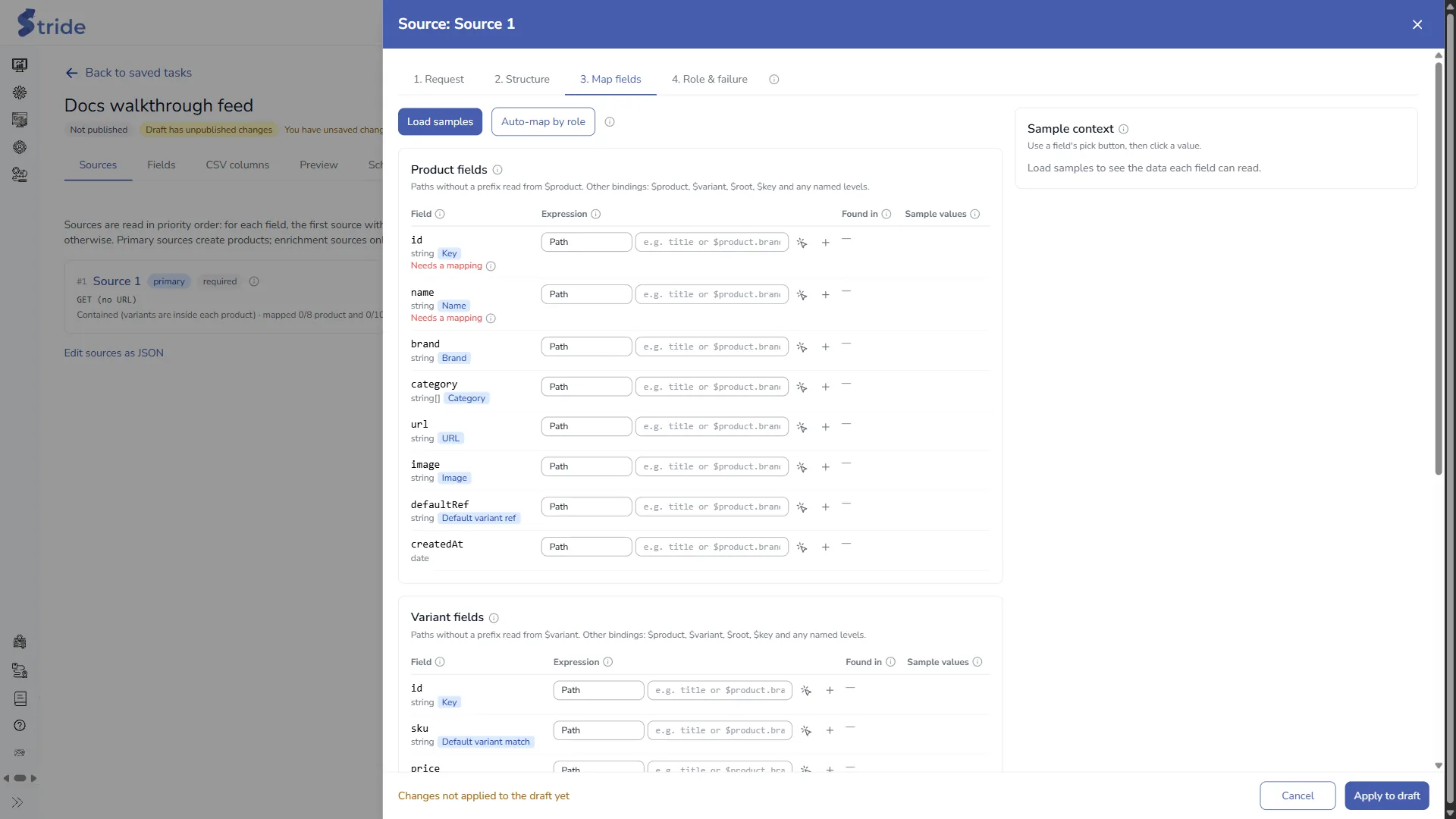
Every feed field from the Fields tab is listed here, split into Product fields and Variant fields. Fields that must be mapped show Needs a mapping.
- Click Load samples to read real values from the test response. The button changes to Refresh samples once samples are loaded.
- Click Auto-map by role to let Stride guess mappings from each field’s role, then check its guesses.
- For any other field, enter a path in Expression. Paths without a prefix read from
$product(product fields) or$variant(variant fields). You can also use$root,$keyand any named level from step 2. - To pick a value instead of typing, click the field’s pick button, then click a value in the Sample context panel.
- Check Found in and Sample values. Found in shows how many of the sampled records have a value (for example 8 / 10), and Sample values shows the first three, so you can spot fields that are often empty.
4. Role & failure #

- Give the source a Name and an Id. The Id is used by dependent calls and lookups, and takes letters, digits,
-and_. - Choose the Role:
- Primary sources create products.
- Enrichment sources only add fields and variants to products that already exist. Choose what to match on in Match records on: Product key, Variant key or a variant field. Records that don’t match are reported, not added.
- Under When this source fails:
- Required: if a required source fails, the whole run fails, so nothing is pushed and Target keeps what it has. It is on by default for primary sources and off for enrichment sources.
- Set Minimum products: fewer products than this counts as a failure (default 1).
- Click Apply to draft to keep the source, or Cancel to throw away your changes.
Apply to draft only updates the draft in the editor. Click Save draft to store it; see Draft and publish.


