

Add a Contentful space so Stride can read entries, store images uploaded in experiences and publish experiences as entries.
Who can do this
Owners and Admins. Editors can see the form, but Stride refuses to save it for them (“Admin or Owner role required for this organization.”).
Contentful integrations #
A Contentful integration is used to read Contentful entries as a source and to publish experiences into Contentful as a destination.
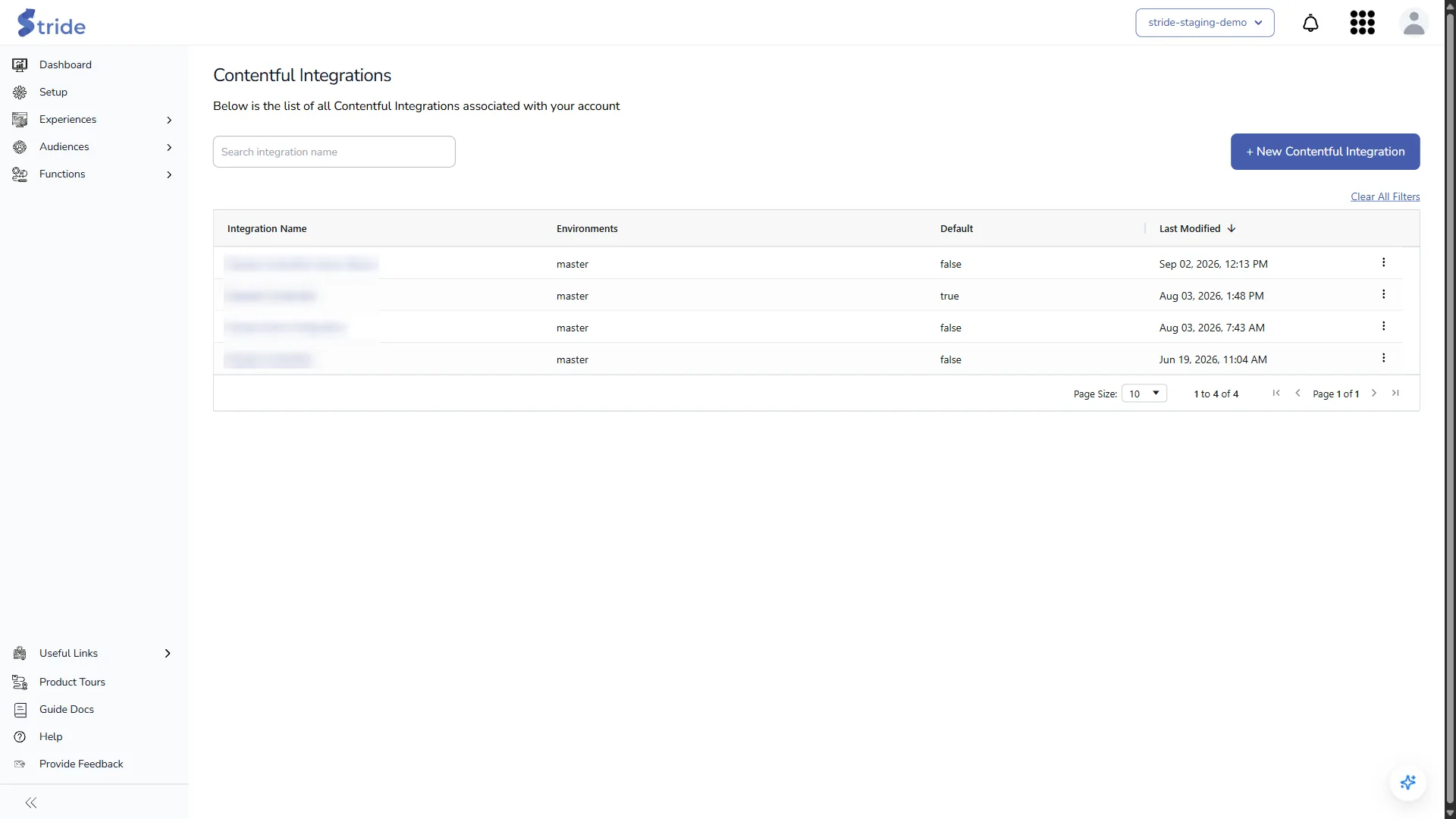
In Setup, tick Contentful, then click Manage beside it. Contentful Integrations opens, with the columns Integration Name, Environments, Default and Last Modified.
Add a Contentful integration #
- Click + New Contentful Integration.
- Fill in the form:
| Field | Meaning |
|---|---|
| Integration Name | A unique name for the integration. |
| Space ID | The Space ID from Contentful. |
| Content Delivery Access Token | For reading published content. |
| Content Preview Access Token | For reading draft content. |
| Content Management Access Token | For creating and updating entries and uploading images. |
| Environments | One or more environments, separated by commas, for example master, staging. |
The three token fields are hidden as you type.
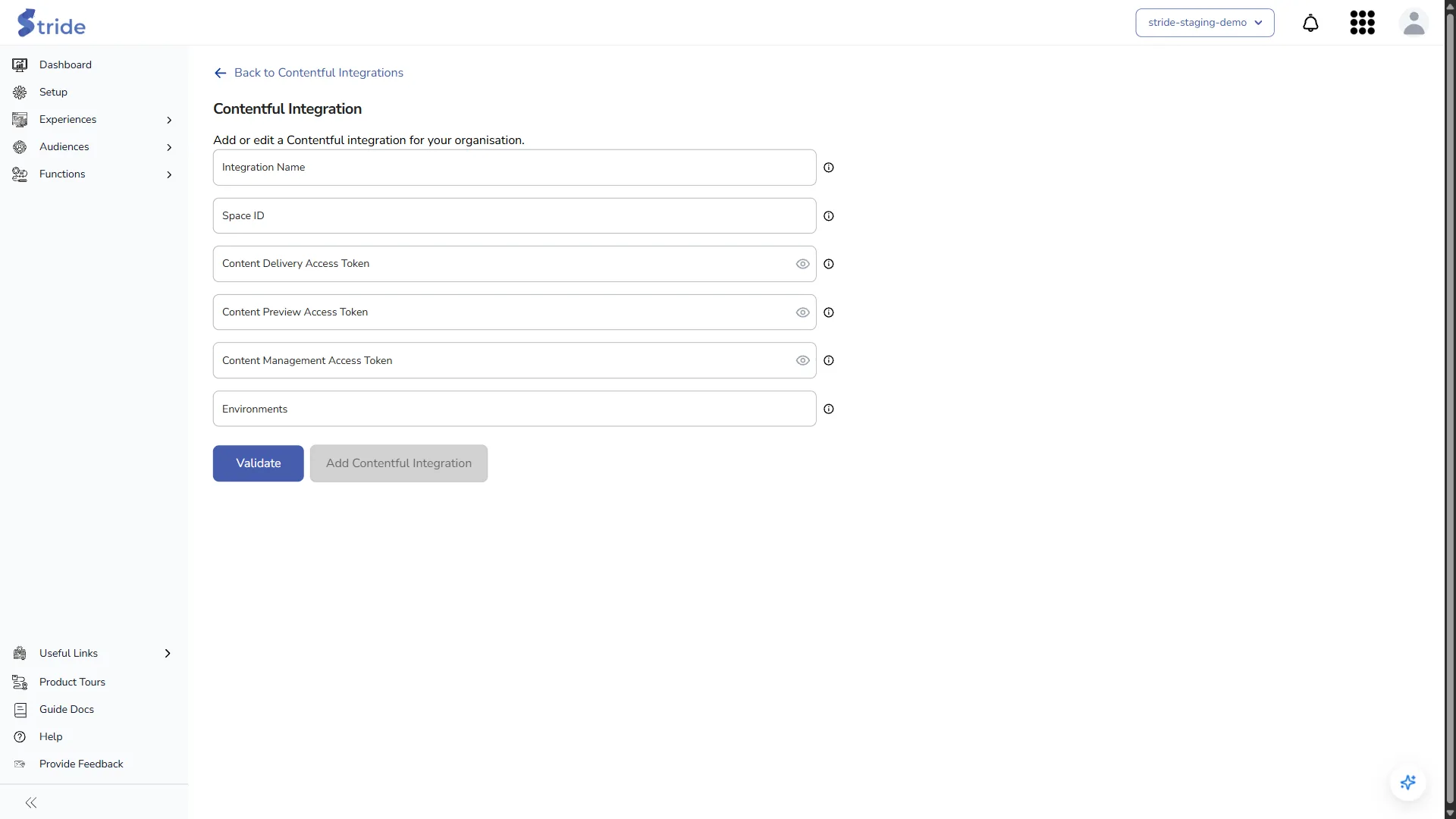
- Click Validate. Stride checks the tokens against the first environment in the list and shows “Integration validated successfully. You can now submit the form.”
- Click Add Contentful Integration. It stays disabled until validation succeeds.
To change an integration later, click its name or ⋮ → Edit, validate again and click Save Changes.
Stride stores the tokens encrypted.
Note
Images uploaded in the experience form go to the Contentful integration you are using, which is your organisation’s default unless you picked another in the default integrations menu.


