

The Testing Board shows every test as a card, with one column per stage. Go to XCM → Testing Board.
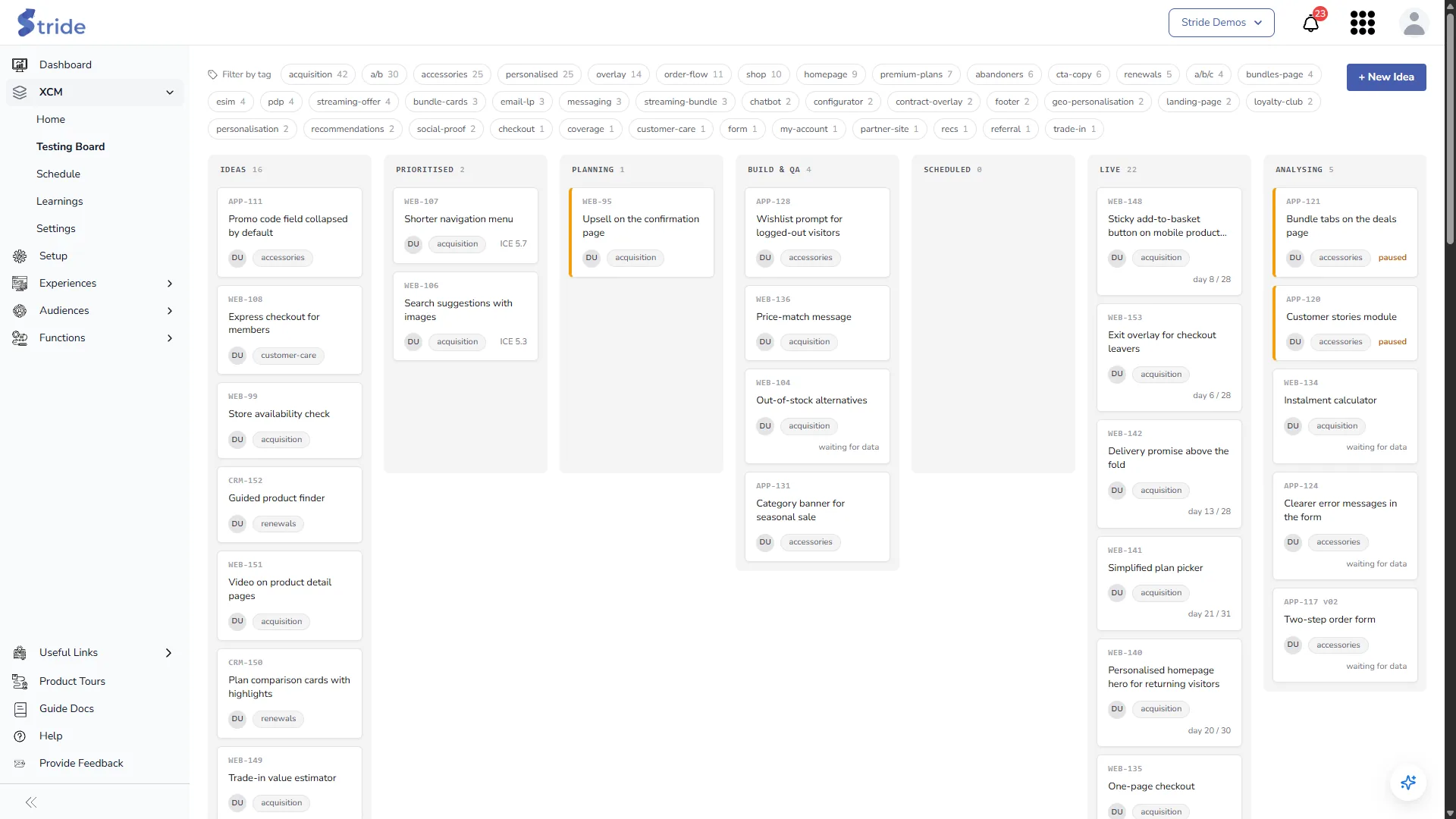
- Scroll right to see Analysing and Concluded.
- Each card shows the test ID, name, owner initials and first tag, plus one signal for its stage: the ICE score in Prioritised (sorted highest first), the planned duration in Planning, the day the test is on in Live (for example
day 8 / 28), and the verdict in Concluded. - Filter by tag: click tags at the top to show only tests with those tags. The number on each tag is how many tests use it.
- Drag a card to another column to change its stage directly.
Warning
Dragging a card skips the workflow buttons. Use it to correct a stage or to move a test into Analysing, not to skip steps.
Peek at a test #
Click a card to open a summary without leaving the board.
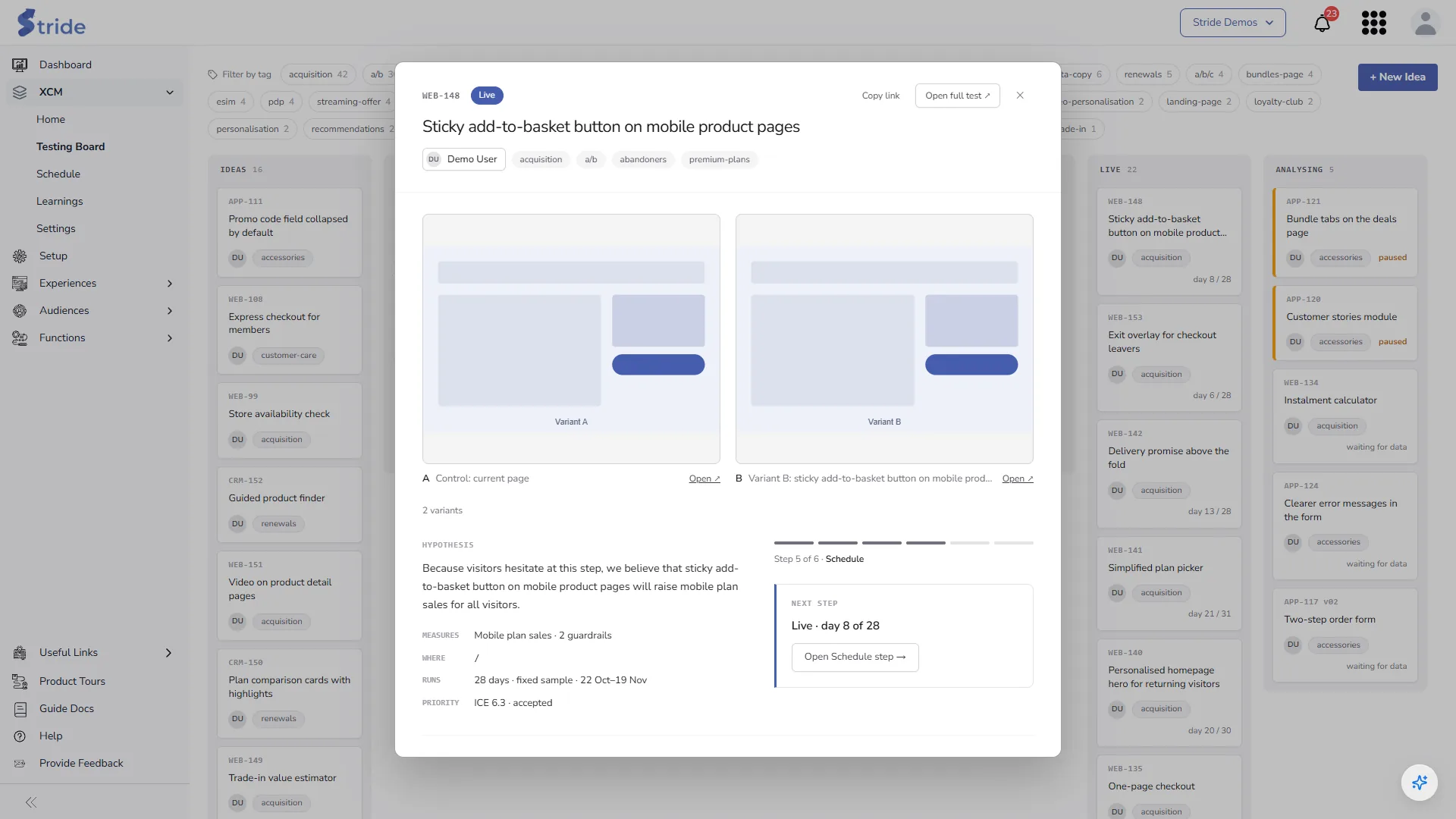
- The summary shows the variants (with an Open ↗ link to each file), the hypothesis, the primary metric (Measures), the location (Where), the run dates (Runs) and the ICE score (Priority).
- The button at the bottom opens the step the test is on.
- Copy link copies a shareable link to this summary. Open full test ↗ opens the workflow.
Add an idea #
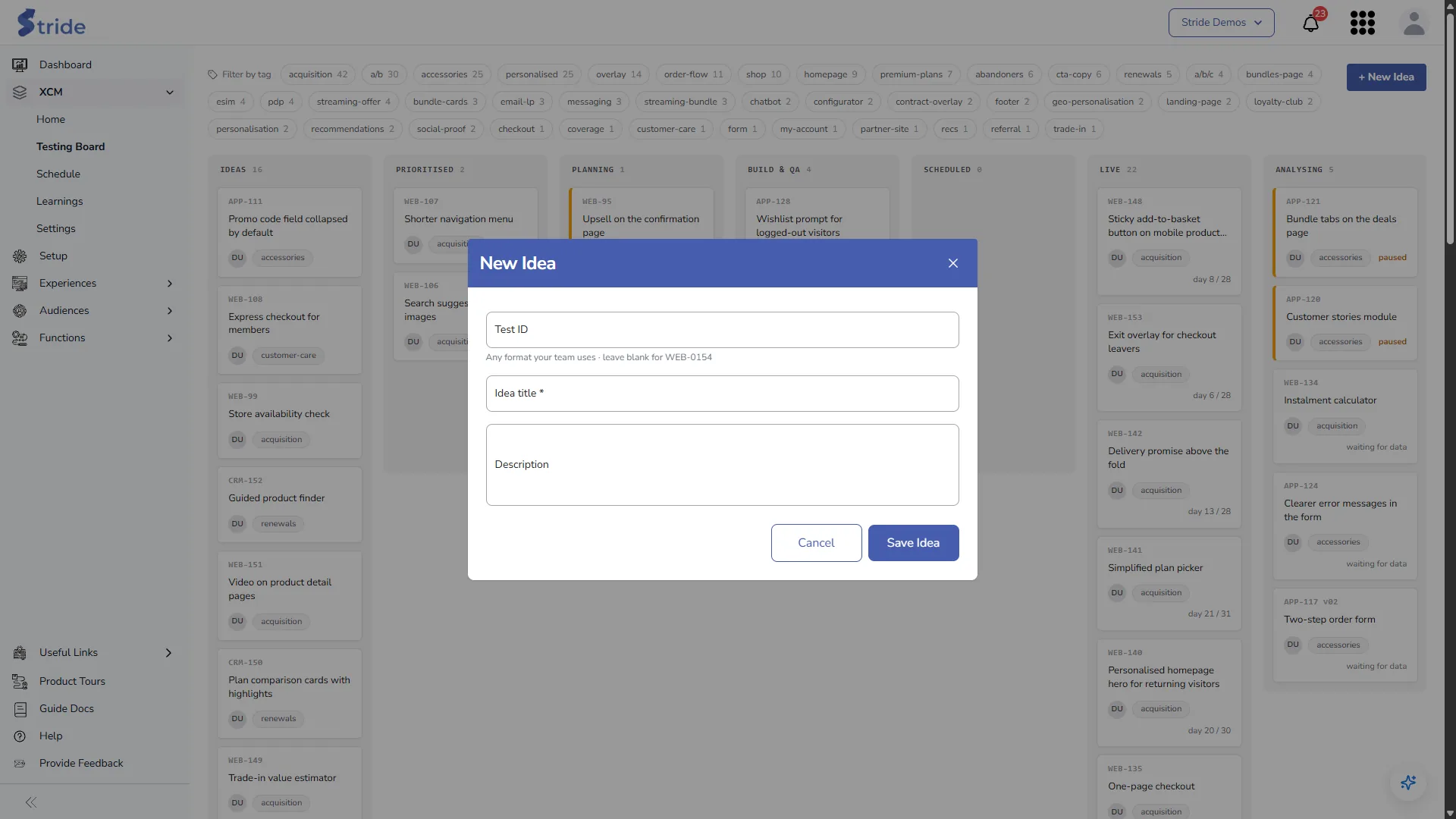
- Click + New Idea.
- Optionally, enter a Test ID in the format your team uses, for example
WEB-1042orAPP-117 v02. If you leave it blank, XCM uses the next number after your highestWEB-ID. IDs must be unique and at most 40 characters. - Enter an Idea title. It’s required.
- Optionally, add a Description: your first note about the idea. It’s shown under the hypothesis as “Original note”.
- Click Save Idea. The test is created in Ideas and opens at step 1. See Idea and Priority steps.
Working in the workflow #
- Header: the test ID, name and owner. Save and exit saves and goes back to the board.
- Stepper: click a step name to go to it. Build & QA, Schedule and Result show a placeholder until the test reaches them.
- Footer: Back goes to the previous step. The right-hand button moves the test on. On steps the test has already passed, it reads Next.
- Changes are saved as a draft as you go. Text saves a moment after you stop typing; choices save straight away. A “Changes saved” message confirms each save.


