

XCM (Experience Context Manager) is where you run your experimentation programme. Each test keeps everything about one idea in one place: the hypothesis and evidence behind it, its priority score, how it will be measured, its variants and QA checks, when it runs, the verdict and what you learned.
Idea ──▶ Priority ──▶ Plan ──▶ Build & QA ──▶ Schedule ──▶ Result
  ▲                                                          │
  └──────────── learnings feed the next ideas ◀──────────────┘
Note
XCM is a planning and record-keeping tool. It doesn’t connect to Adobe Target or Adobe Analytics yet. Building the experience, starting the activity and reading the numbers still happen in those tools. XCM records the plan, the dates and the outcome, and a test only changes stage when someone takes an action in XCM.
Who can do this
In this release, every member of the organisation can create, edit and move tests, and change XCM settings.
Find your way around #
Click XCM in the left navigation to open it. It has five pages:
| Page | What it’s for |
|---|---|
| Home | Programme overview: how many tests are at each stage, the next six weeks, and the win rate. |
| Testing Board | Every test as a card, in a column for each stage. Add ideas here. See Add an idea and use the Testing Board. |
| Schedule | A six-week timeline of live and scheduled tests. See The Schedule and Learnings pages. |
| Learnings | The library of what concluded tests taught you. |
| Settings | Tags, location fields and QA checklists. See Set up XCM: tags, locations and checklists. |
Home #
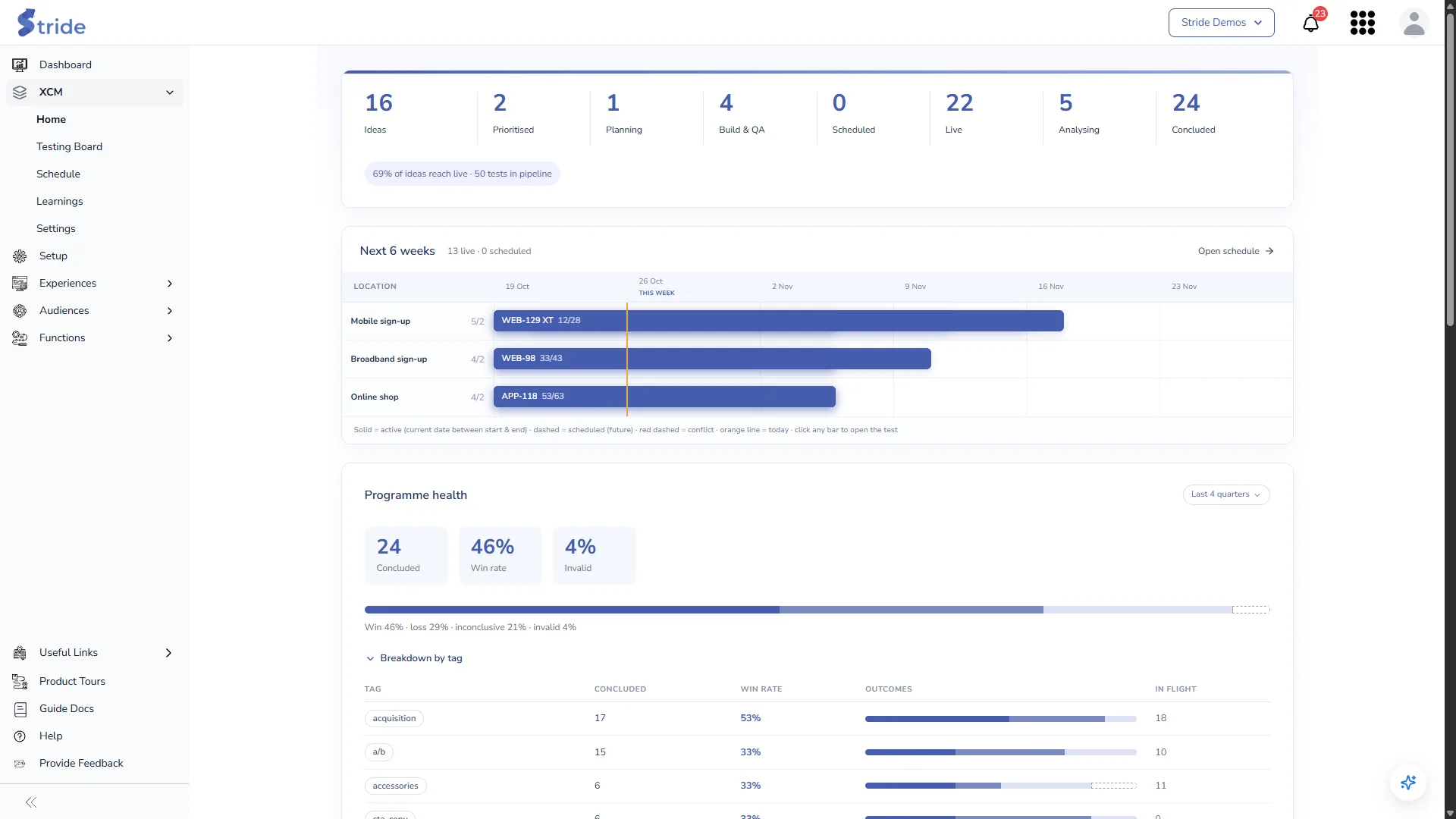
- Pipeline: the number of tests at each stage, the share of ideas that reach Live, and how many tests are in the pipeline (concluded tests aren’t counted).
- Next 6 weeks: a preview of the Schedule. Click Open schedule, or click a bar to open that test.
- Programme health: concluded tests, win rate and the share that were invalid, for Last 4 weeks, Last quarter, Last 2 quarters or Last 4 quarters. Breakdown by tag shows the same per tag, with the number of tests still in flight.
How a test moves through XCM #
A test is in one of eight stages. Each stage is a column on the Testing Board. A test moves forward when you click the button at the bottom of a workflow step.
| Stage | Workflow step | Button that moves it on | Moves to |
|---|---|---|---|
| Ideas | 1 Idea | Send to prioritisation | Prioritised |
| Prioritised | 2 Priority | Accept — Plan | Planning |
| Planning | 3 Plan | Send to build | Build & QA |
| Build & QA | 4 Build & QA | Mark ready | Scheduled |
| Scheduled | 5 Schedule | Schedule go-live | Live |
| Live | 5 Schedule | Next | (stays Live) |
| Analysing | 6 Result | Conclude test | Concluded |
| Concluded | 6 Result | Back to board | n/a |
- Buttons only move a test forward. Going back to an earlier step to edit it doesn’t change the stage.
- Analysing isn’t set by a button. Drag the card into the Analysing column when the test has stopped and you’re reading the results.
What to set up first #
Before your team adds tests, set up these in XCM → Settings:
- Tags, such as
checkout,cta-copyora/b. They power the board filter, similar past tests and the win rates on the Priority step. - Location fields: where a test runs, for example a funnel, a URL pattern and a component. They drive the conflict checks and the lanes on the Schedule.
- Checklists: the QA items every test must pass in staging and production.


