

Billing & Subscription is where you manage payment cards, download invoices, request refunds and cancel. Upgrades go through Stripe checkout from the pricing page.
Who can do this
Billing and upgrades are for Owners. You reach them from My Plan, which only Owners see.
Billing & Subscription #
Open it from My Plan → Actions → Manage Billing & Transactions.
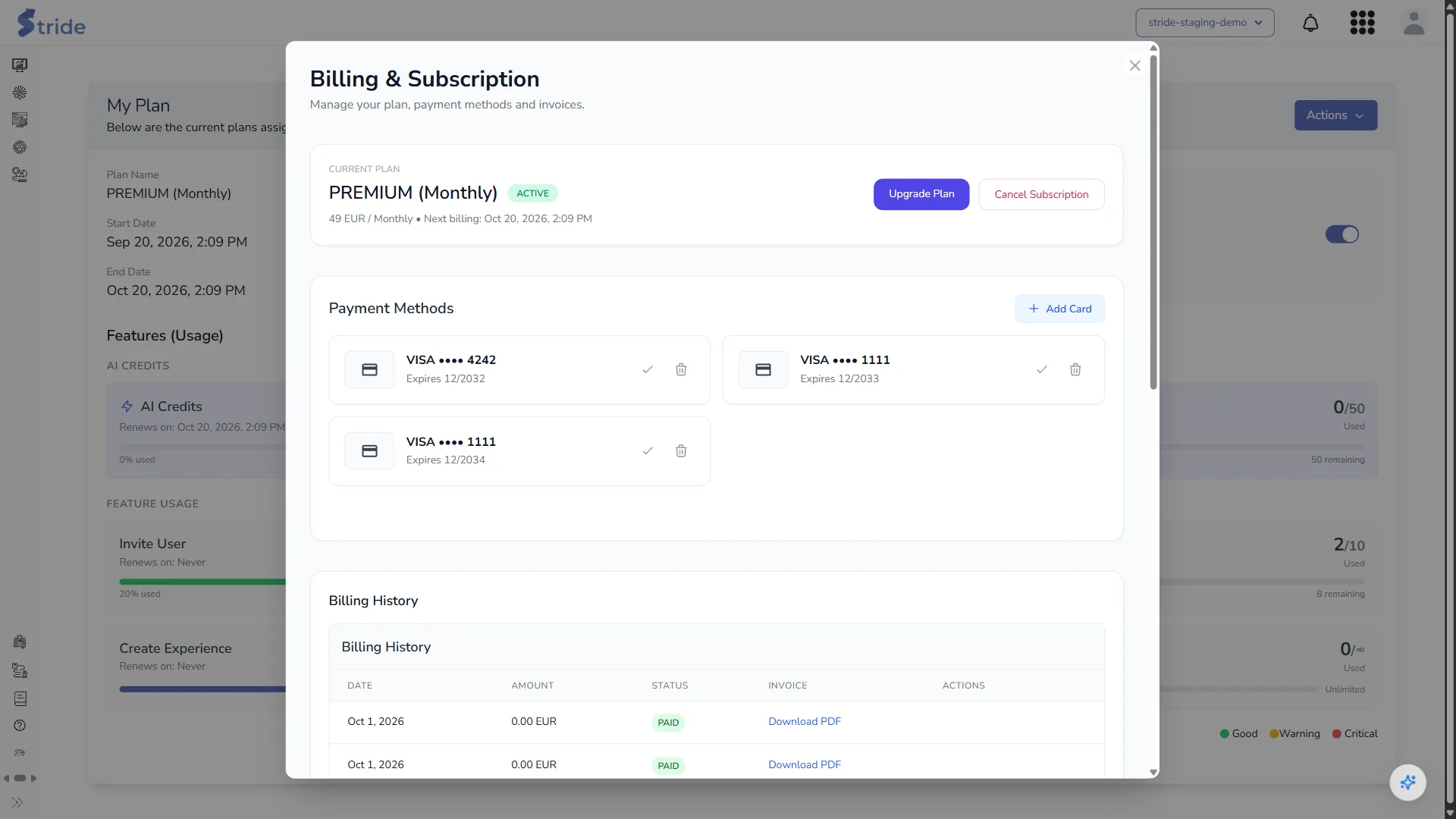
- Current Plan: the plan, its status, price, billing period and Next billing date, with Upgrade Plan and Cancel Subscription.
- Payment Methods: your saved cards.
- Billing History: each invoice with its date, amount and status.
Payments are handled by Stripe. Stride never stores full card numbers.
Payment methods #
- Click Add Card, enter the card details in the Stripe form and click Save Card.
- To change which card is charged, click Make Default on another card.
- To delete a card, click Remove Card and confirm.
Invoices and refunds #
In Billing History, click Download PDF to download an invoice. Paid invoices also have Request Refund.
Changes live systems
Request Refund refunds the payment through Stripe as soon as you confirm the prompt. There is no further review step.
Cancel your subscription #
- Click Cancel Subscription (here or in My Plan → Actions).
- Confirm with Cancel Subscription.
Changes live systems
Cancelling ends the paid subscription. You keep access until the end of the current billing period.
Upgrade your plan #
+ Upgrade Plan (or Upgrade Plan) opens the pricing page. Choose Monthly or Yearly; yearly billing saves up to 20%. If your plan includes AI features, a Top-ups tab sells extra AI credits.
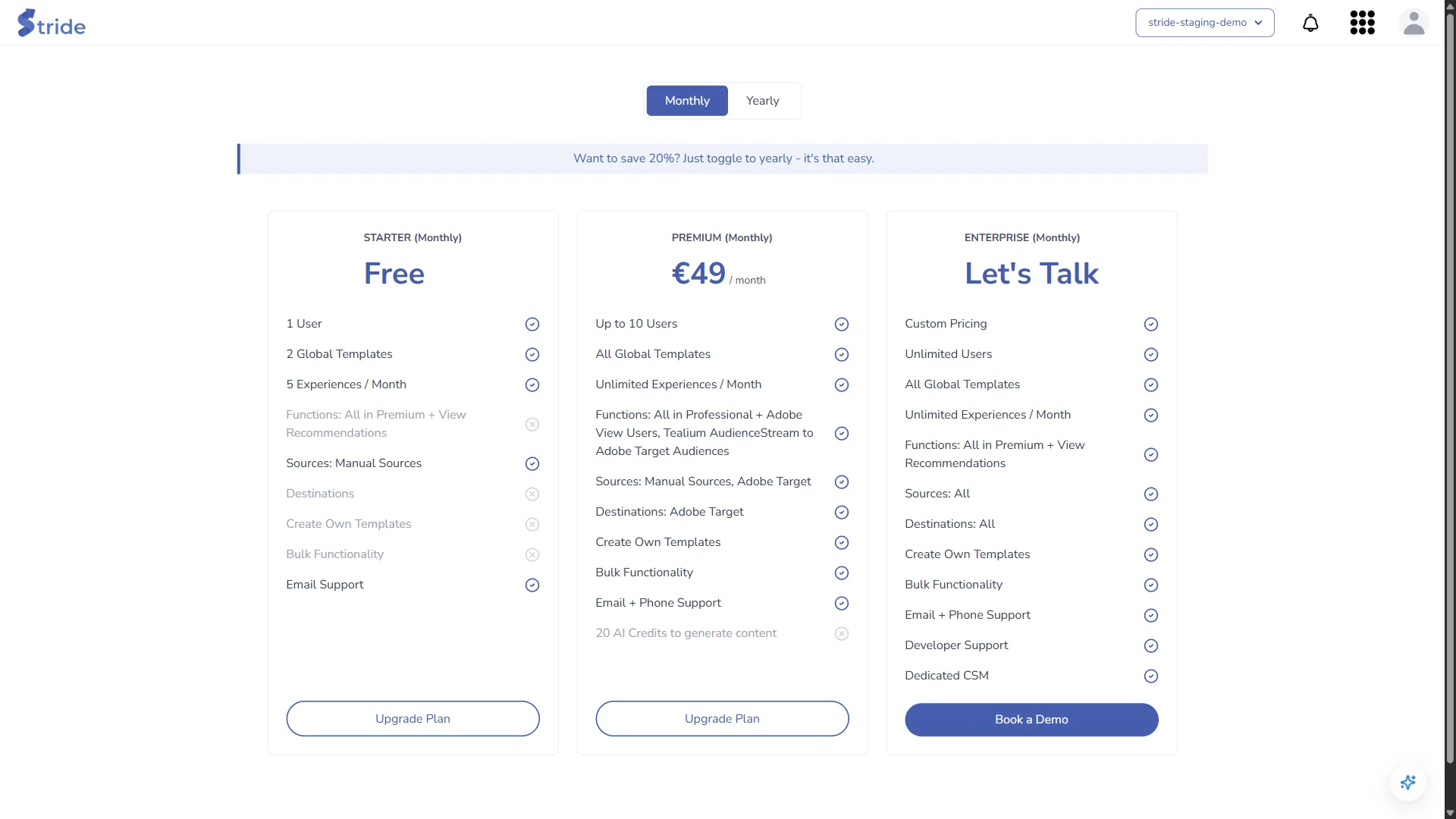
At the time of writing, the pricing page offers:
| Starter | Premium | Enterprise | |
|---|---|---|---|
| Price | Free | €49 / month | Custom |
| Users | 1 | Up to 10 | Unlimited |
| Global templates | 2 | All | All |
| Experiences | 5 per month | Unlimited | Unlimited |
| Create your own templates and bulk actions | No | Yes | Yes |
| Sources / destinations | Manual | Manual + Adobe Target | All |
| Support | Email + phone | Email + phone, developer support, dedicated CSM |
Note
Plans, prices and limits may change; the pricing page and My Plan always show the current ones, including your AI credit allowance.
- Click Upgrade Plan under a plan to go to Stripe checkout, or Book a Demo for Enterprise.
Changes live systems
Stripe checkout takes a real payment from the card you enter.
- Pay in Stripe. You then return to Stride, which shows Payment success, Processing or Failed.
- The new plan and its limits apply as soon as the payment is confirmed.
Moving to a plan with a lower user limit blocks members of your organisation; see Invite a user.


