

Check your Adobe Target setup, publish the draft to make it live, then run the feed on demand and read the result of each run.
Before you publish #
The Schedule & delivery tab shows this Adobe Target checklist. Work through it before your first publish:
- Under Setup → Adobe IO, the integration has Adobe Target enabled, a tenant name, and a product profile that can edit Target (Editor or Approver). See Connect Adobe.
- Choose the Adobe Target connection and Target environment on the Schedule & delivery tab, then publish.
- If Target also has a URL feed for these products, delete or deactivate it, so the two don’t overwrite each other.
- After the first run, check a few products in Target under Recommendations → Catalog Search in the chosen environment, or with Manage Recommendation.
- Make sure your site sends the same
entity.idvalues on product pages as the feed’s key field. - Add the inclusion rule inventory > 0 to your criteria, so unavailable products aren’t recommended.
- Use the custom attributes (lists, numbered columns or variants JSON) in your designs.
Draft and publish #
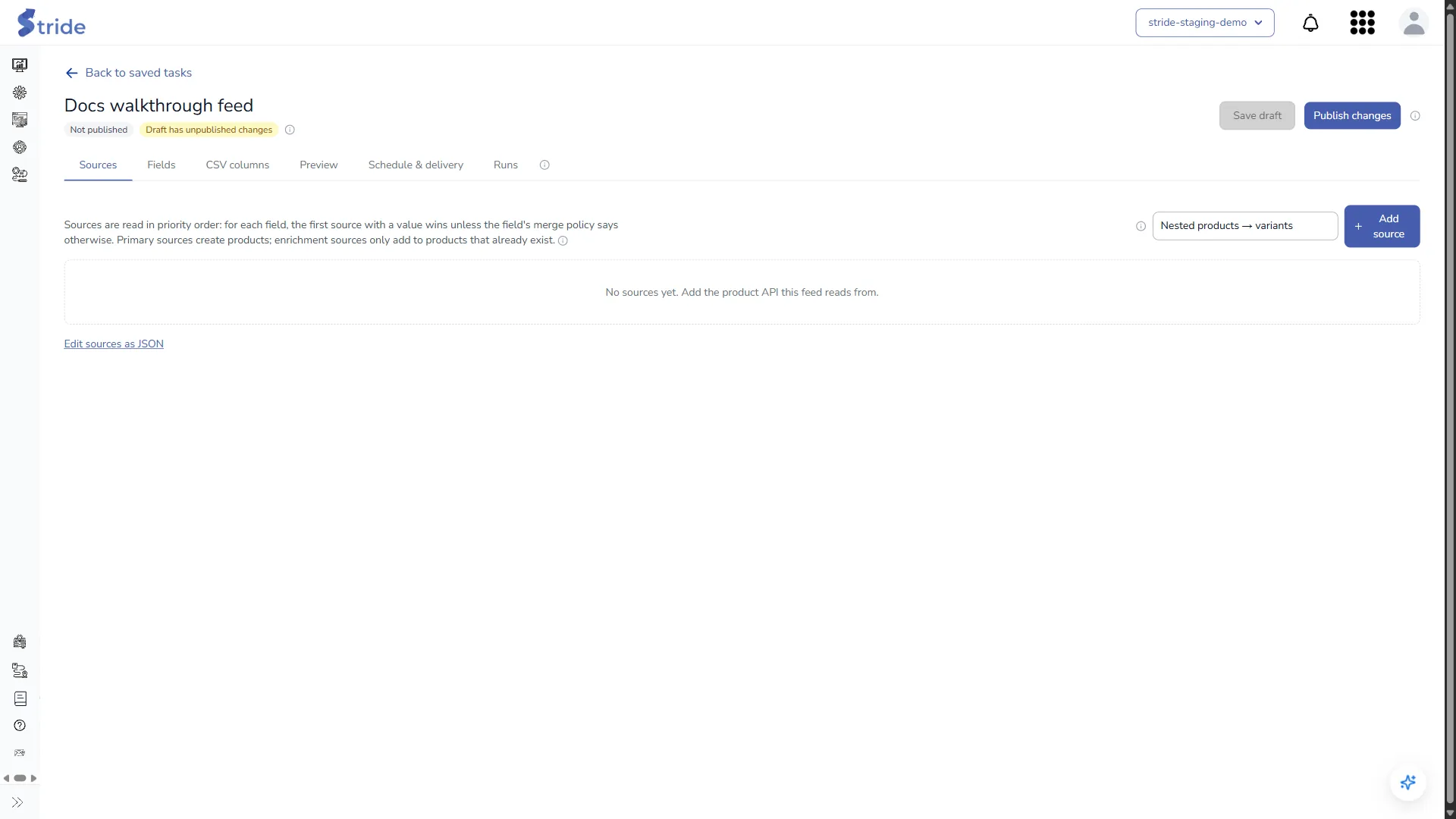
- Click Save draft to store your changes. This doesn’t affect the published feed, and drafts are saved even if they have validation errors.
- Click Publish changes. Stride validates the draft, checks the Adobe Target connection, makes the draft live and starts a build.
Changes live systems
Publish changes builds the feed and pushes every product into the chosen Target environment straight away.
If the draft has errors, publishing stops with “The draft has errors. Fix them before publishing.” If the feed was published from somewhere else while you were editing, a Can’t publish yet message asks you to reload the page to see the latest version.
Once a feed has been published, Discard draft replaces the draft with the published configuration. Click Discard to confirm; unpublished changes are lost.
If you leave the editor with unsaved changes, Stride asks first. Click Leave without saving to discard them.
Runs tab #

Run now builds and pushes the published feed immediately. It is disabled until the feed has been published (“Publish the feed to start building it.”) and while a run is in progress.
Changes live systems
Run now pushes every product into the chosen Target environment, even if the feed is paused.
Each run shows:
- the outcome, trigger, product and invalid-row counts, and duration
- the Adobe Target push: pushed, partial or failed, with how many products were saved, sent with 0 inventory, deleted, not sent or rejected, and why Target rejected them
- a table of sources, the guardrail results and the column fill rate
- issues, with up to 100 invalid rows
Runs are kept for 90 days. Download current CSV, and Roll back on published runs, stay disabled, because Stride doesn’t store CSV files.
To stop scheduled builds without deleting the feed, turn off Feed active; see Feed status. Deleting the feed’s saved task deletes the feed and its run history; see Manage saved and recurring tasks.


