

The Tealium Data Layer Repository function crawls your website with a real browser, records the Tealium data layer (utag) and the Adobe Analytics variables on every page, and checks the values against your rules, so you catch broken tracking before it reaches your reports.
Tealium Data Layer Repository #
Set up the crawl #
- Go to Functions and open Tealium Data Layer Repository.
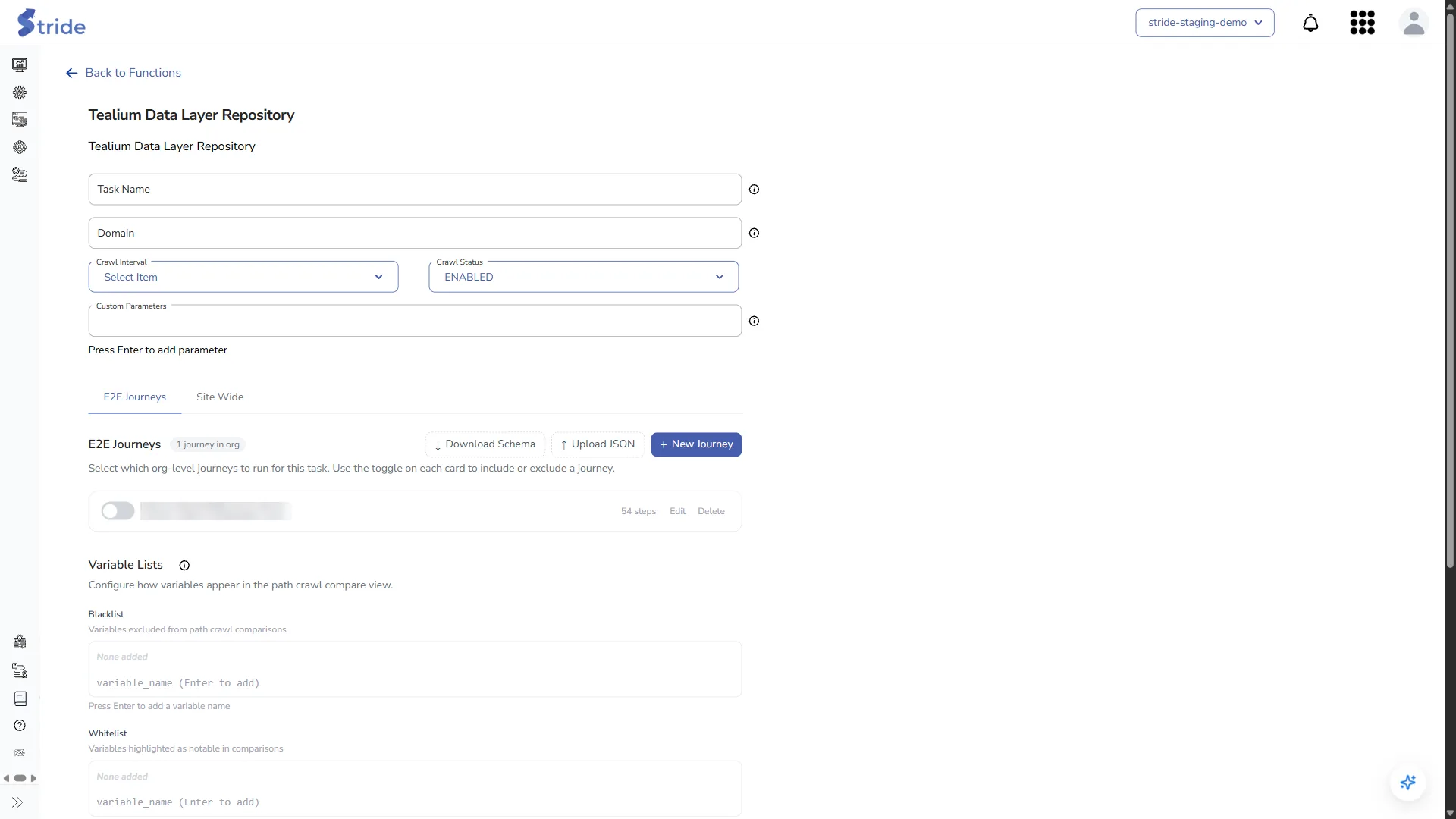
- Enter a Task Name.
- Enter the Domain: the site to crawl.
- Set the Crawl Interval and the Crawl Status (ENABLED or DISABLED).
Changes live systems
While the crawl is enabled, the crawler visits your live site with a real browser on the schedule you set. It only intercepts tracking when it adds its own test cookie, so real visitors aren’t affected, but it does send traffic to your site.
- Optionally, add Custom Parameters: extra query parameters added to each URL. Press Enter after each one. Manage mapping & visibility opens Manage Field Visibility.
Add journeys #
On the E2E Journeys tab, set up scripted user journeys (for example a sign-up form) that the crawler follows step by step.
- Turn a journey on to include it in this task.
- + New Journey builds a journey, Upload JSON imports one, and Download Schema gets the JSON format.
- Variable Lists: a Blacklist of variables to leave out of comparisons, and a Whitelist of variables to highlight when they change.
- Path Crawl Notifications: add the Recipient Emails, then tick when to email them: An error occurred when running the path, A whitelisted variable was changed or The path ran successfully with no changes.
Add validation rules #
On the Site Wide tab, Data Validation Rules are checked automatically after each crawl. Filter the list by All, Global or Page Level.
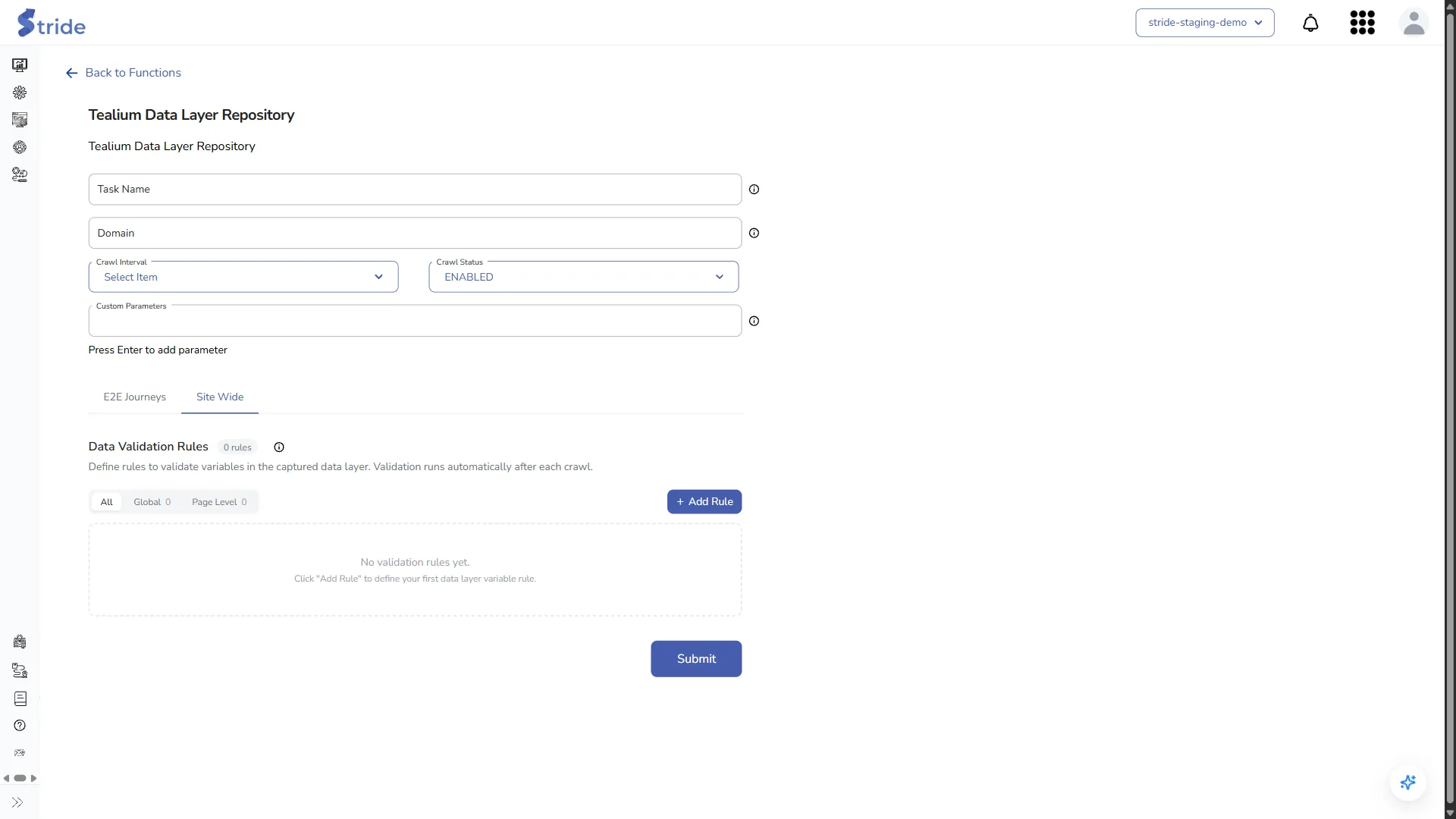
- Click + Add Rule.
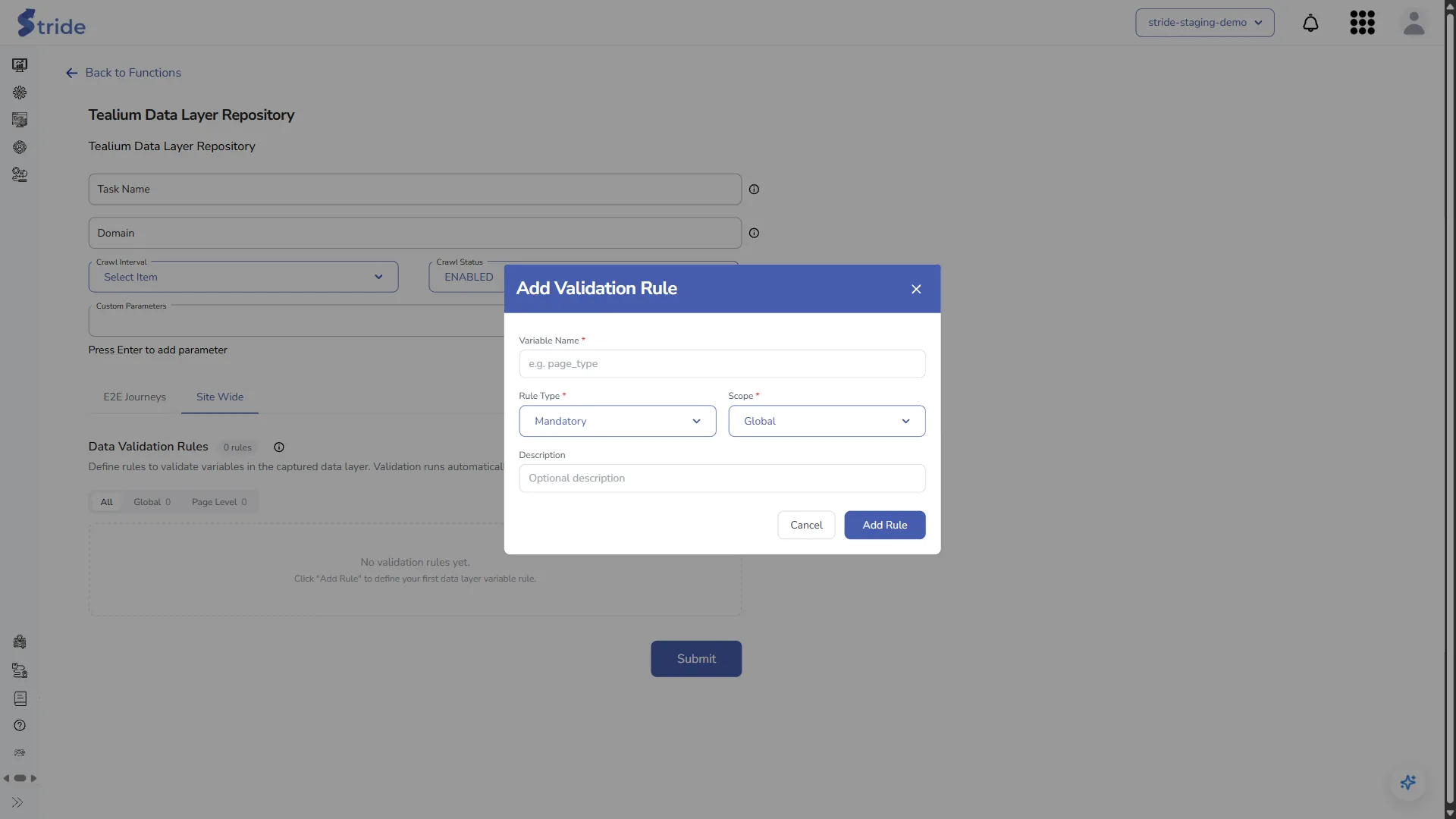
- Enter the Variable Name, for example
page_type. - Choose the Rule Type: Mandatory (must be present), One of Values (must be one of a list) or Regex (must match a pattern).
- Choose the Scope: Global (every page) or Page Level. For a page-level rule, say which pages it applies to: Where variable is present, Exact Page URLs or URL Regex Patterns.
- Optionally, add a Description, then save the rule.
Save and read the report #
Click Submit. Stride saves the task and runs a first validation.
To read the results, go to Functions → Saved Tasks, open the task’s ⋮ menu and choose View Report.
- The Site Crawl tab lists each page with a Snapshot (page screenshot), its Validation Status and Validation Report, the Changes since the last crawl, and when it was last captured.
- The Path Crawls tab shows your journeys. Pick a Baseline (A): run and a run to Compare with (B): to see what changed.
- View Changes compares two crawls, and Download Changes Report saves the differences. Validate All runs your validation rules again.
- Run Crawler starts a crawl straight away.
Changes live systems
Run Crawler visits your live site straight away, outside the schedule.
The task is listed under Saved Tasks, where you can edit, duplicate or delete it.


