

The Config JSON is the list of fields people fill in when they create an experience from a template. You can write it as JSON in the template editor, or edit it in a grid.
Config JSON #
Open the Config JSON panel in the template editor. It holds a list of fields, and each field looks like this:

{
  "order": 1,
  "exp_json_field": "headline",
  "id": "headline",
  "input": {
    "input_label": "Headline",
    "input_type": "text",
    "input_default_value": "Welcome",
    "input_helptext": "Shown as the main title"
  },
  "rules": { "is_mandatory": true, "min_length": "", "max_length": "" }
}| Property | Meaning |
|---|---|
order | The field’s position in the form. |
exp_json_field and id | The key the value is saved under in the experience JSON. Use dot paths for nested values, such as title.text. The HTML inserts the value with ${template.<exp_json_field>}. |
input.input_label | The label on the form. It’s also the column heading in the bulk upload sample file. |
input.input_type | The kind of field. See Input types. |
input.input_default_value | The value the form starts with. Not used by upload fields. |
input.input_helptext | The help text shown by the field’s ⓘ icon. |
rules | is_mandatory, min_length and max_length. Stride checks them when someone saves an experience or uploads a CSV file, so content errors are caught in Stride rather than on your site. |
group (optional) | group_id, group_title and order. Fields with the same group_id appear together in a collapsible section of the form, and sections follow their order. |
Input types #
input_type | On the experience form |
|---|---|
text | A single line of text. |
number | A number. |
radio | A True / False choice. |
date | A date. |
color-picker | A colour or gradient picker. |
rich-textarea | Formatted text in a rich-text editor. |
url-textarea | A URL. |
dynamic-text | Text edited in a pop-up from the field’s icon. Its value is kept in input.dynamic_field. |
array | A list: people add as many values as they need. |
selector | A single line of text. |
static-options | A dropdown of the values in input.input_options. The default value must be one of them. |
upload | A file upload, stored in your default Contentful integration. Set input.platform to contentful; max_media_size (such as 5MB) and accepted_media_types (such as image/png) are optional. |
Edit in the grid editor #
- Click the pencil next to the Config JSON panel heading. The Config JSON window opens with one row per field.
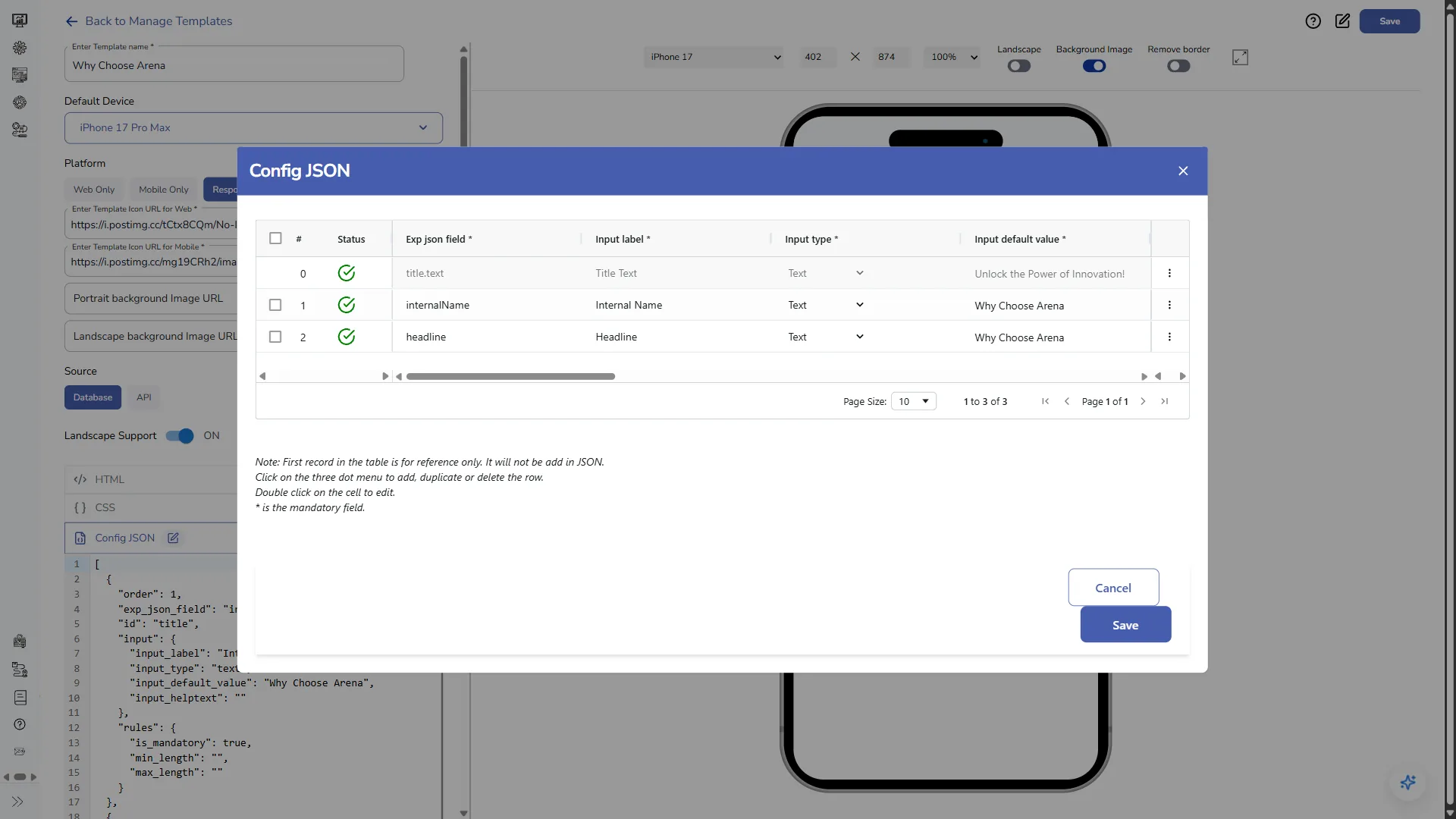
- Double-click a cell to edit it. Choose the Input type from its dropdown.
- Use ⋮ on a row to Duplicate Row, Add New Row or Delete Row. To delete several rows, tick them and click Delete.
- Check the Status column: a green tick means the row is valid.
- Click Save to write the grid back into the Config JSON panel, then click Save in the template editor to keep the change.
When you edit in the grid:
- The first row (row 0) is a reference row that shows an example field. It isn’t added to the JSON.
- Columns marked
*are required. Input default value is required when Is mandatory is on, except foruploadfields, which need a platform instead. static-optionsfields need at least one option, andorderandidare set for you from the row order and Exp json field.
JSON schema #
The JSON schema panel, next to Config JSON in the template editor, describes the JSON that experiences produce. With the Config JSON it decides the template type. For templates that render HTML, its config_obj_key names the object in the HTML that holds the form values.


